- Go to link: https://business.facebook.com/
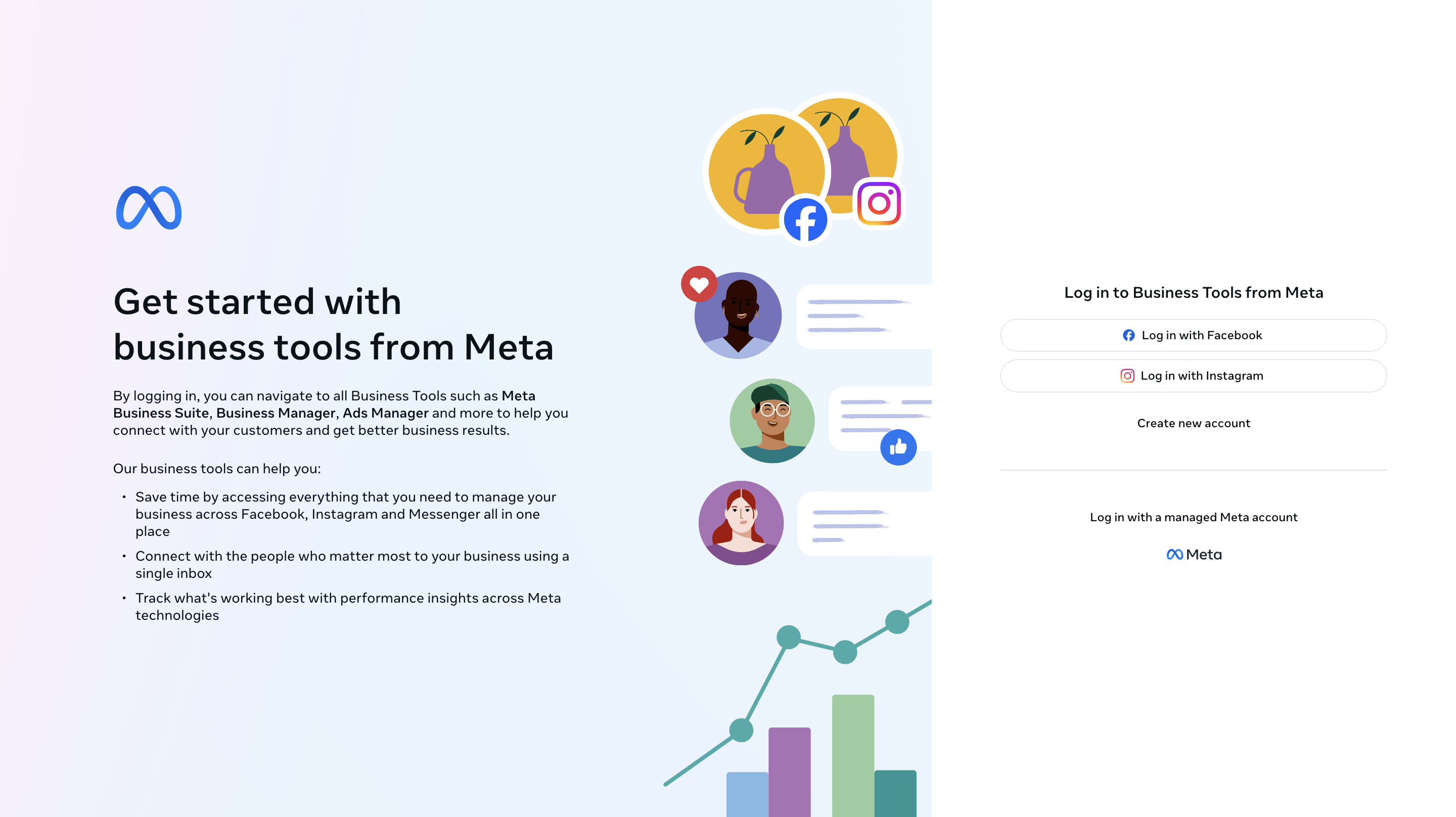
- Add your Business email address and click next.
- Add the business details
- Post this you will receive an email to verify your email address.
- Click Confirm now to verify your email address.
Then follow the instructions provided from the article to add store/locations.
Add permissions & assets to users
Once you have created your locations/stores - the user will need to be an admin and needs to have the below permissions added to ensure that you can connect the FB page to Synup.
Navigate to the business settings -> People ->Select a user from the panel that displays the user names -> Add assets -> Then select the asset displayed -> activate the permissions
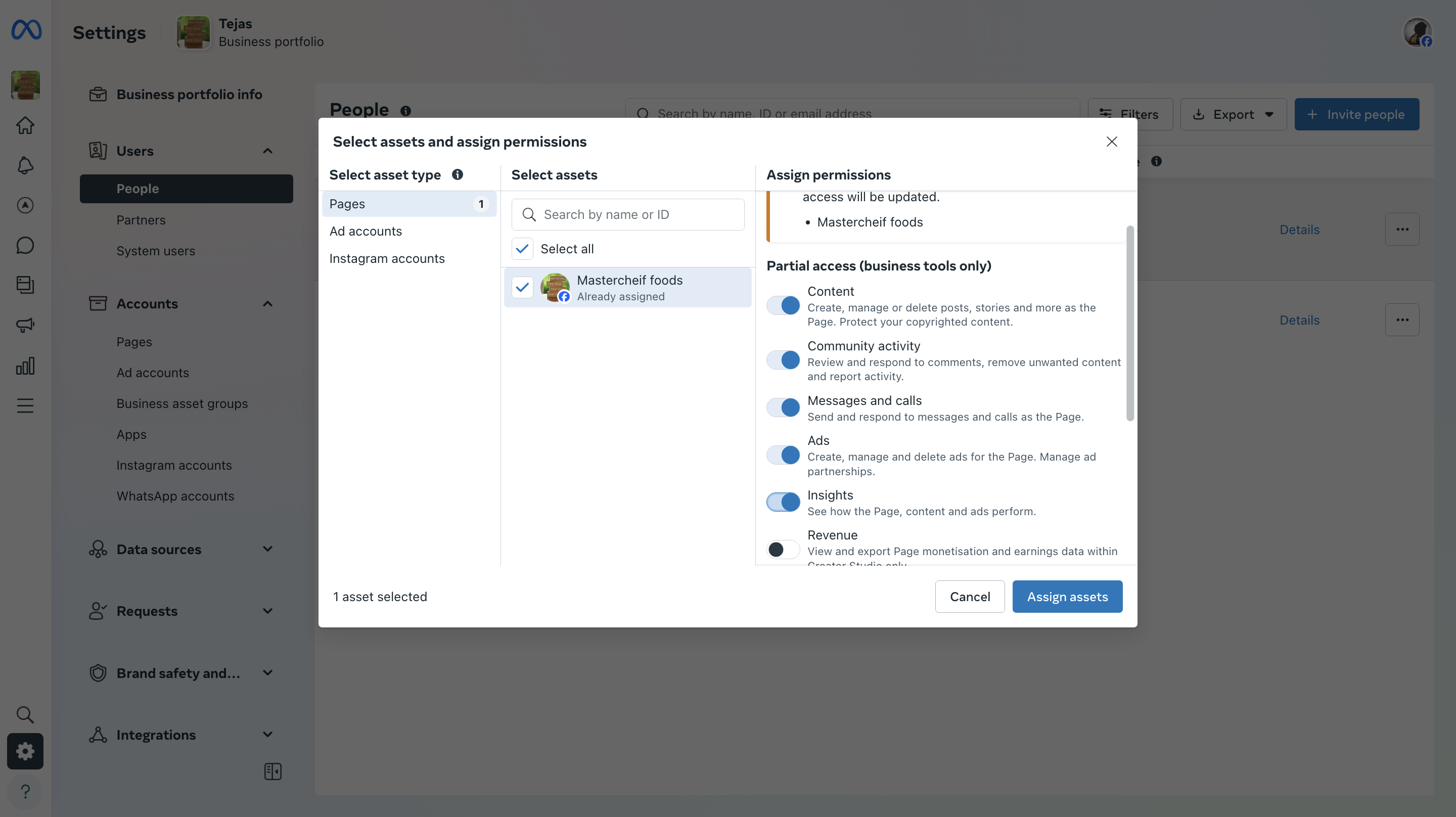
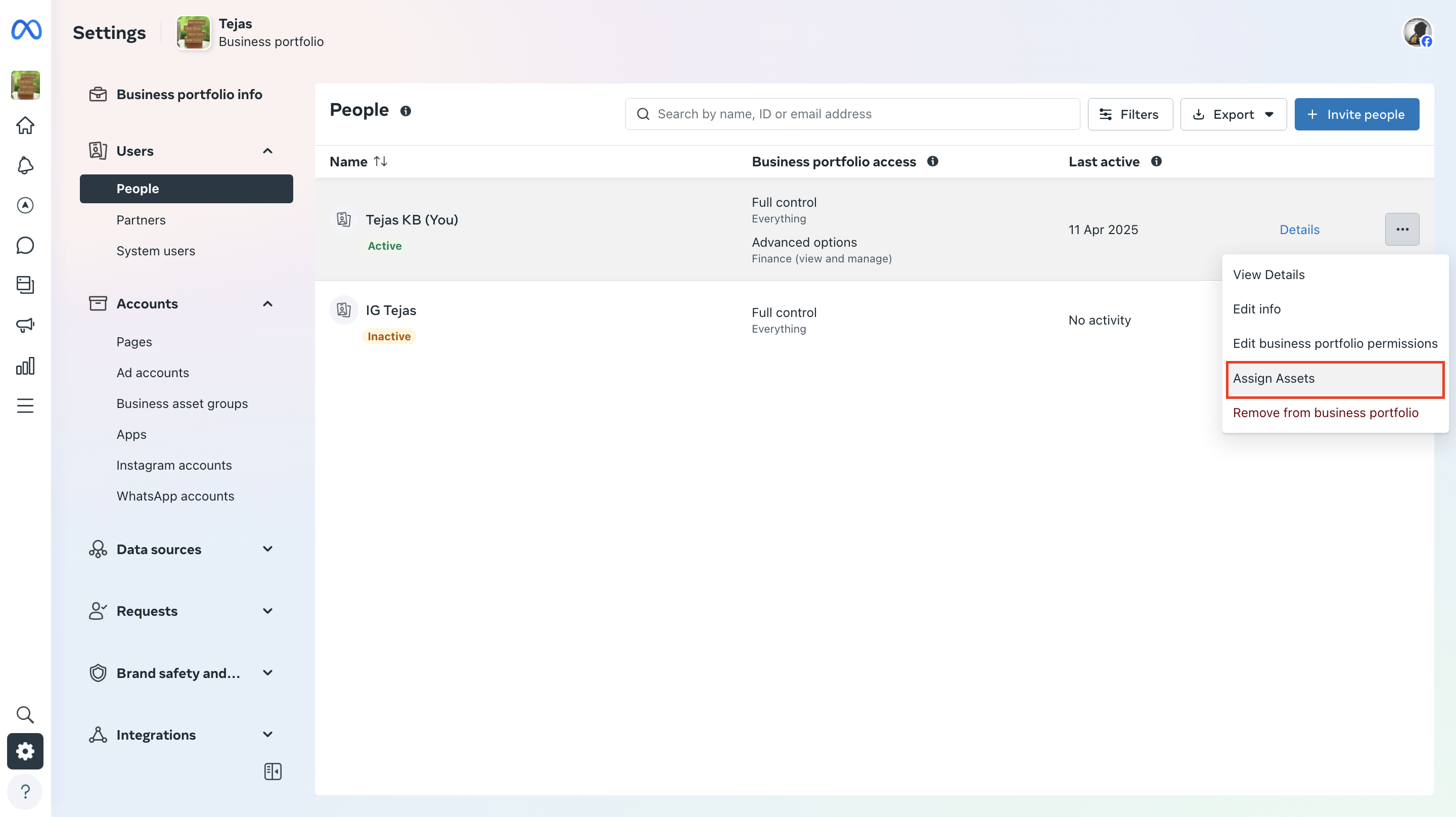
Note: if the mentioned permissions are not added, the Facebook pages will not show up when you try to connect them on the dashboard.
Once you have created a Facebook business manager account, learn how to add locations/shops/stores to this account here.