Create a new business on Google from the Dashboard
If you do not have an existing Google My Business Account/Listing for the mentioned Location. You can create one through the Synup Dashboard.
Follow the steps mentioned below. When you reach the connect option, GMB will not recognize/identify any location to connect as it does not exist. From here, select the Create a new business on Google option.

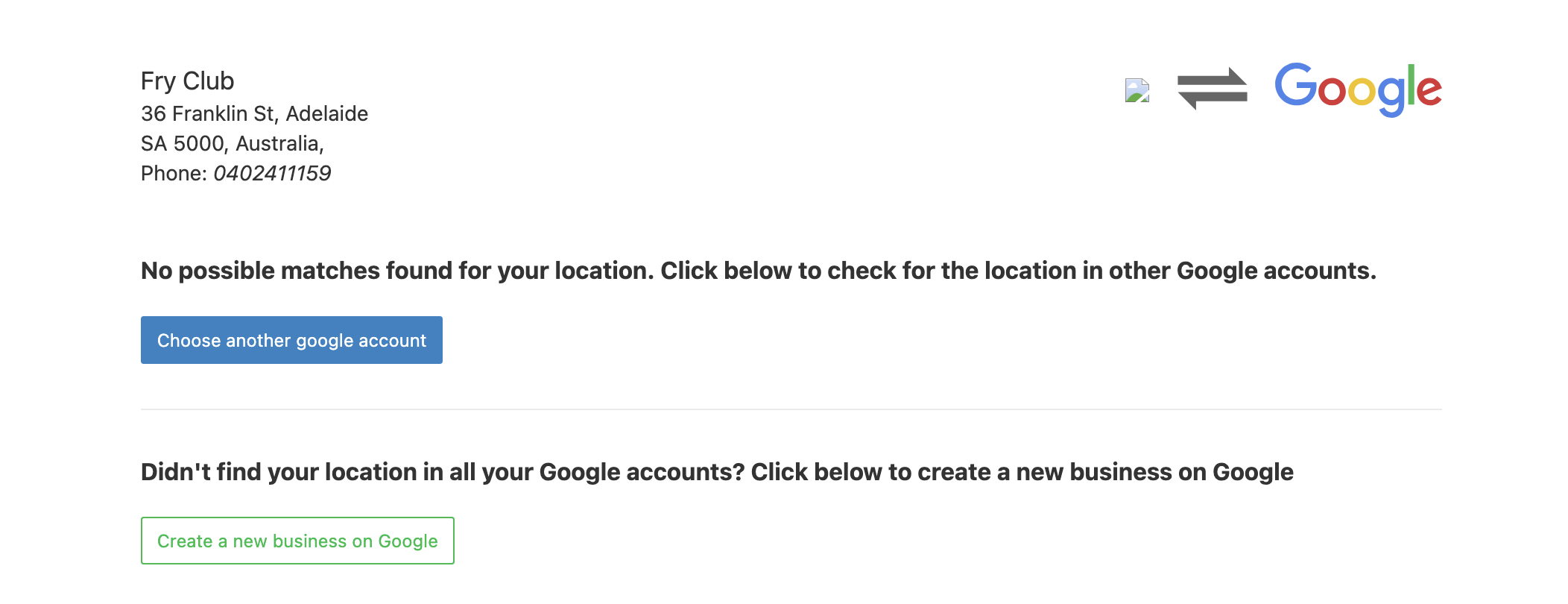
Once you do so, you will receive a new MyBusiness Account ID. Select the Account ID to proceed and click Create a new business on Google.
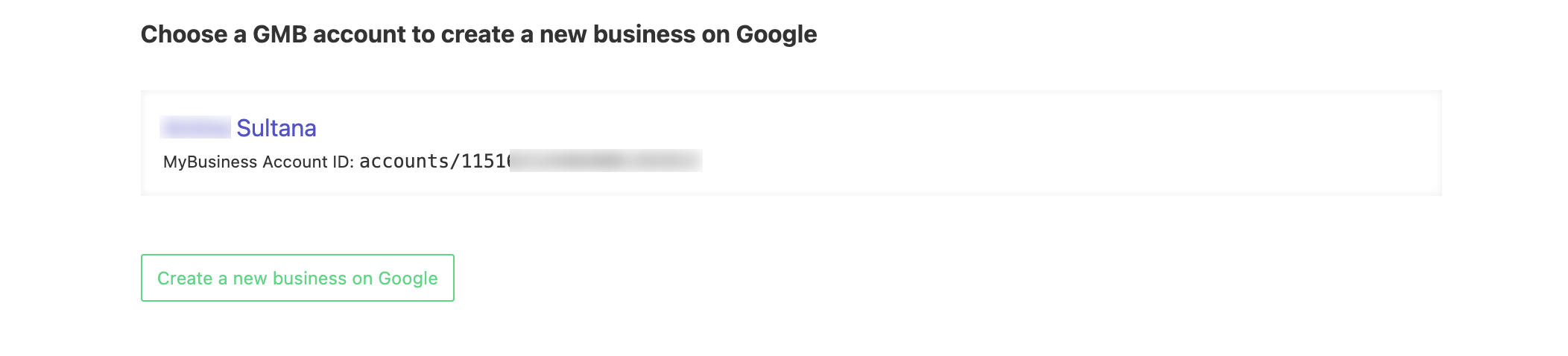
The Listing sync will be initiated. Your location data will sync within 72 hours after the GMB location verification is complete on GMB.
Meanwhile, until the GMB verification is yet to be completed, you will see the message “Please verify your listings on GoogleMyBusiness”, beside the listing.
Note: A verification process is mandatory when you create a new Business on Google before you connect it to the dashboard.
Your business listing will not go live until the business is verified.
If you face any connection issues, reach out to support@synup.com