You can create a custom attribute for multiple selected locations from the Location Manager.
Access your Location Manager from the Account Settings tab and select Locations to access your Location Manager.
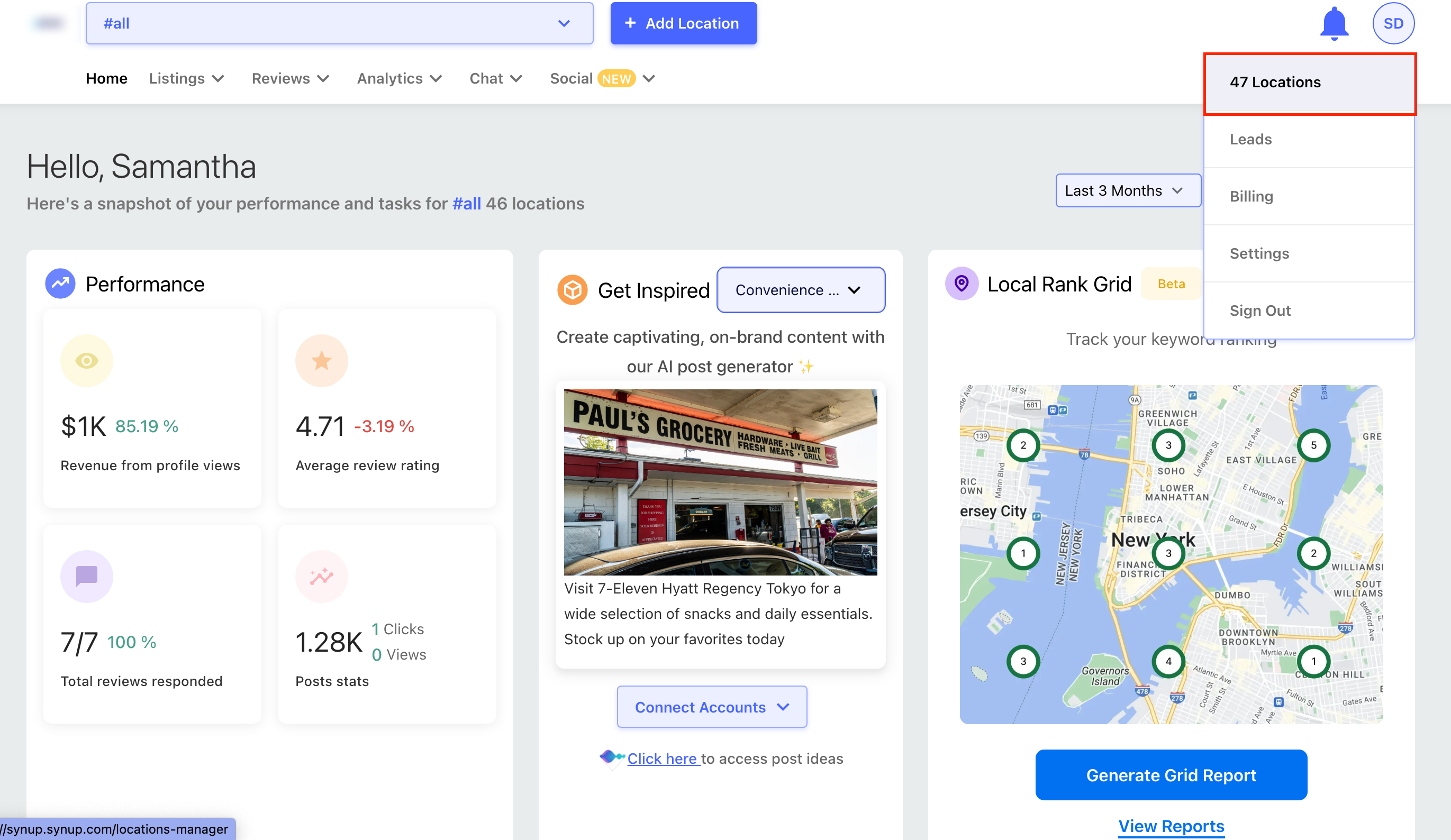
Alternatively, you can also access the Locations Manager from the Location Content tab, in the Listings navigation bar.
Now, select the locations to create a custom attribute by marking the checkboxes against the locations. Then click More Actions (three horizontal dots) and choose Add Custom Attribute.
Define the type of attribute you want to create:
|
Field Name |
Description |
|
Attribute Name |
The name you set for the attribute should be between 2-225 characters. For example, WiFi availability |
|
Attribute Description |
A description of your attribute. For example, This attribute will indicate if a location supports or does not support WiFi. |
|
Attribute Format |
Choose a format for your attribute. Learn more about attribute formats. |
|
Default Value |
You can choose to set a default value for the attribute, however, this is optional. |
|
Visible to |
Choose Selected Locations from the options. This will create the attribute only for the locations that you have selected. |
Now, click Save Attribute to create your attribute.