Receive instant notifications whenever a new review or review response is created across your locations. With the Webhook sub-feature enabled, Synup sends real-time data to a URL you specify — allowing you to integrate review events directly into your own systems, dashboards, or third-party tools.
Prerequisites:
- You must have the Webhook sub-feature enabled on your account. If you don't see the Webhooks URL field under Notification Settings, contact your account manager or Synup support to have it activated.
- You need Admin or Owner level access to configure account-level settings. See Understanding Roles and Permissions for details.
- You need a working webhook endpoint URL ready to receive POST requests from Synup.
Configuring Your Webhook URL:
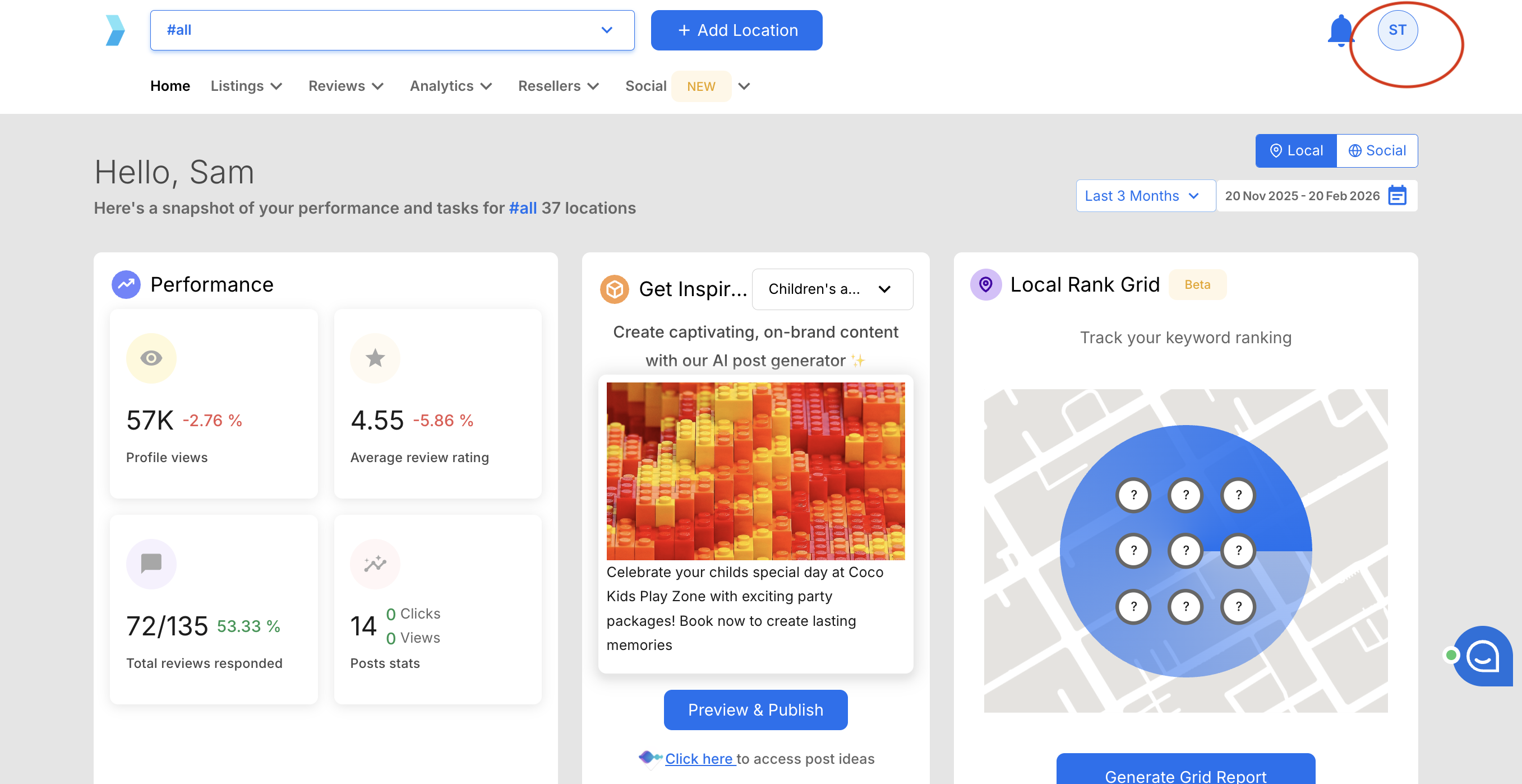
Step 1: Click your profile icon in the top-right corner of the Synup dashboard.
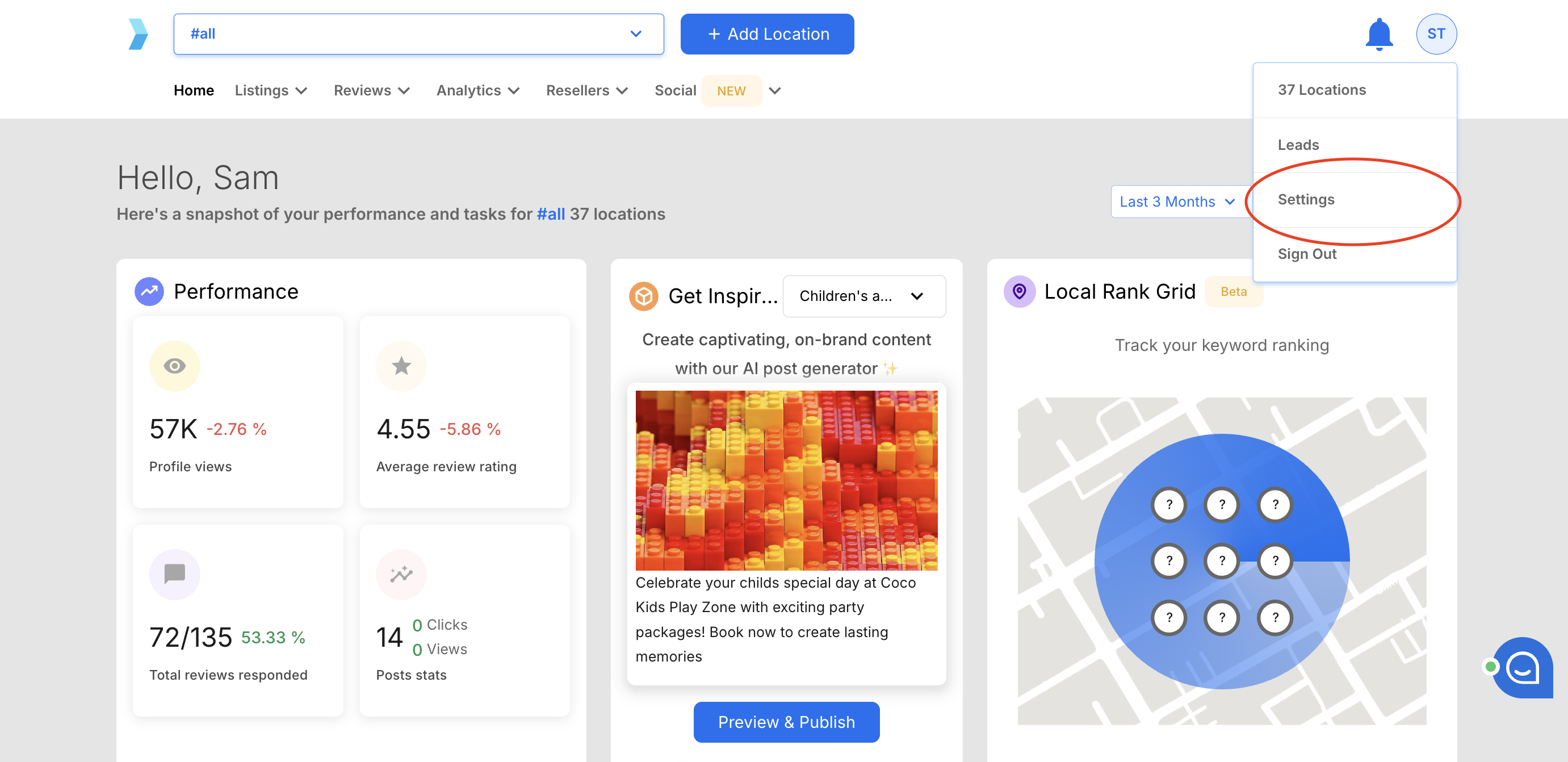
Step 2: Select Settings from the dropdown menu.
Step 3: Click Notification Settings in the left sidebar. You'll see it listed between People and Integrations.
Step 4: Confirm you are on the Local Email tab at the top of the page. The webhook configuration is located at the bottom of this view.
Step 5: Scroll down to the Webhooks URL section.
Step 6: Enter your webhook endpoint URL in the Update webhook URL field. This should be a publicly accessible URL that can accept incoming POST requests (e.g., https://yourapp.com/api/synup-webhooks).
Step 7: Click the Update button to save your webhook URL.