To streamline the process of adding locations for customers, we’ve developed a method to import locations directly from Google Business Profile. Along with adding locations individually or via CSV uploads, you can now simply use your connected Google account to add locations to Synup. This makes the process more efficient for onboarding new customers and upscaling existing customers.
For New Customers When a new user signs up, they can connect their Google Business Profile during the onboarding process to add locations seamlessly. Follow these steps:
Click on the "Add Location" button.
Select the plan the user is a part of or wants to enable.
Users will see two options to add a location:
Add from Google Business Profile
Manually add location
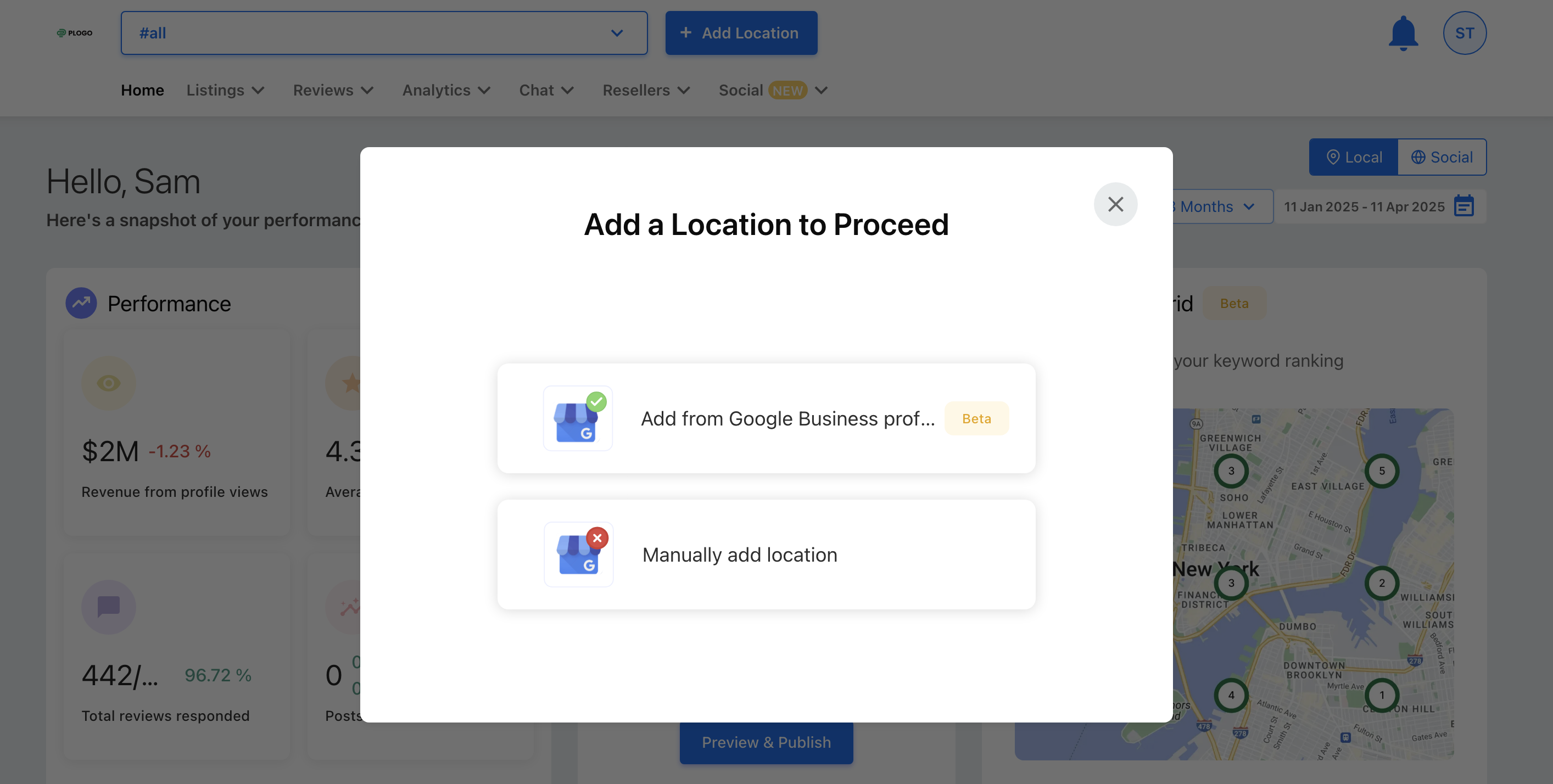
Click on "Add from Google Business Profile".
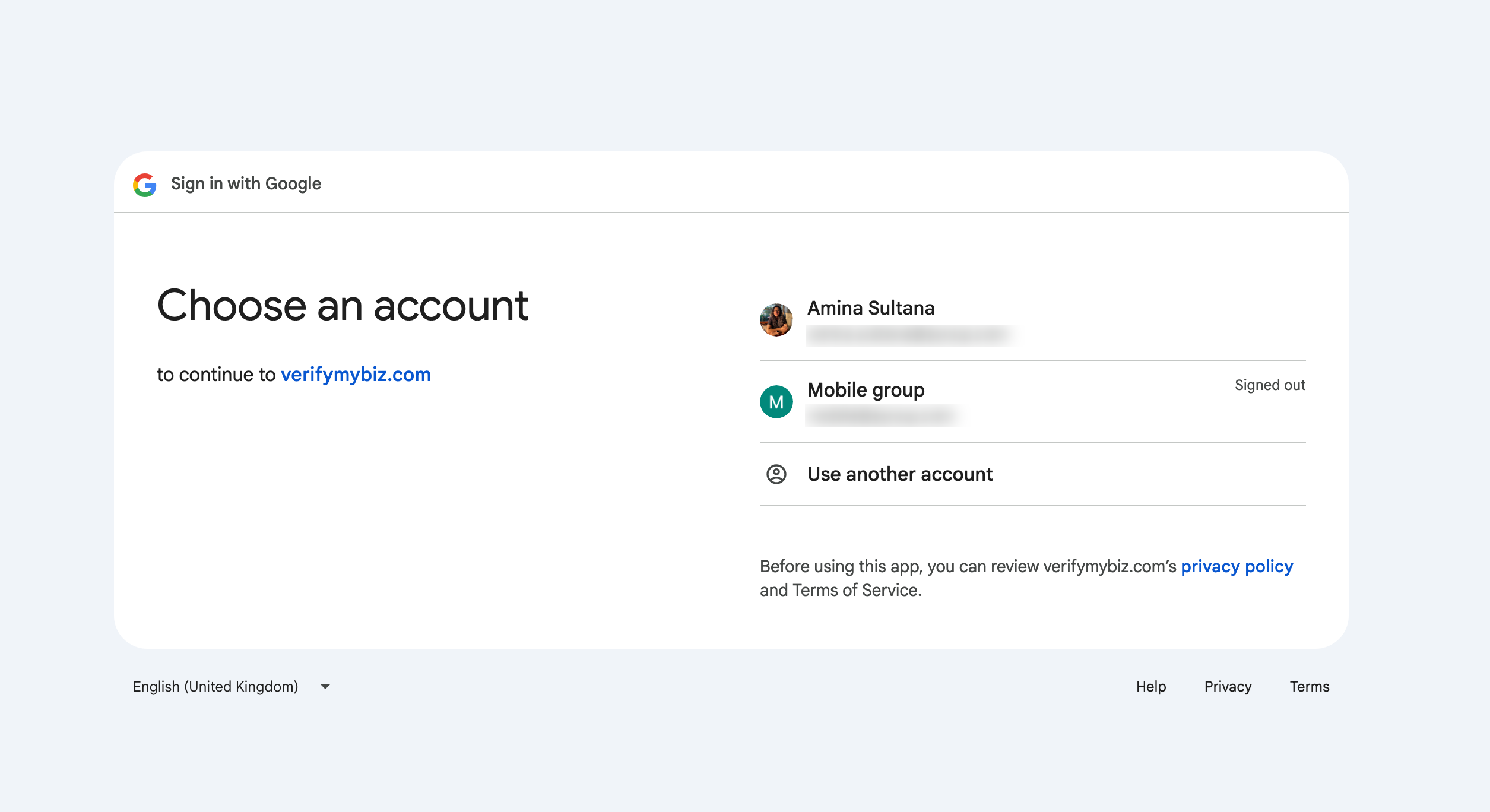
Add your Google Business Profile account that has the locations you want to add.
Select the locations you want to add to the platform.
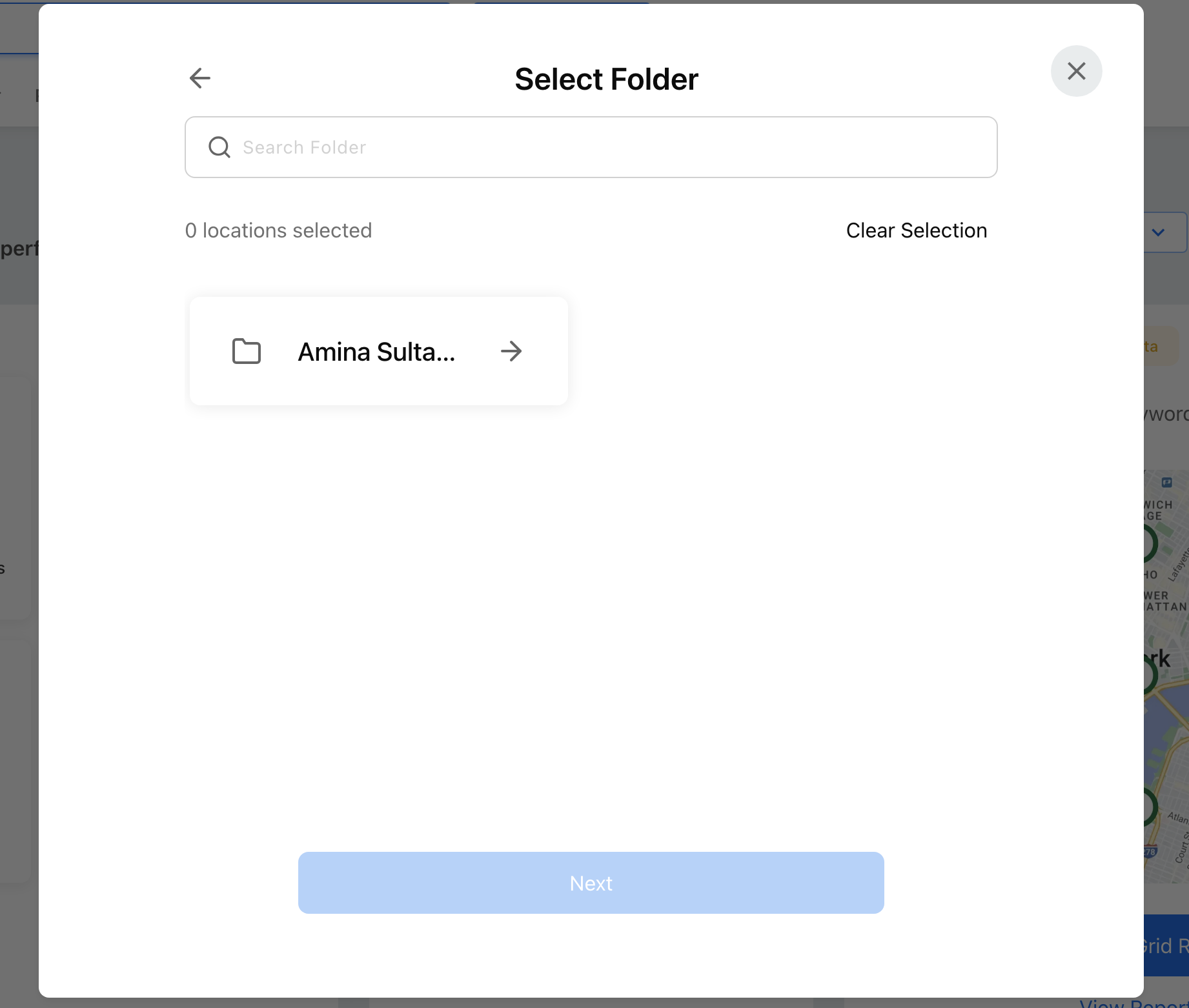
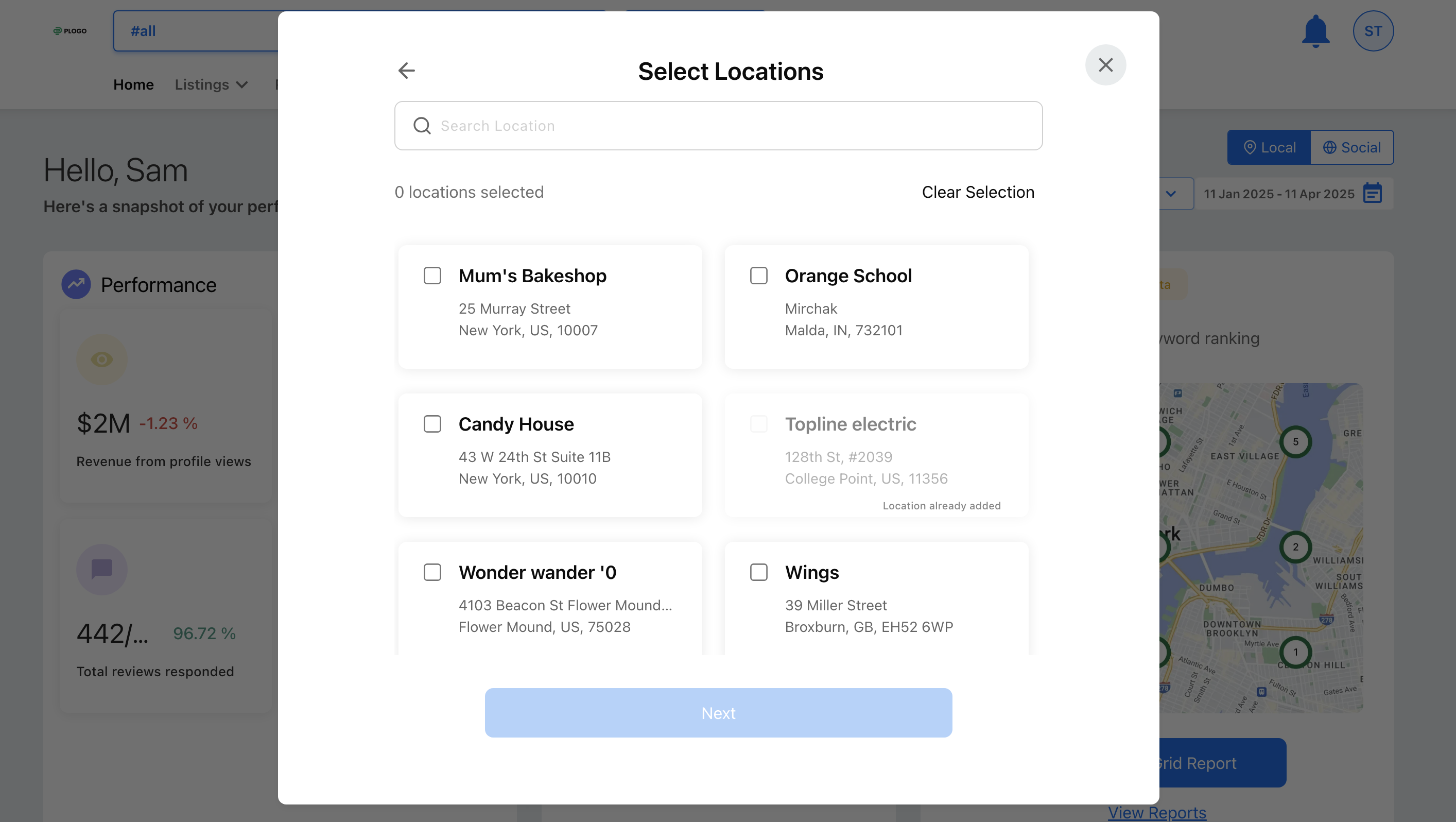
Click "Next" after selecting the locations.
For a single location, it takes about 30 seconds to create the location. For a large number of locations, it might take longer.
Receive notification: Once the locations are added, you will be notified through an in-app notification.
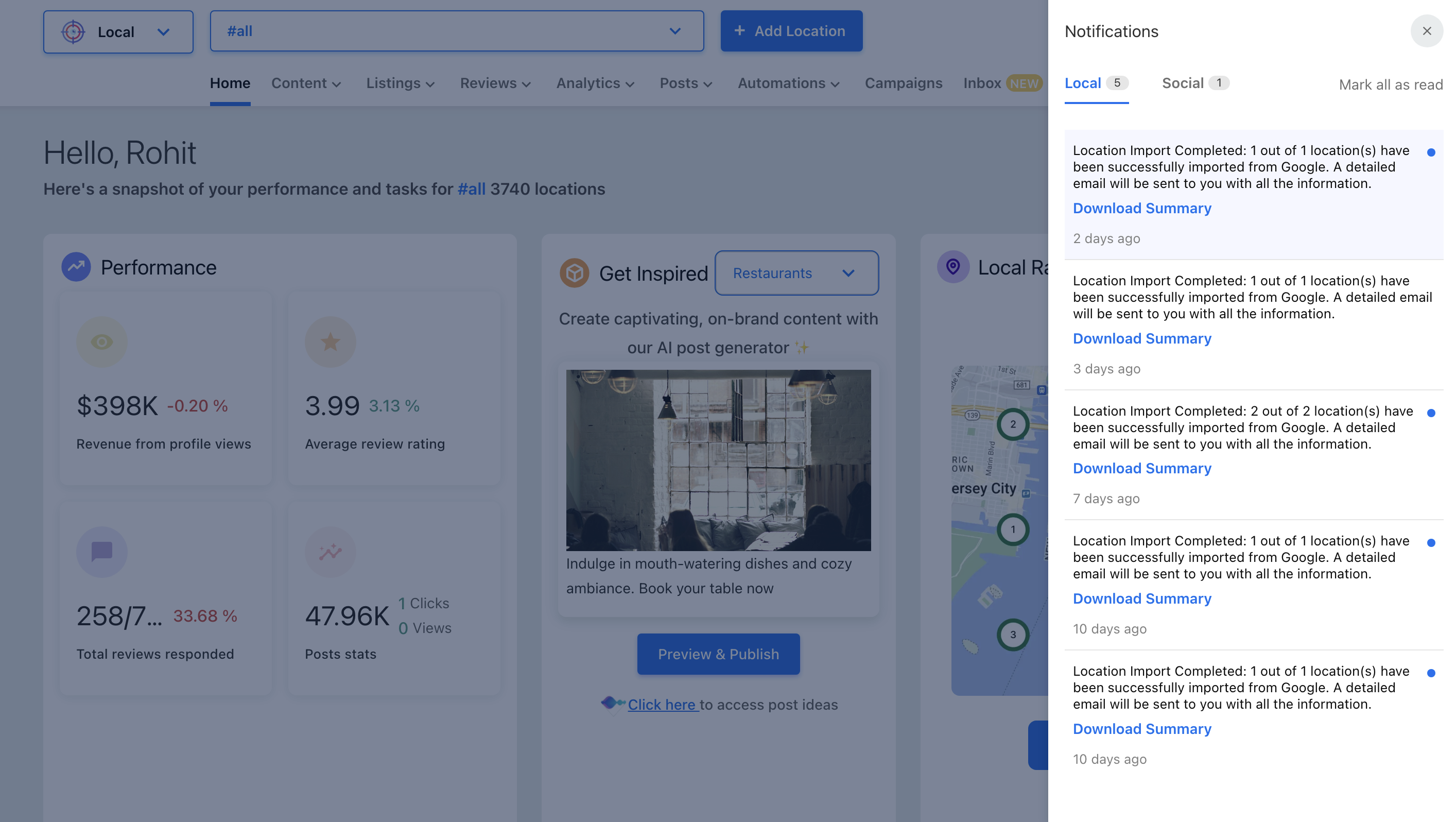
For Existing Customers
Existing customers can also add new locations from their Google Business Profile by following these steps:
Click on the "Add Location" button.
Select the plan the user is a part of or wants to enable for the first time.
Users will see two options to add a location:
Add from Google Business Profile
Manually add location
Click on "Add from Google Business Profile".
Select an existing connected Google accounts from which you want to add locations or connect a new Google account.
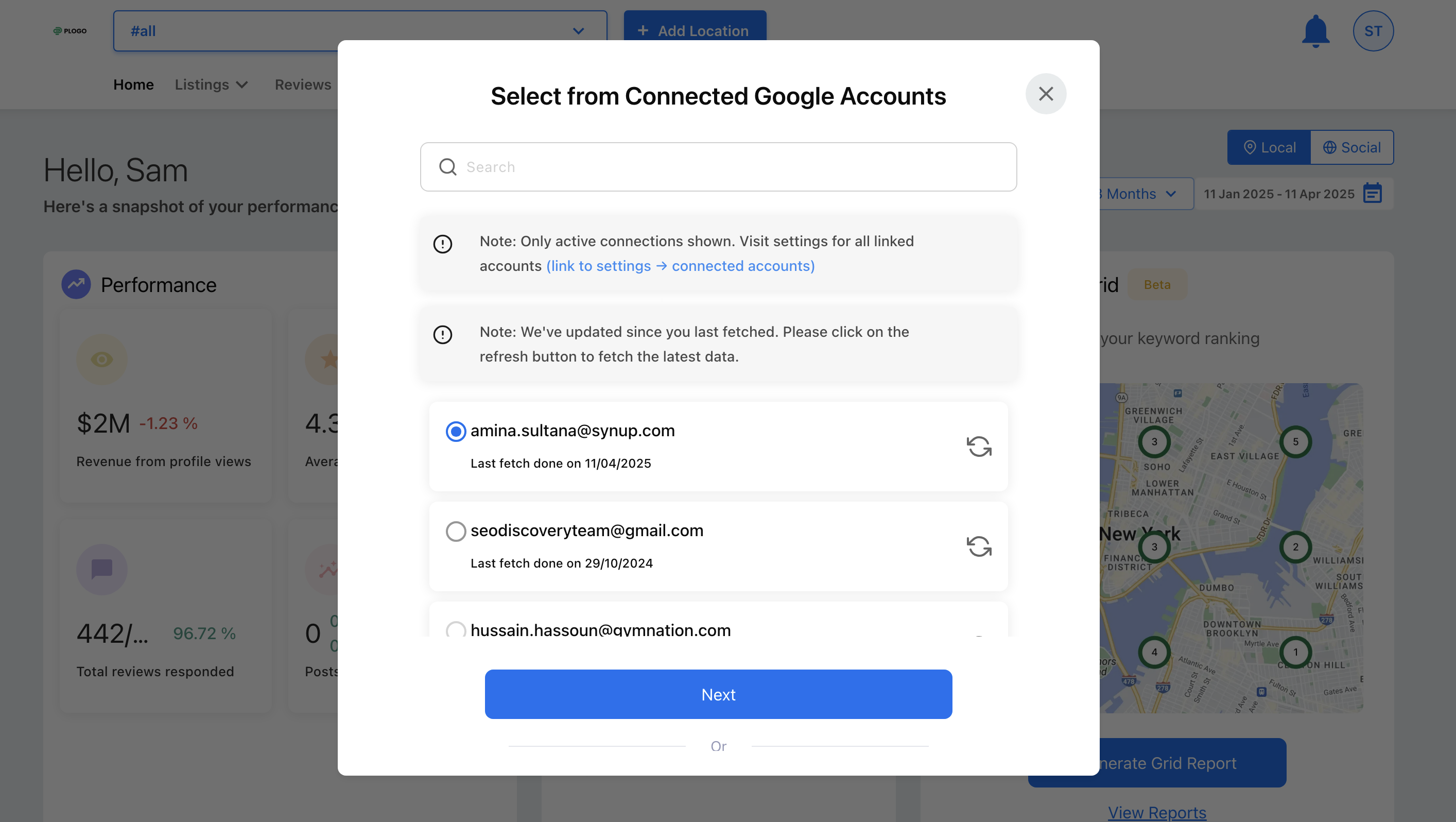
Select the locations you want to add to the platform.
Click "Next" after selecting the locations.
For a single location, it takes about 30 seconds to create the location. For a large number of locations, it might take longer.
Receive notification: Once the locations are added, you will be notified through an in-app notification.