To access your account setup, click the Account Setting Tab (the tag that displays your name) in the overhead navigation bar.
Account settings have two options to manage your account:
- My profile - Profile information of the admin of the account
- Company Profile - Profile information of the company
My Profile
The My Profile option is your user profile as an account owner that displays essential details like your name, email address, and account password.

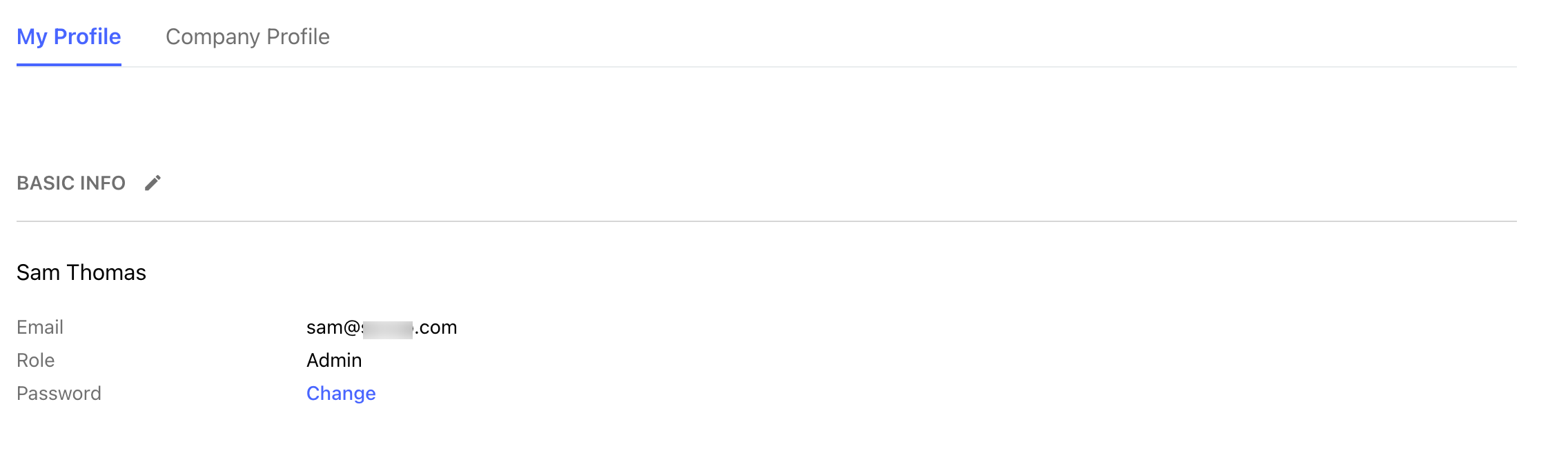
- Ensure that your email address entered here is verified.
- You can edit your details from this space by clicking the edit icon displayed at the top.
Company Profile
Complete your Company Profile by filling in the details for your company.
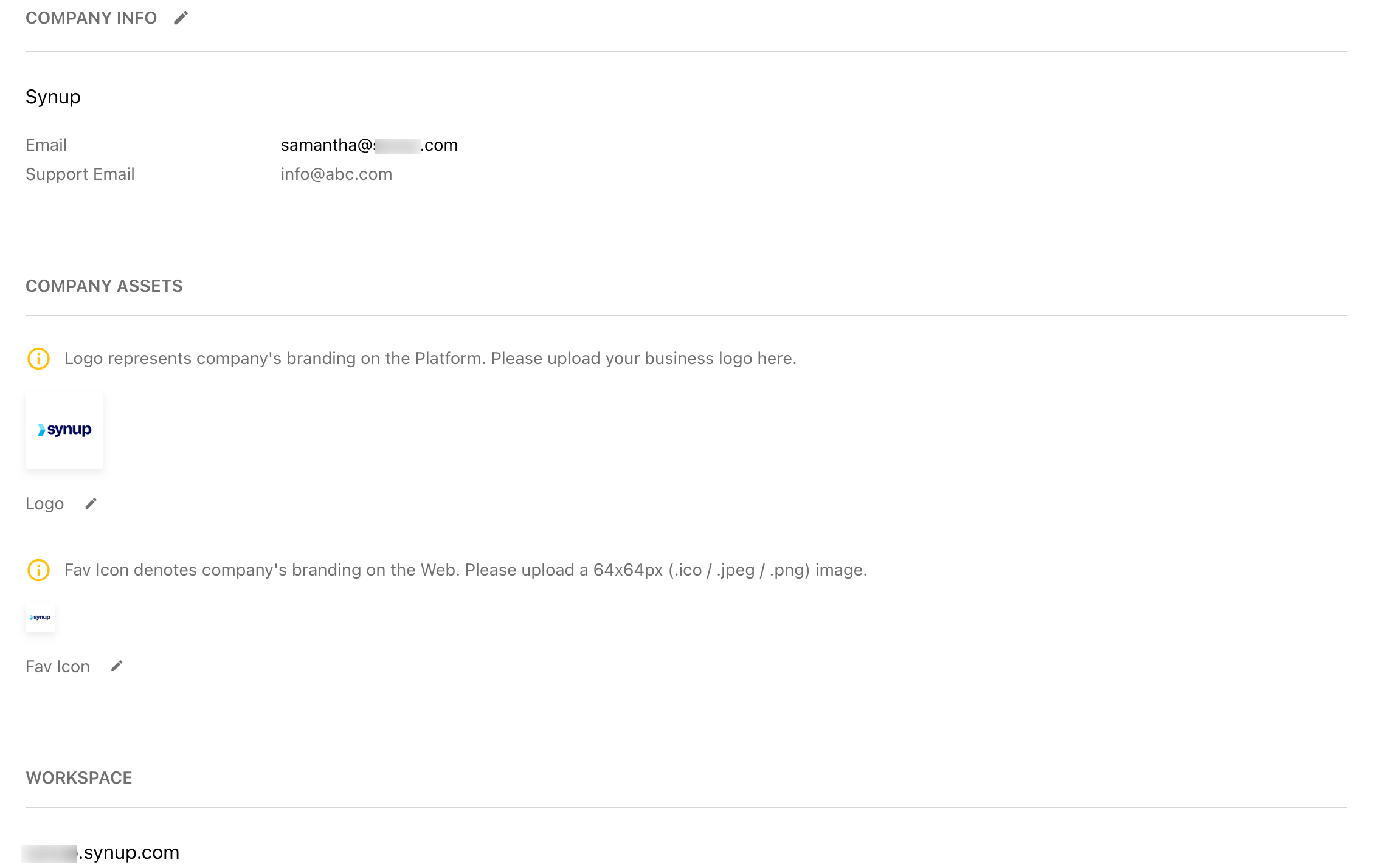
- Company Info - You can edit your admin email and the support email address details by clicking the edit icon displayed at the top.
- Company Assets - Add your business logo and a favicon from this space to maintain a consistent branding for your business.
Note: For adding a favicon, ensure that the image is in the format - 64x64px (.ico/jpeg/.png).