For example, an Admin user can log in to a workspace and can assume the role of a manager (a default user role) or an analyst (a custom role created). This allows the user to access data as enabled by the role assumed.
You can use assumed roles to quickly access a delegated workspace space as the assumed role would access it. This allows you to perform tasks like:
- Troubleshooting a specific functionality raised by a user
- Accessing data reports as visible to the user
- Cross-checking the permissions and accessibility of a role when providing access to client users of an agency.
How to assume a role
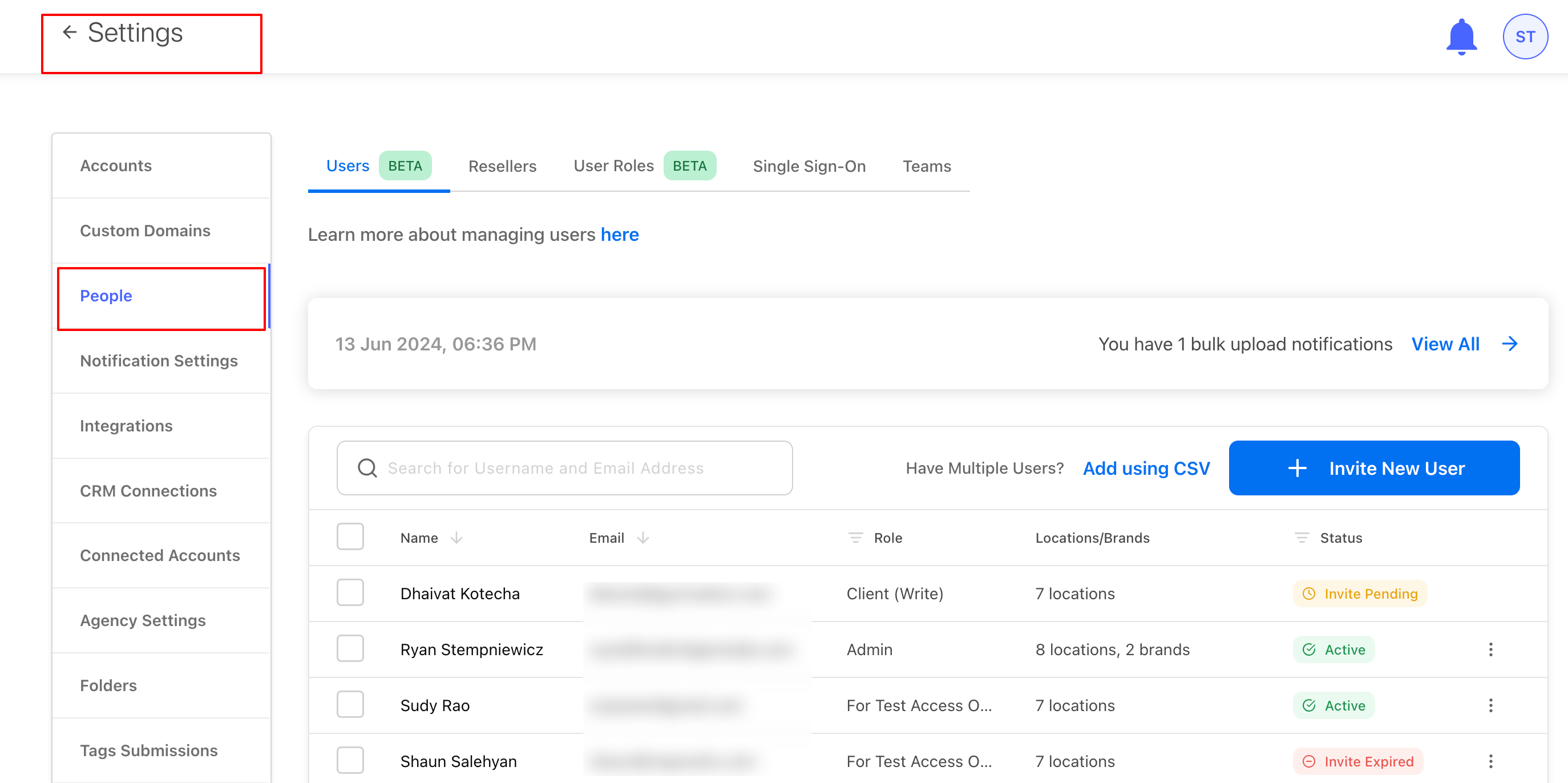
Access your User Listings from Settings > People.
Then click, the More Actions button alongside the user, whose role you want to assume and select Login as.
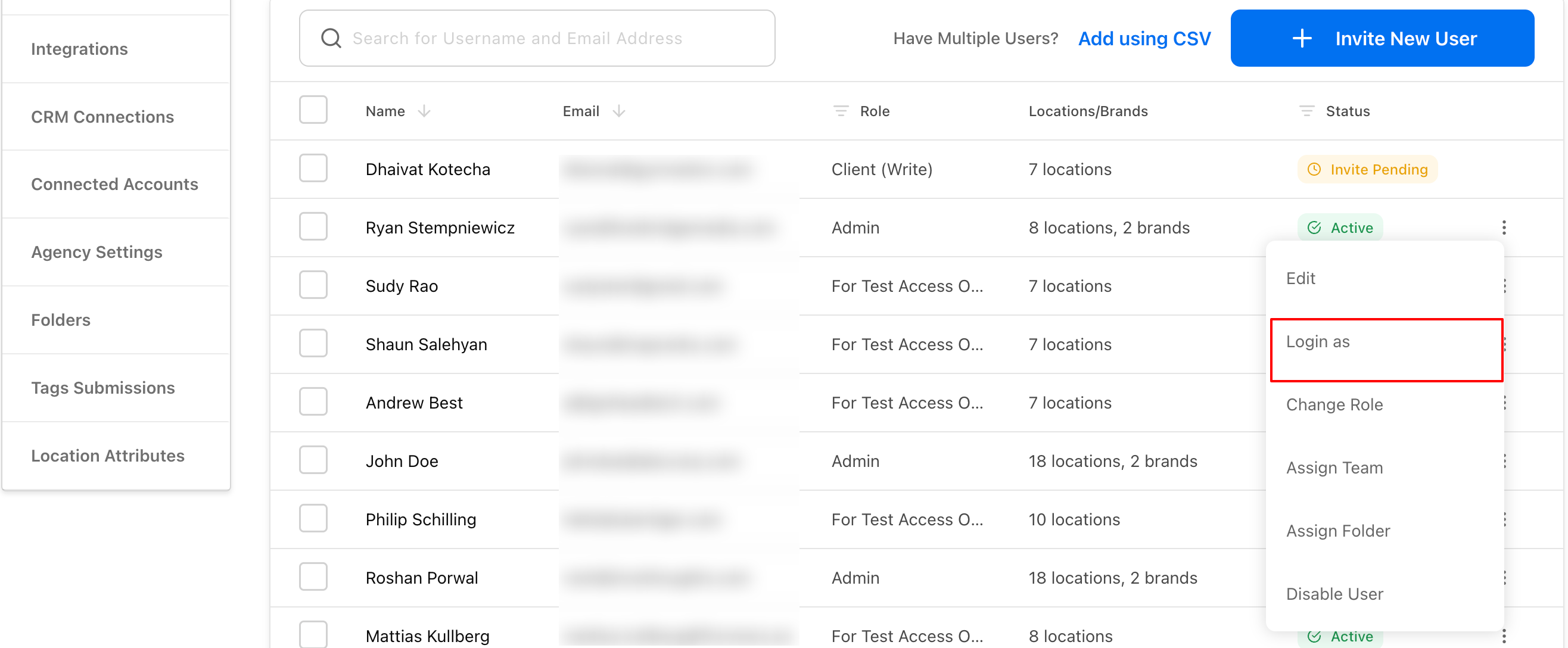
Now, you will be redirected to log in as the user and assume the user’s role and permissions.
The bar at the top of your browser indicates the user whose role you’ve assumed.
To switch back to your own role click Switch back to normal mode.