One of the use-cases to give admin access to connect@synup.com is that we will be able to do some basic troubleshooting that will help ensure the data sync is accurate for your Facebook page.
Note: You'll need to be an admin to manage roles for your Page to give access to anyone else.
There's no limit to the number of people who can have a role on a Page.
How to add connect@synup.com as an admin to the Facebook page?
-
Once you login into your Facebook account, from the top right corner - click on the menu option to see the various settings and page details. then click on Pages.
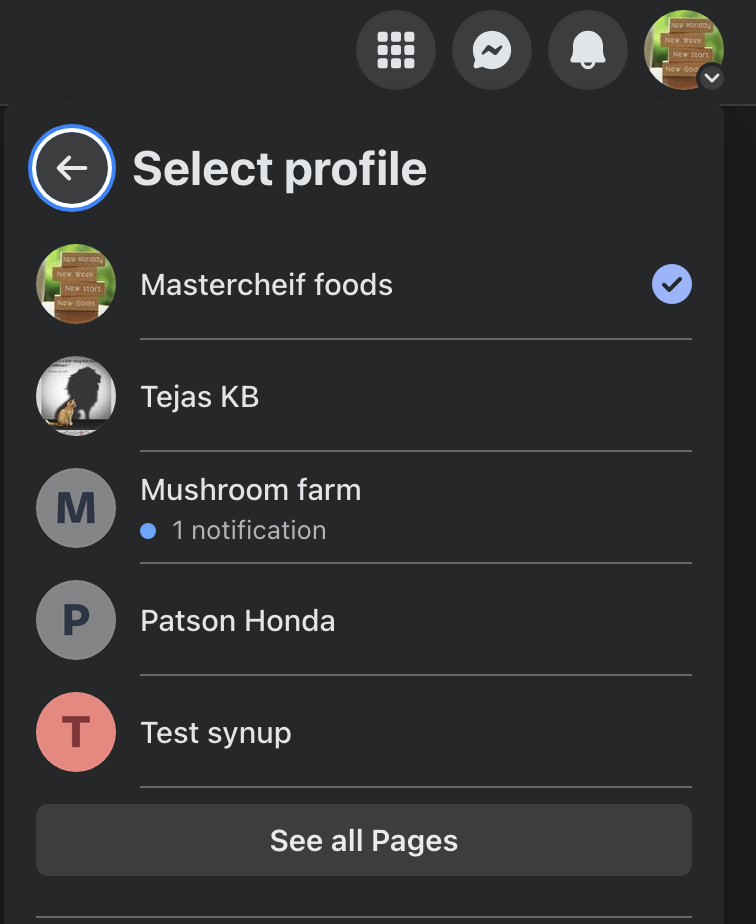
- This will show you the list of pages that you manage. Click on the page to which you would like to give access to connect@synup.com access.
-
Then click on settings from the manage page options displayed on the screen, followed by clicking on Page roles.
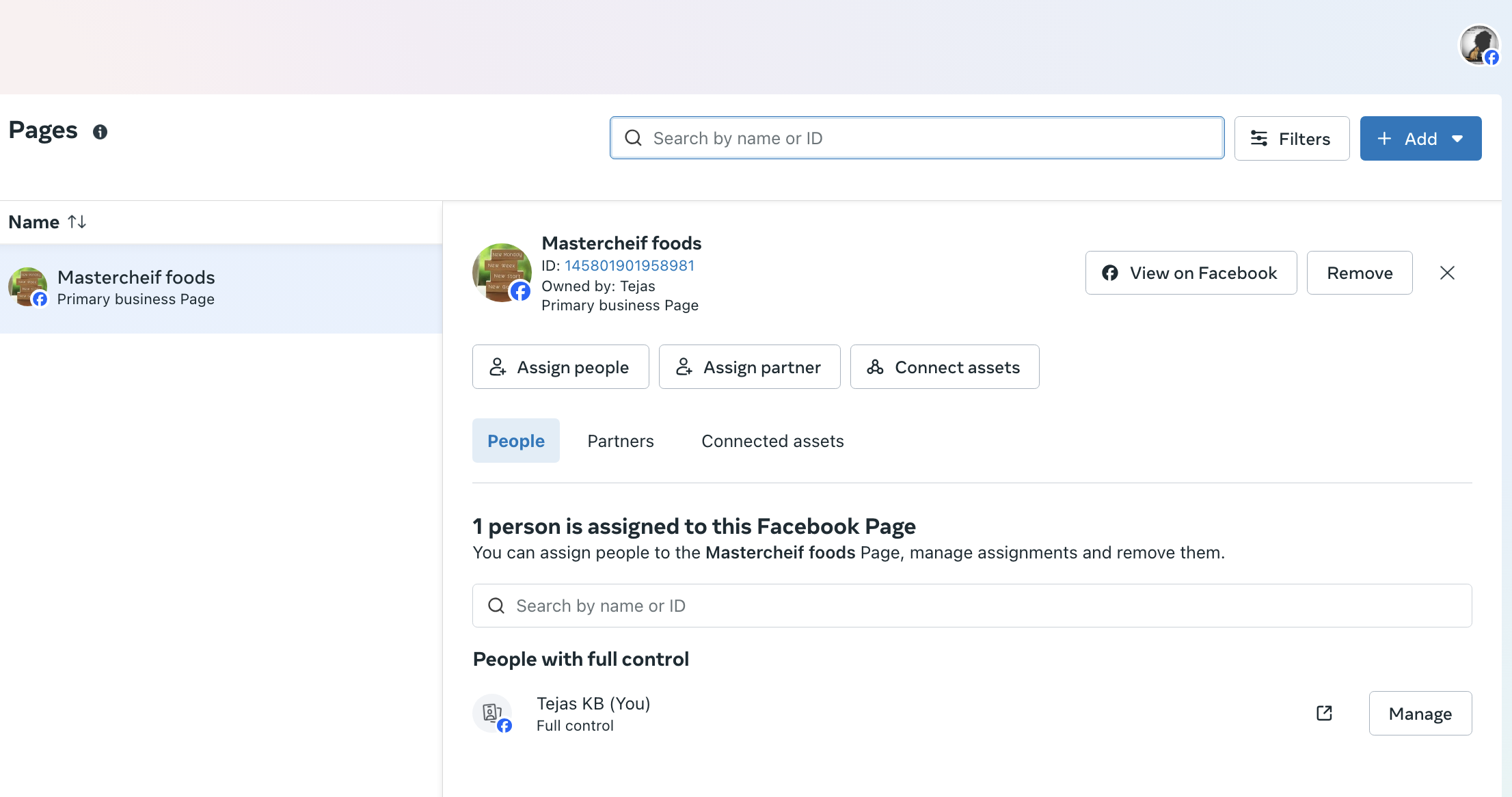
- Type a name or email in the box and select the person from the list that appears
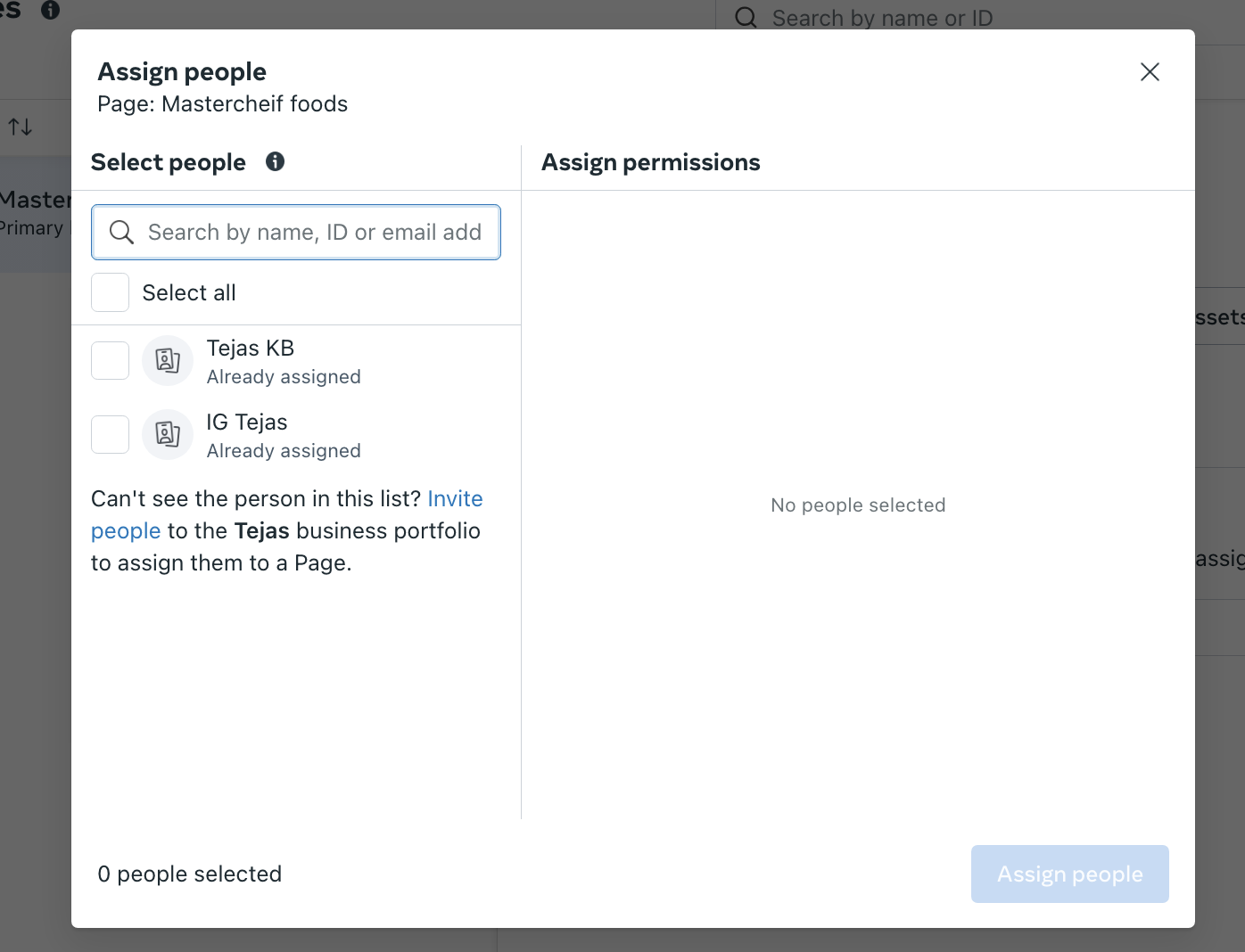
-
Click Editor
 to select a role from the dropdown menu.
 - Click Add and enter your password to confirm.