Currency Settings for Invoices
Synup OS allows you to customize the currency for your invoices so they match your preferred billing and client requirements. This ensures your financial documents are accurate and align with your operational regions.
Accessing Currency Settings
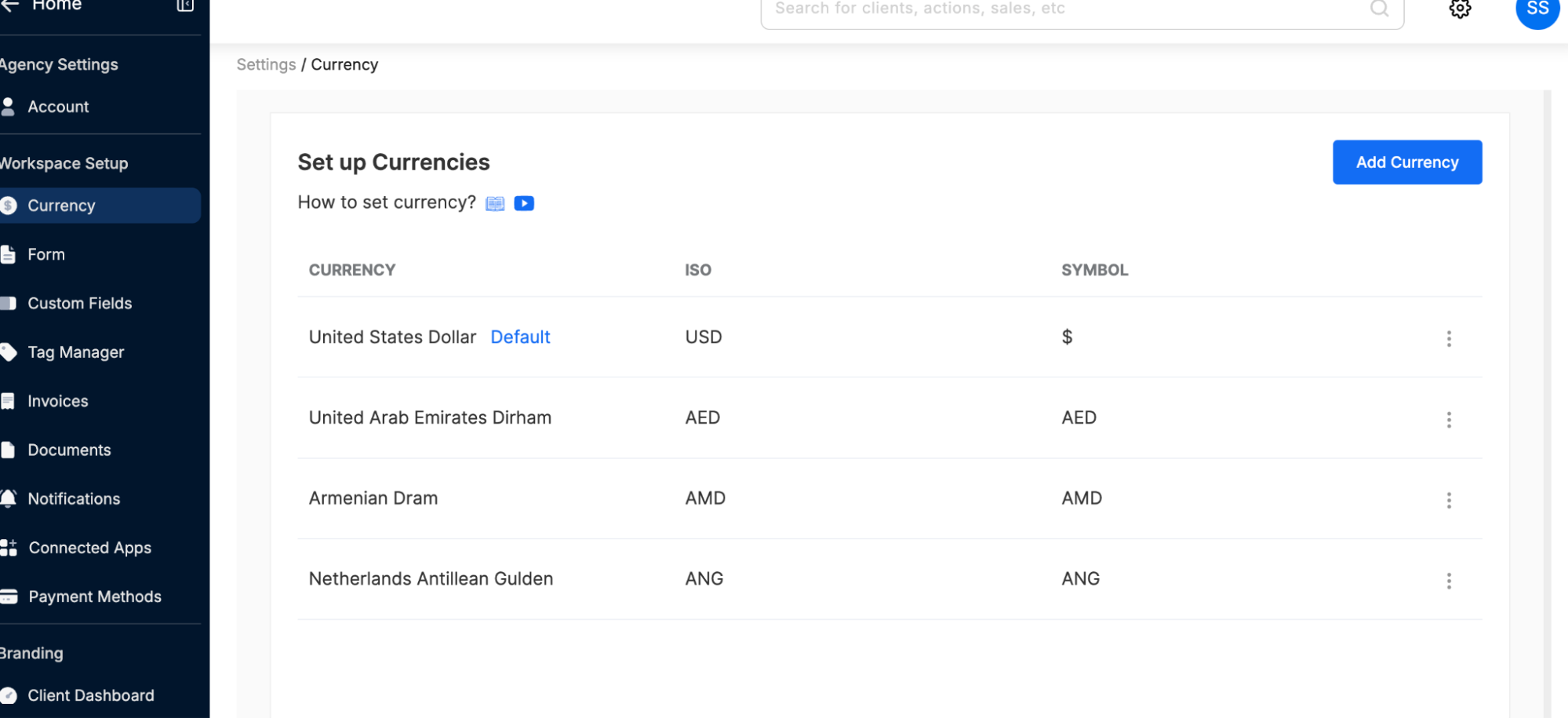
Log in to Synup OS and navigate to Settings.
Locate the Currency Settings under the workspace setup menu.
Updating the Currency
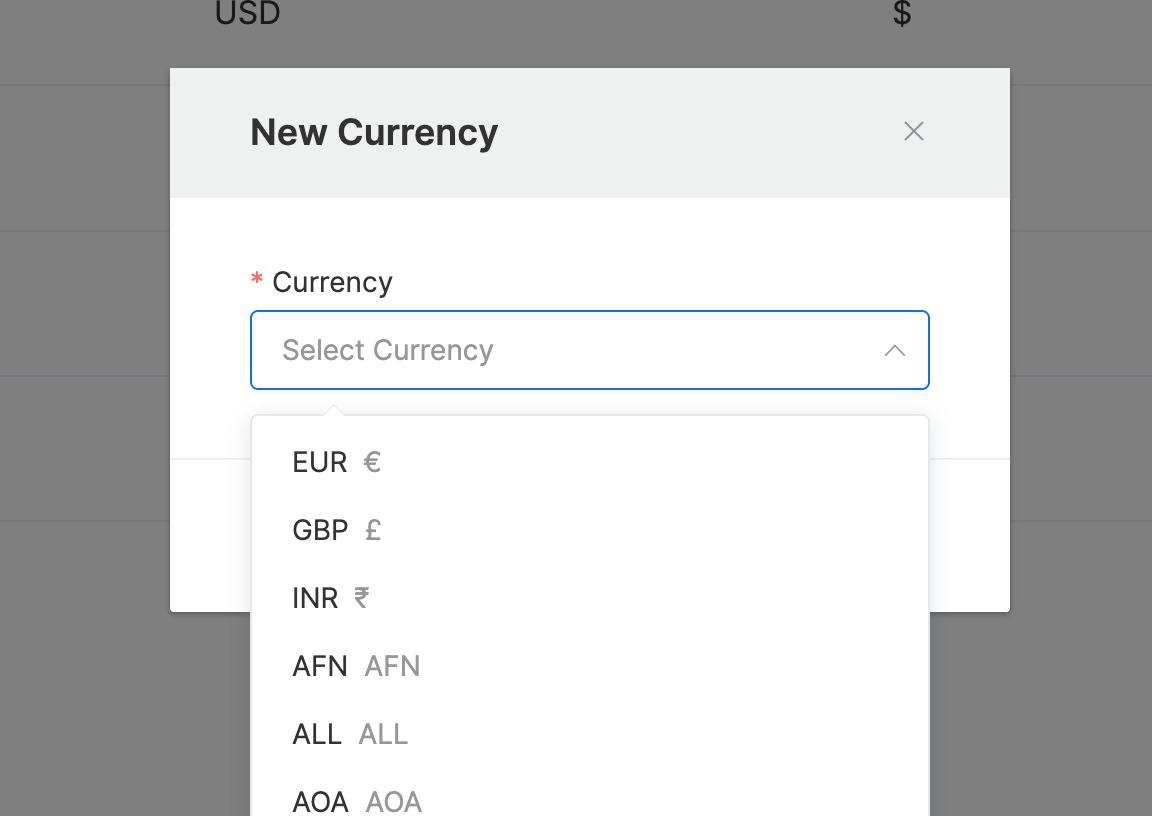
Click on the Add Currency button.
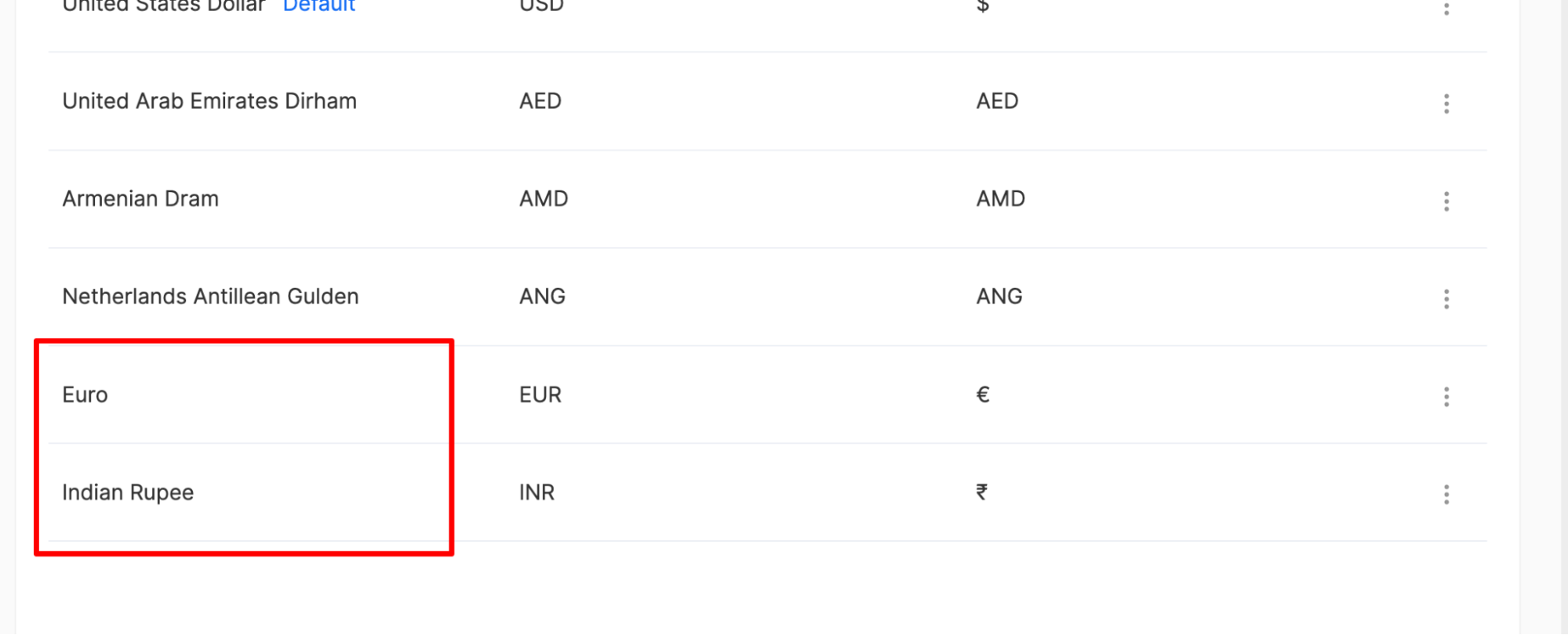
Scroll or search for your desired currency using the currency code (e.g., USD, GBP, EUR) or currency name.
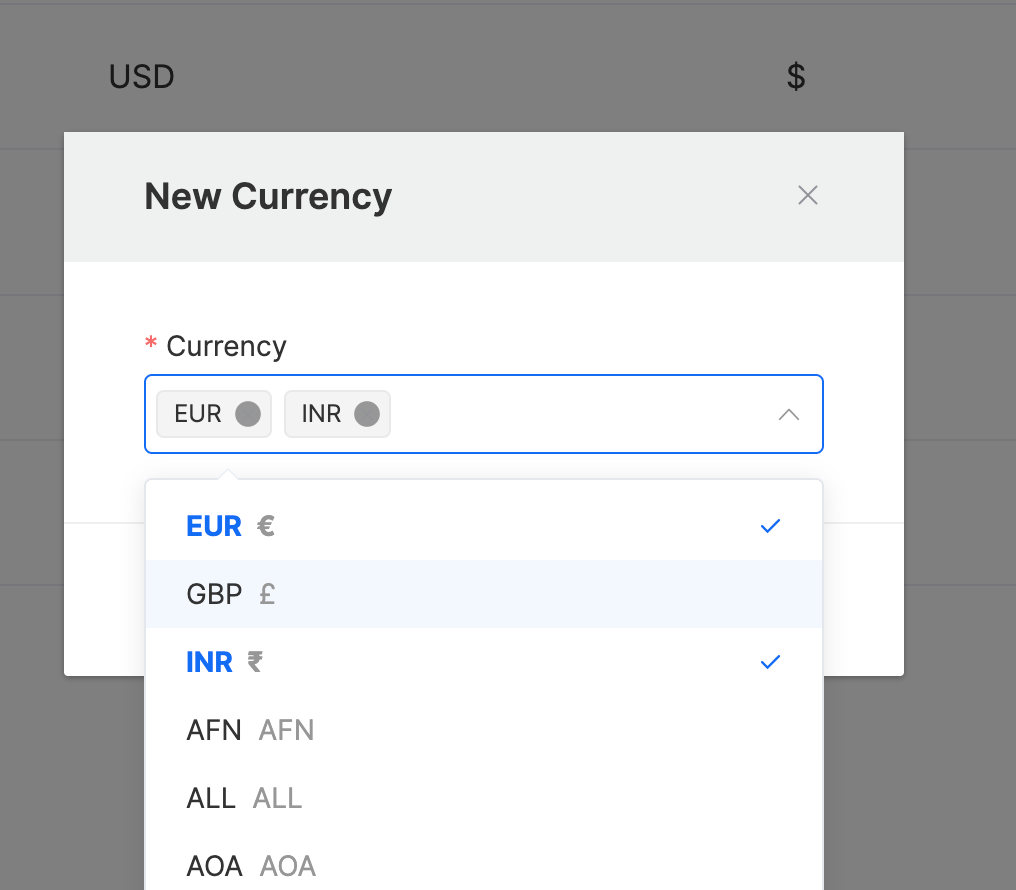
Select the preferred currency from the list. You can select multiple currencies at a time.
Click Save Changes to apply the new currency settings.
Setting Default Currency
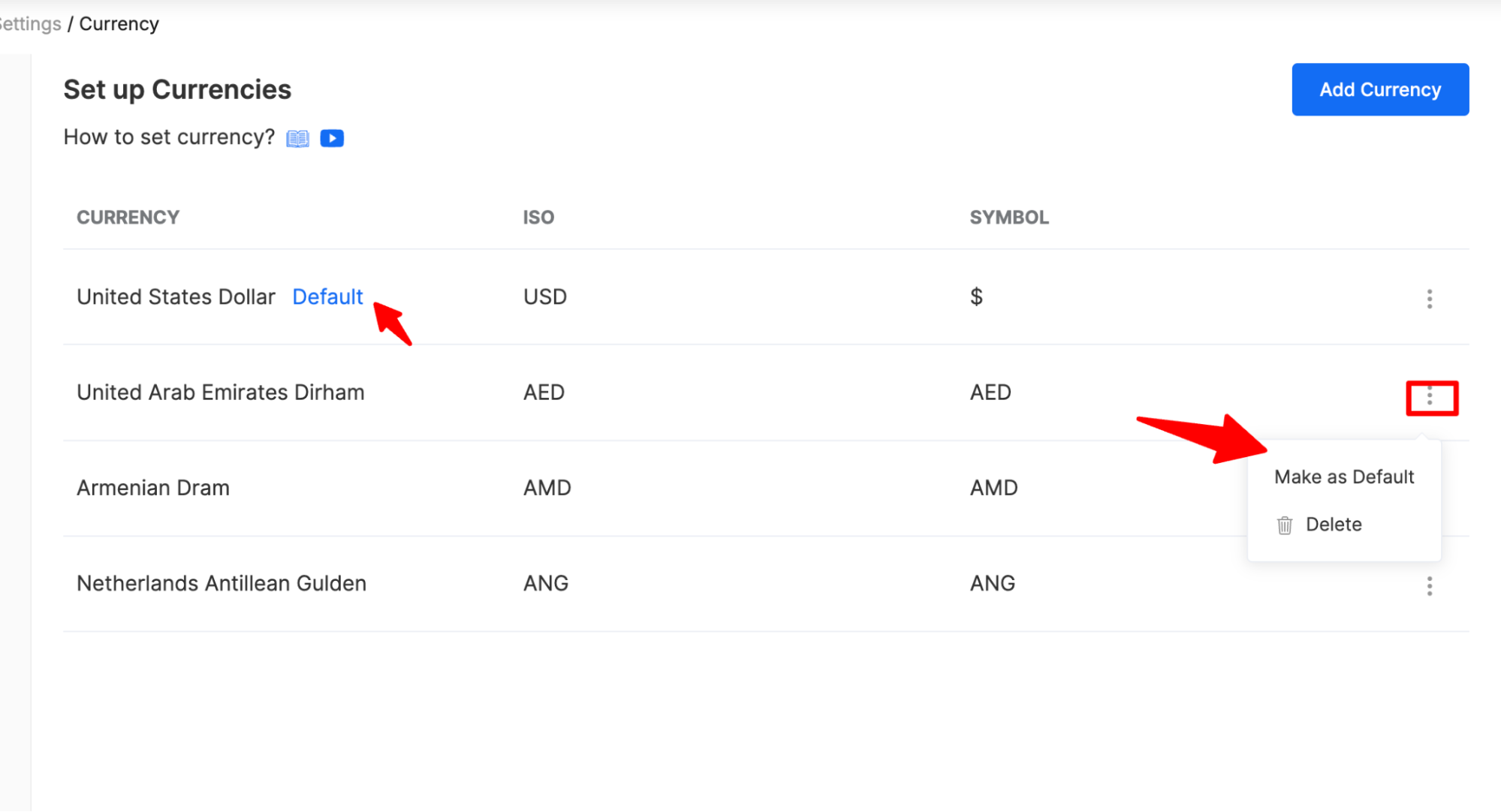
You can click on the menu next to any currency and make it the default currency.
Default currency will be used as default for any future invoices.
Tips and Best Practices
Choose the currency most relevant to your primary market or business location as the default.
If you work with international clients, confirm currency preferences before sending invoices.
Review currency settings periodically, especially if expanding into new markets.
Currency settings
Last updated April 29, 2026 · 1 min read
Was this article helpful?