Invoice Reminders & Merge Field Settings
Invoice reminders and merge field settings help you streamline invoice follow-ups and personalize communication with your clients. This article walks you through how to configure reminders, add taxes, and use merge fields in your invoices.
1. Configure Invoice Reminders
To avoid missed payments, you can set up automated reminders for your invoices.
Steps:
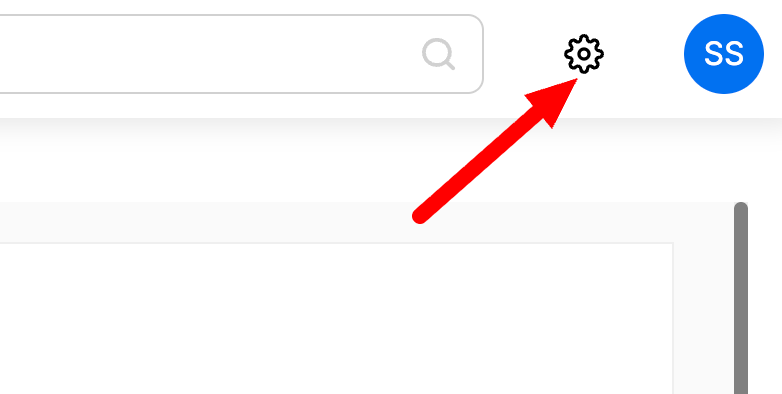
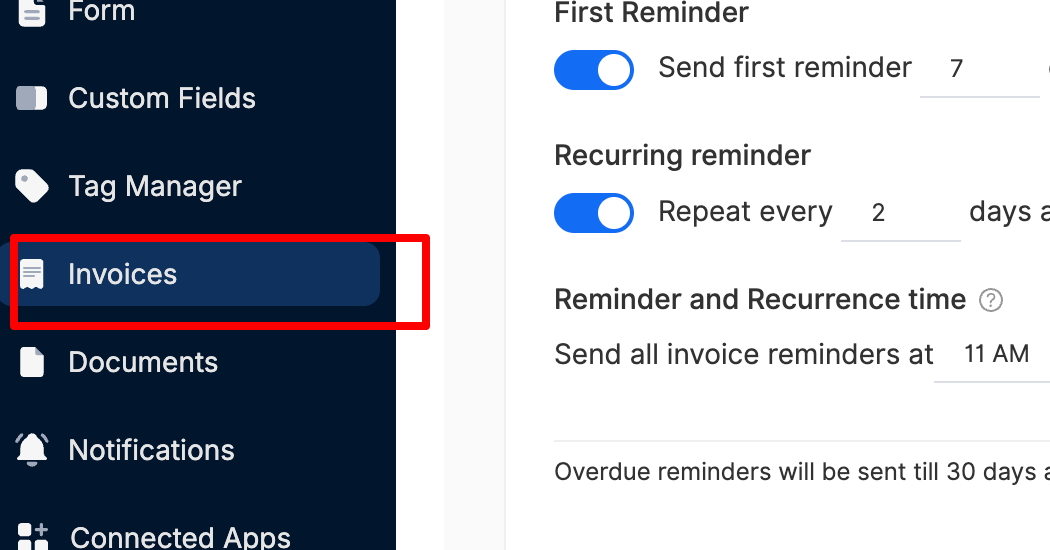
Navigate to Settings > Invoices.
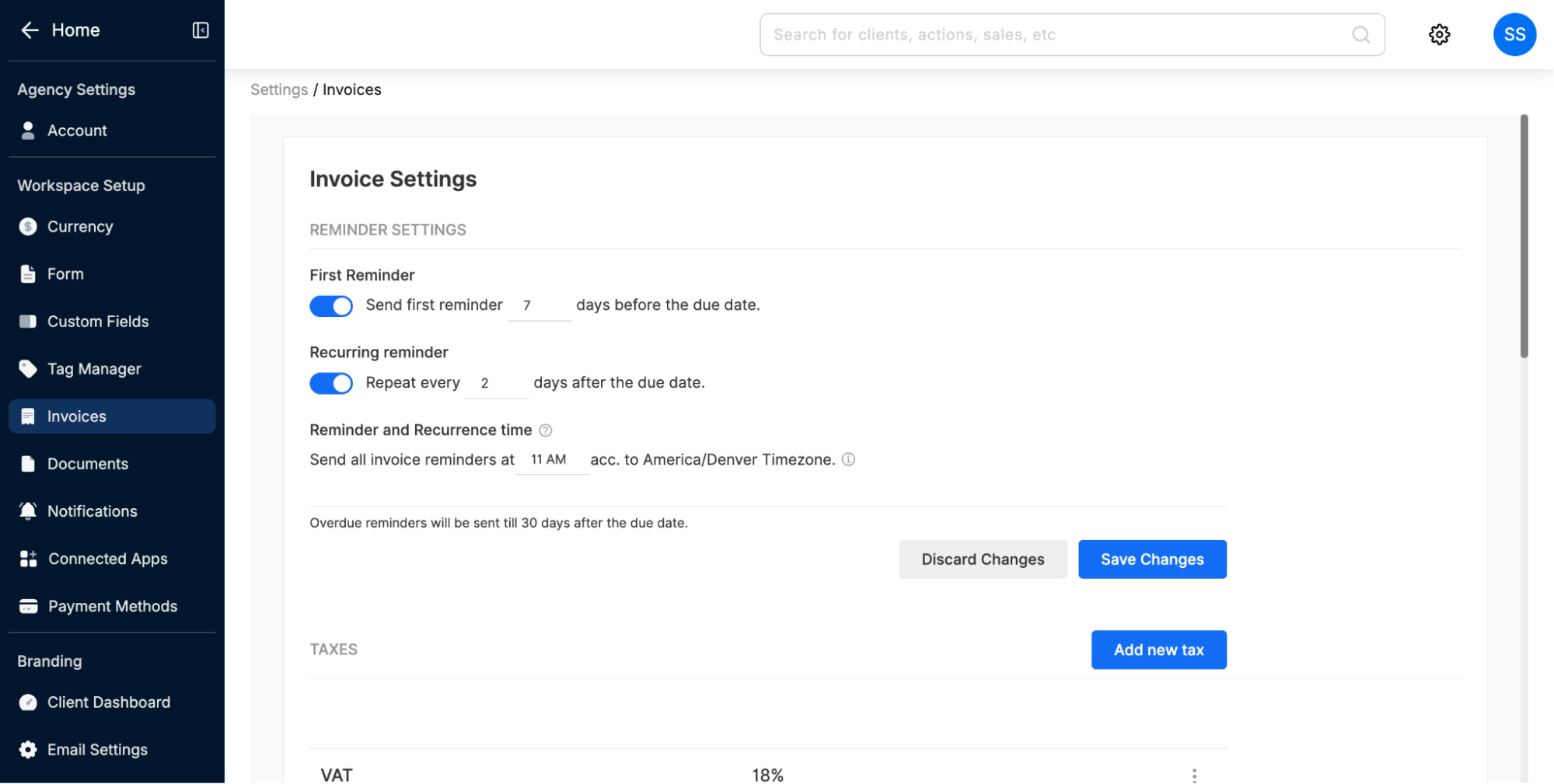
Under Reminder Settings, configure:
First Reminder: Choose how many days before the due date the first reminder should be sent.
Recurring Reminder: Enable recurring reminders and set how often they should repeat after the due date.
Reminder Time: Select the exact time (based on your default timezone) for when reminders will be sent. (You can change your timezone in Account Settings).
📌 Note: Overdue reminders will be sent until 30 days after the due date.
2. Add and Manage Taxes
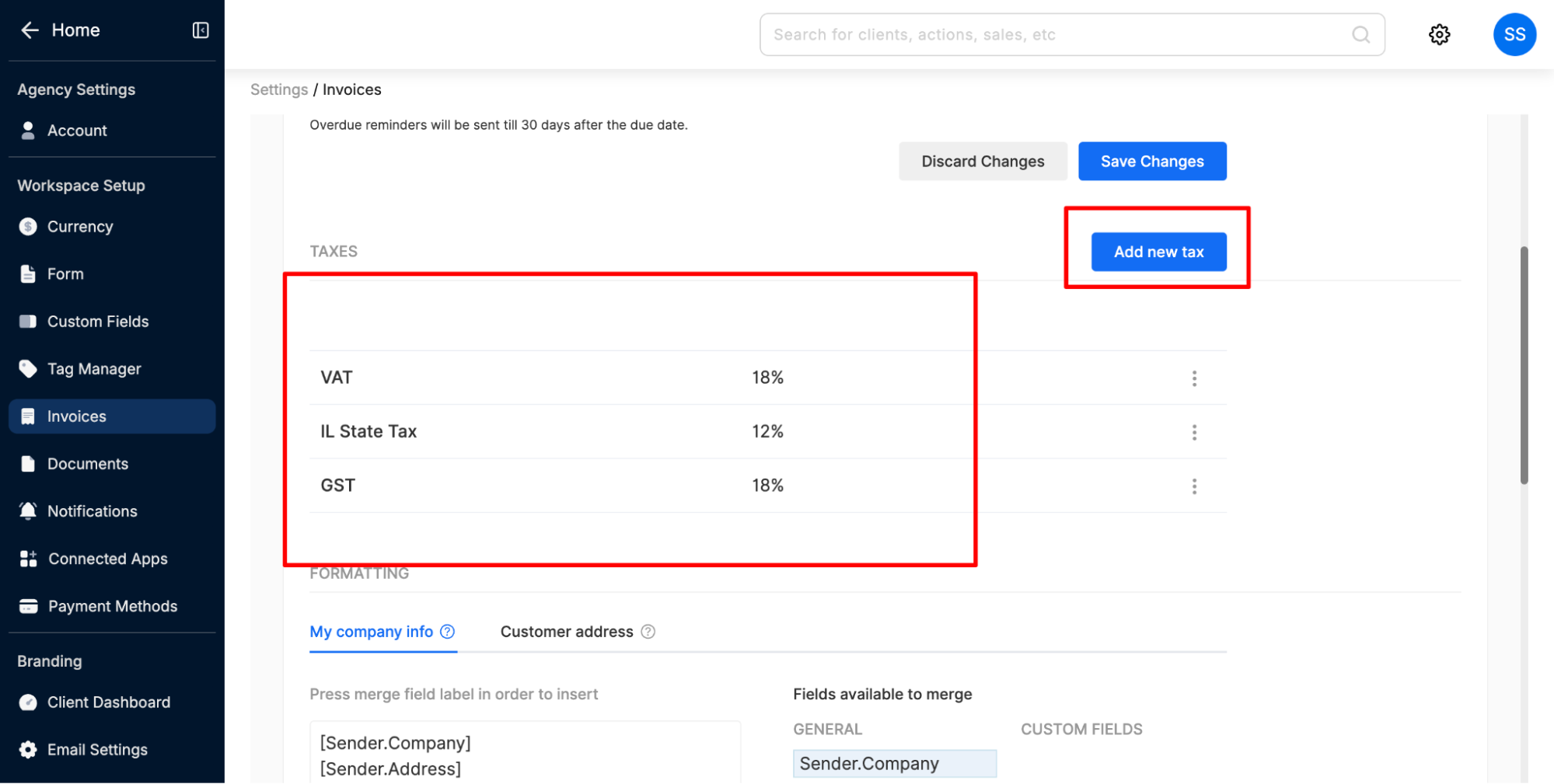
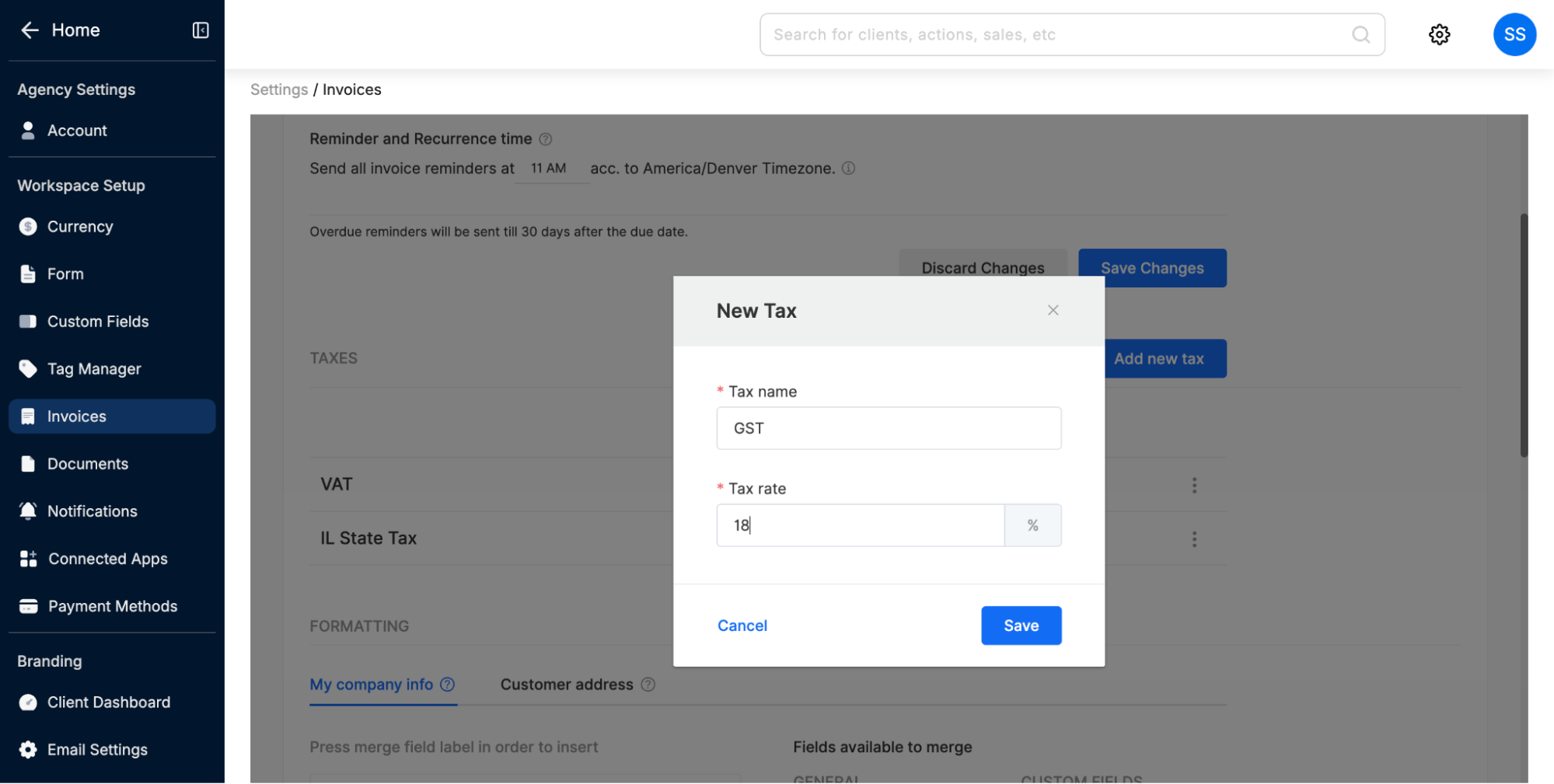
You can define different taxes like VAT, GST, or State Tax to be automatically applied to your invoices.
Steps:
Under the Taxes section, click Add new tax. You can also update or delete existing taxes by clicking the menu icon next to each tax.
Enter the Tax name and Tax rate (%).
Click Save.
Your saved taxes will appear in the list and can be applied when creating invoices.
3. Set Up Merge Fields
Merge fields help personalize your invoices by automatically inserting company or customer information.
Steps:
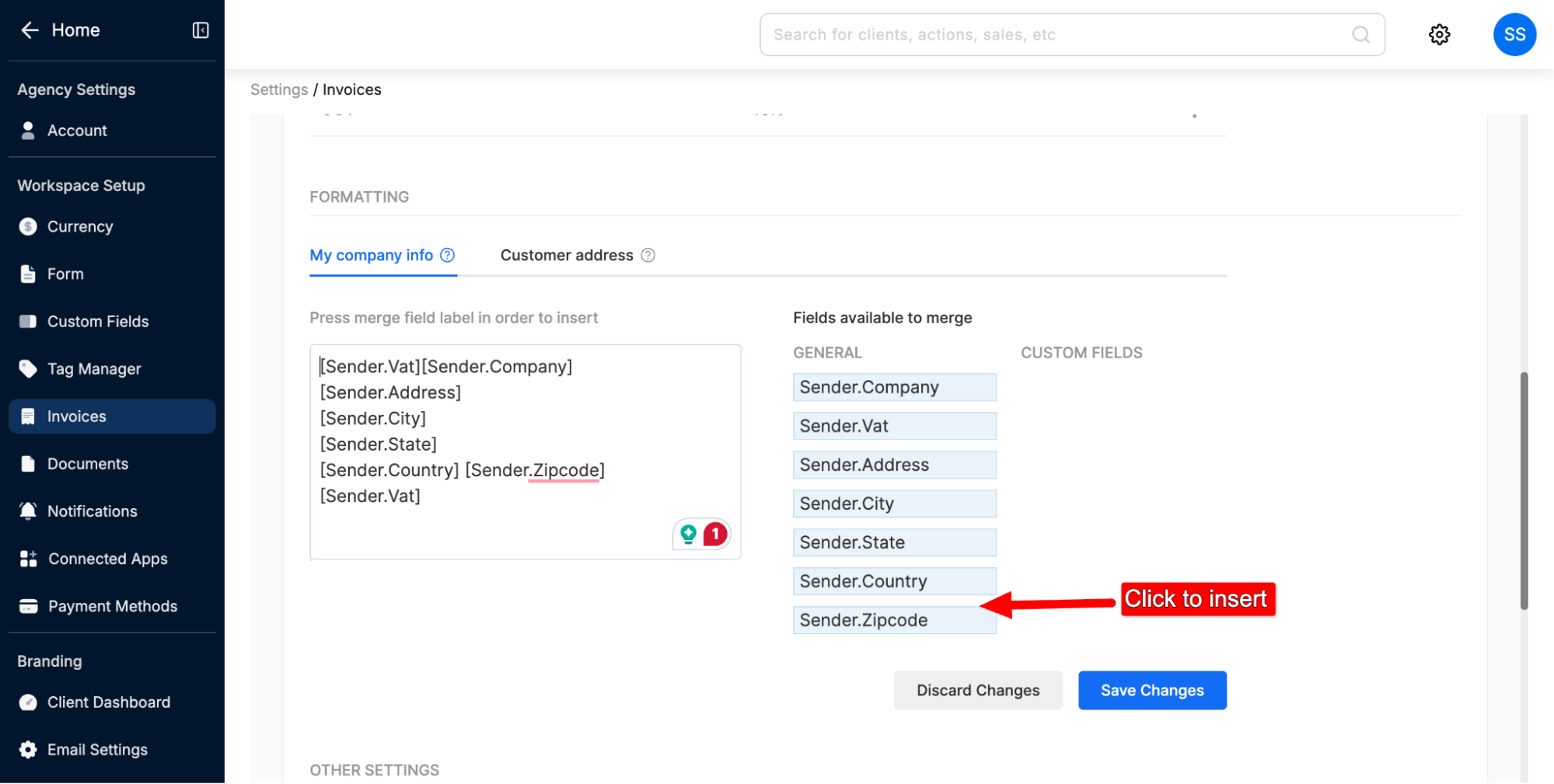
Scroll to the Formatting section in Invoice Settings.
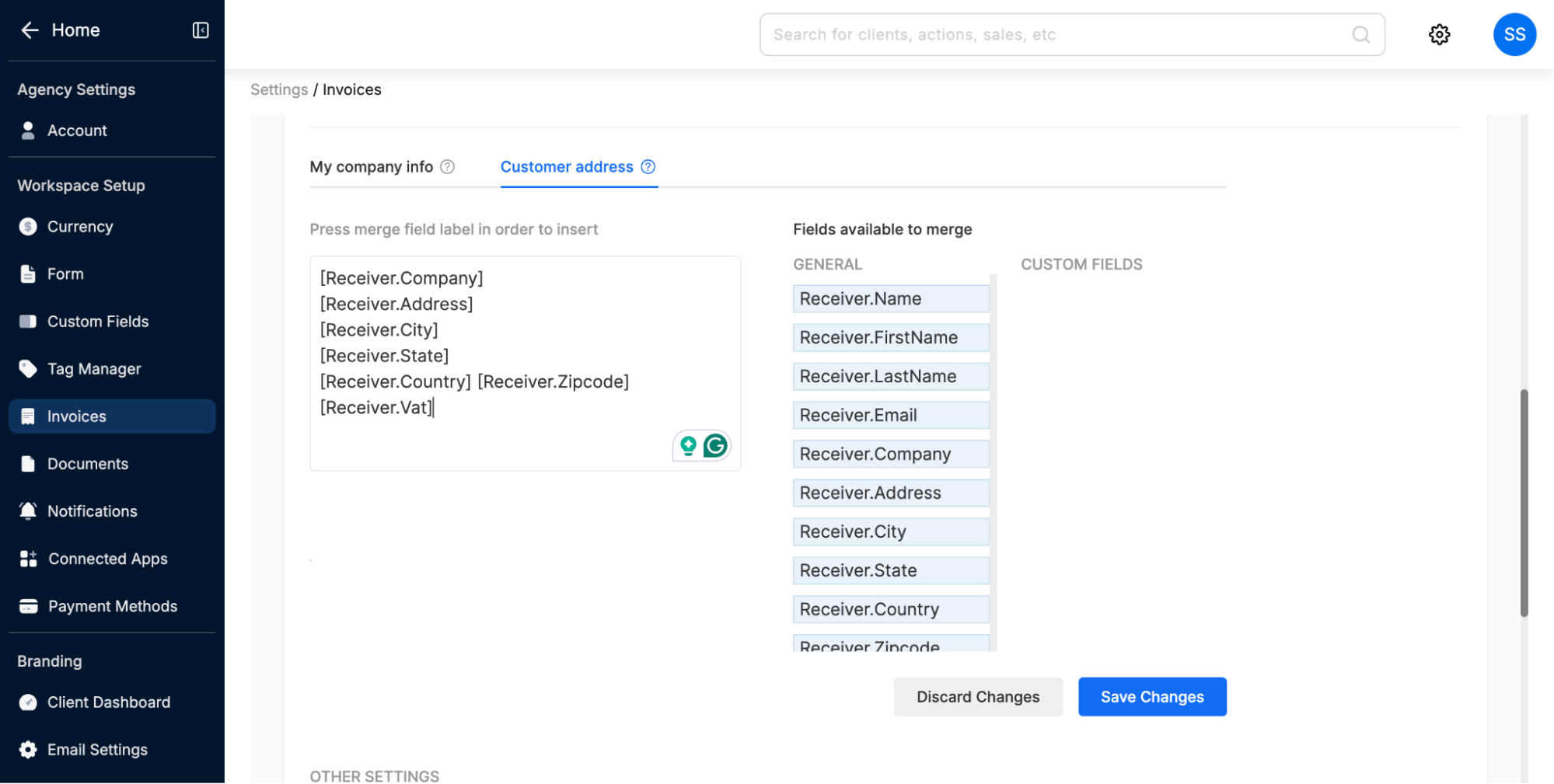
Choose either:
My company info – to display your agency details (taken from your company details set in OS)
Customer address – to display client details (taken from client account).
Insert merge fields into the text box by clicking on the available options from the right-hand panel.
Commonly used merge fields include:
Company Info: [Sender.Company], [Sender.Address], [Sender.Vat]
Customer Info: [Receiver.Name], [Receiver.Company], [Receiver.Email]
4. Other Invoice Settings
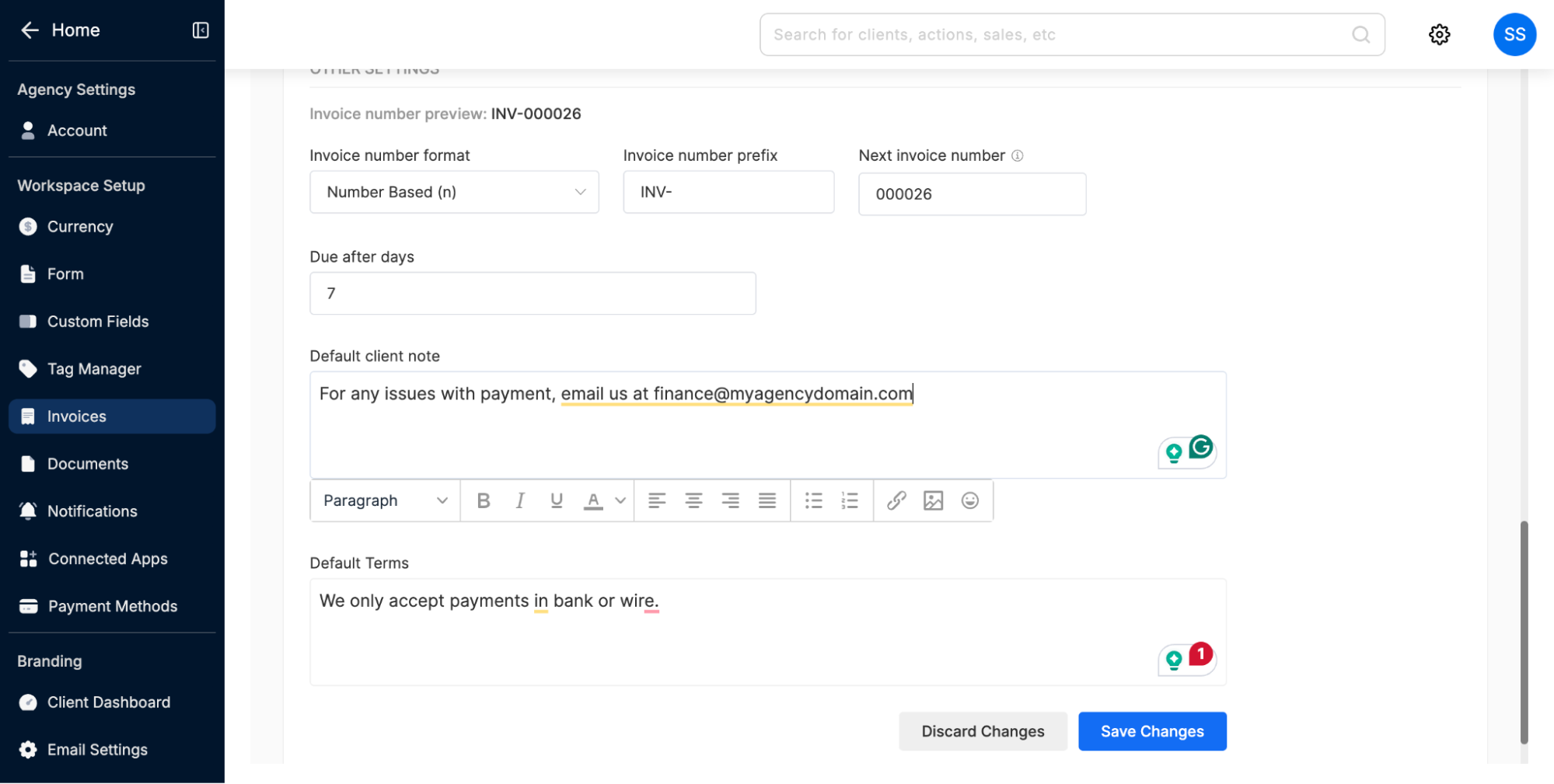
In the last section, you can also configure:
Invoice numbering format & prefix
Default due date
Default client notes (e.g., support contact information for payment related issues)
Default terms and conditions (e.g., payment terms)
These settings ensure consistency across all invoices and reduce repetitive manual input.
✅ By setting up reminders, taxes, and merge fields, you can ensure invoices are professional, accurate, and automated, helping you save time and get paid faster.
Invoice reminders & merge field settings
Last updated April 29, 2026 · 2 min read
Was this article helpful?