How to create & use new document templates
Document templates are a great way to standardize your business documents, from sales proposals to contracts. Creating a template ensures consistency and saves you time by not having to start from scratch every time.
1. Navigate to Document Templates
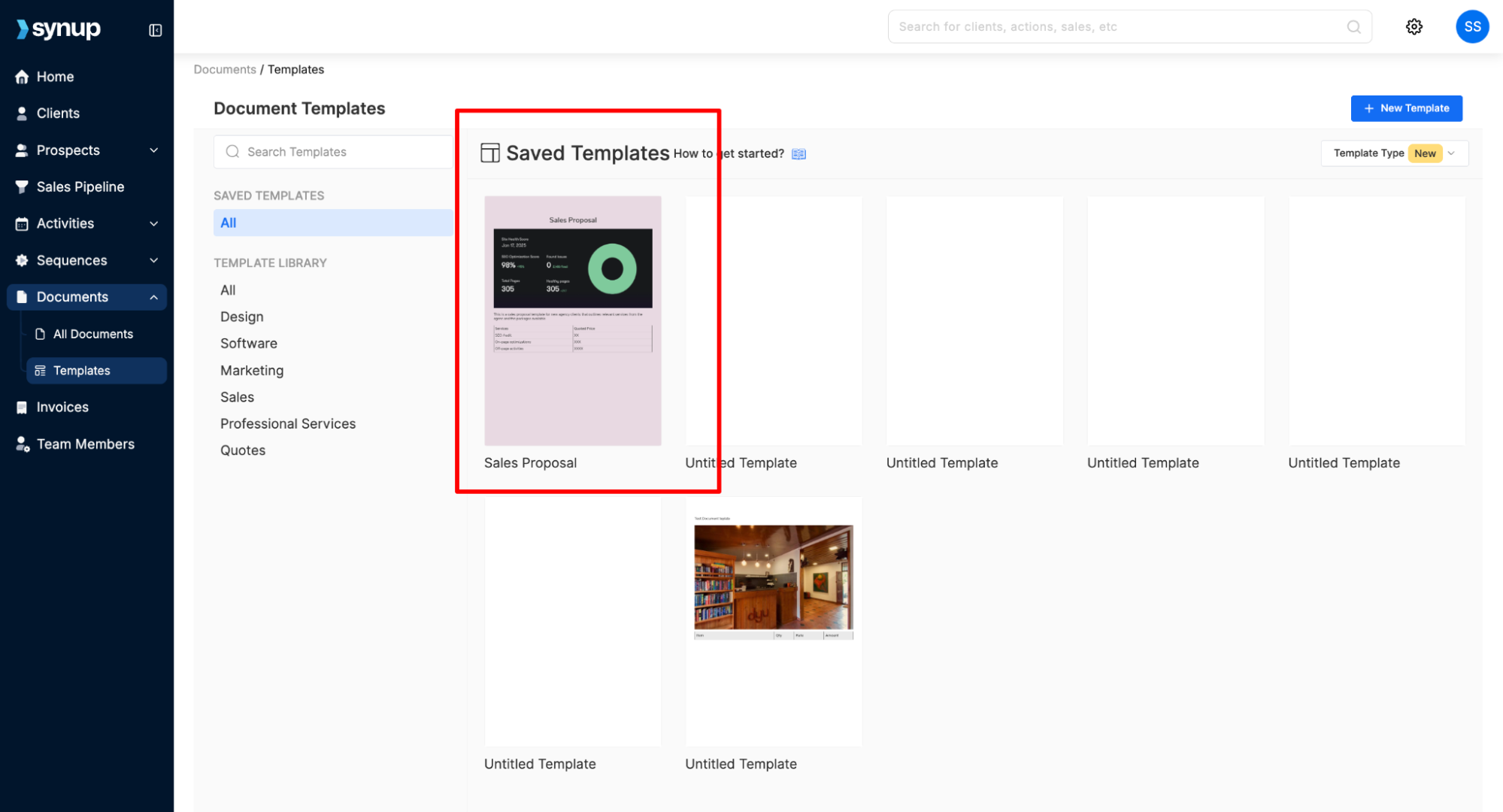
From the left-hand menu, click on Documents, then select Templates. This will take you to the "Document Templates" page, where you can see a library of saved templates.
2. Create a New Template
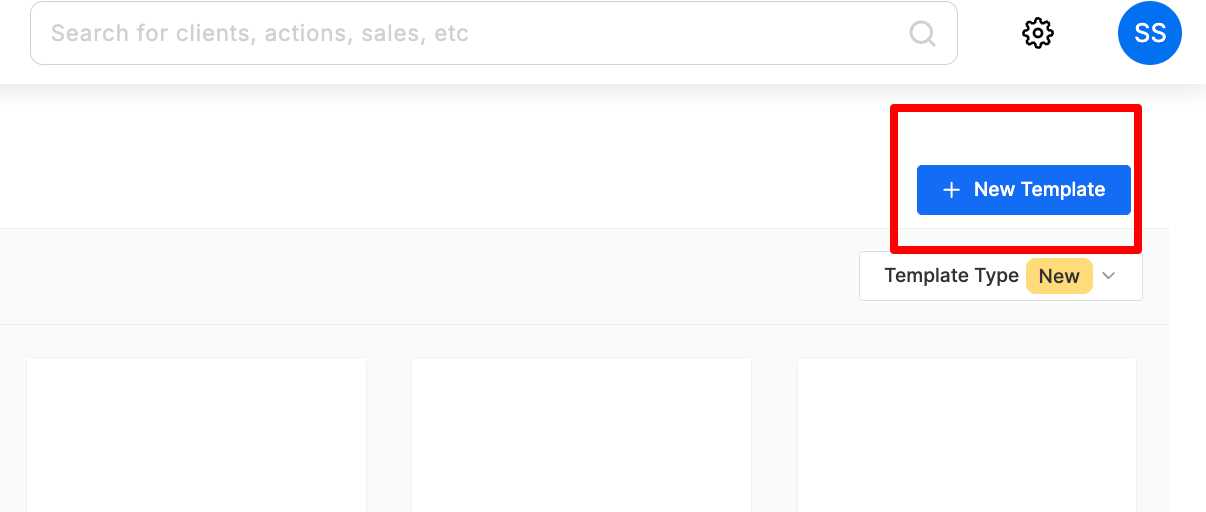
Click the + New Template button in the top-right corner.
This will open a blank document editor.
Use the menu on the left to add content blocks such as text, images, tables, or dividers to build your template.
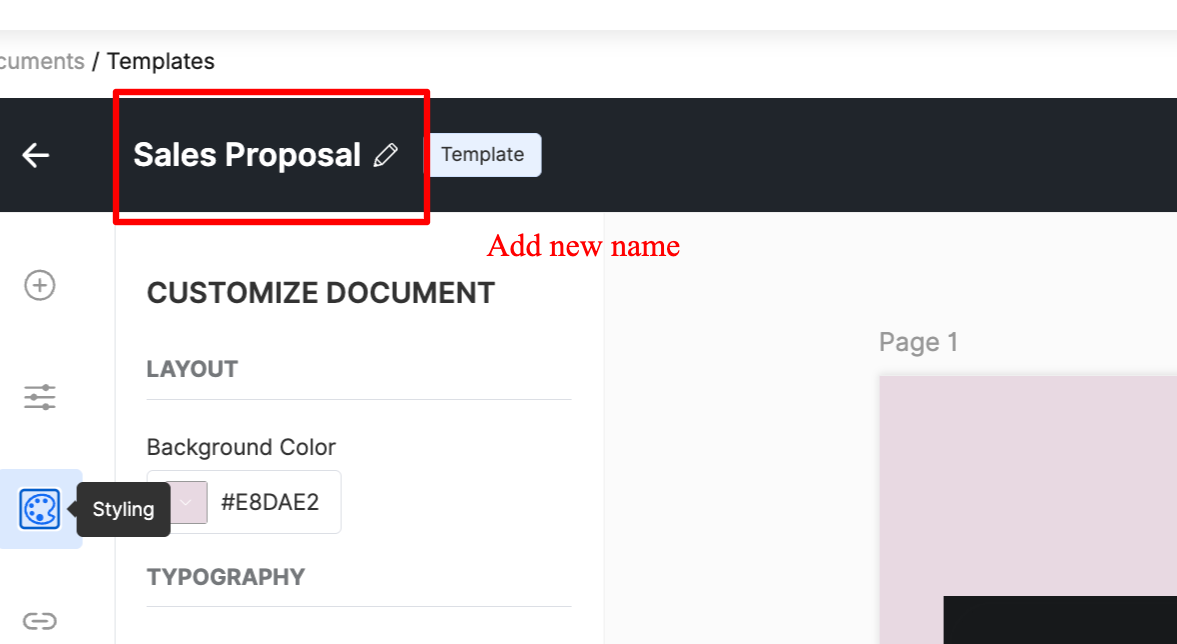
You can also click the Styling icon to edit the theme of your document, including colors and fonts.
Also Read: How to create a document to learn more about document editing in Synup OS
3. Save Your Template
Once you have finished creating your template, click Save in the top-right corner.
The new template will appear in your list of saved templates on the "Document Templates" page. You can give it a name to help you identify it later.
Now you can use this template to quickly generate new documents while maintaining a consistent design and structure.
How to create & use new document templates
Last updated April 29, 2026 · 2 min read
Was this article helpful?