How to share and track a document
Tired of manually sending and tracking documents? Synup OS simplifies the process, saving you valuable time and ensuring you never lose sight of an important document. With just a few clicks, you can send documents to clients and effortlessly monitor their status, from delivery to completion. Our intuitive tracking system provides a clear audit trail, giving you peace of mind and full visibility into every document's journey.
1. Create or Open a Document
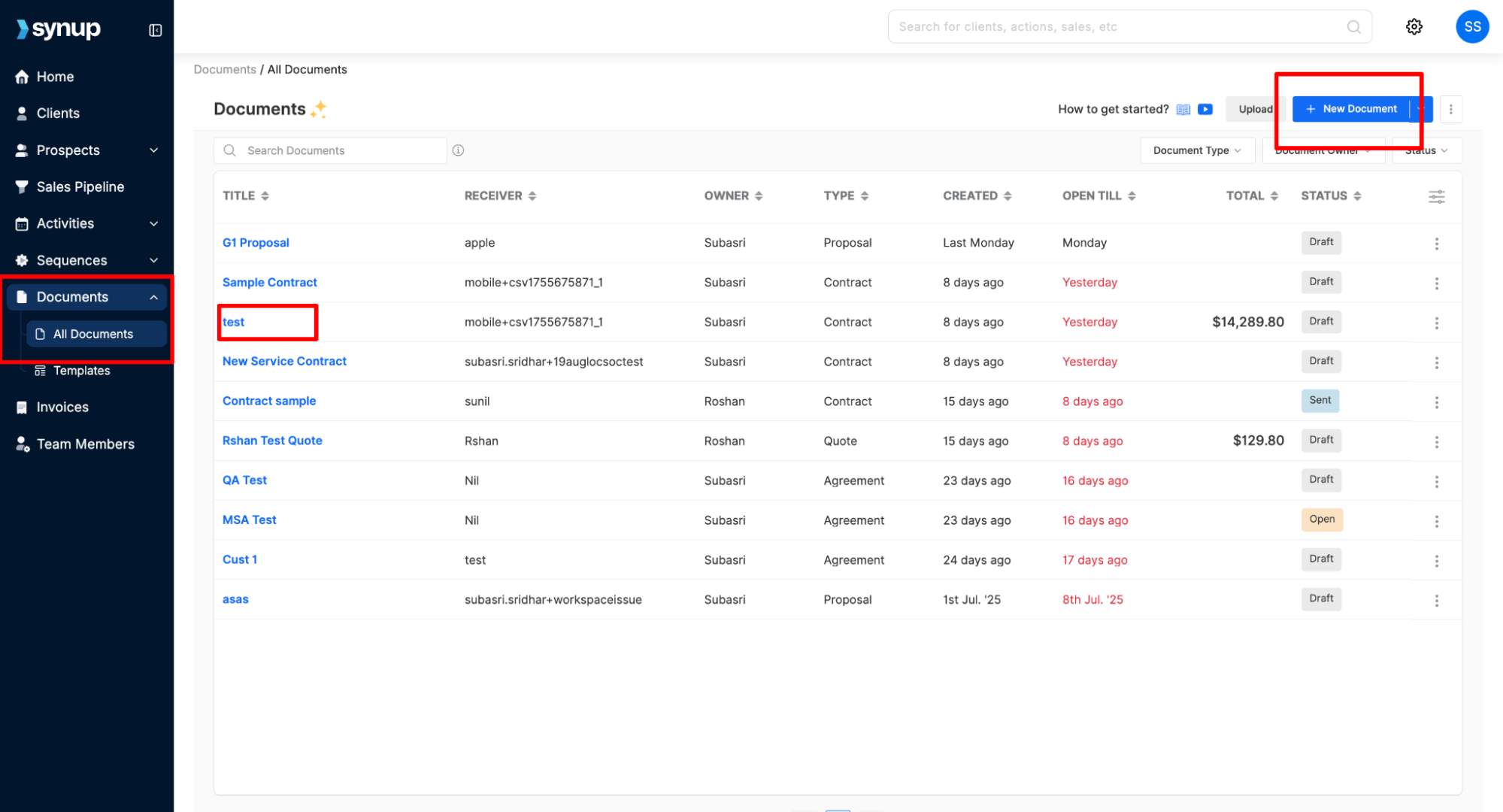
Navigate to Documents in the left-hand menu, then select All Documents.
You can either open an existing document from the list or create a new one by clicking + New Document.
2. Prepare the Document
Creating a new document? Here’s a quick guide
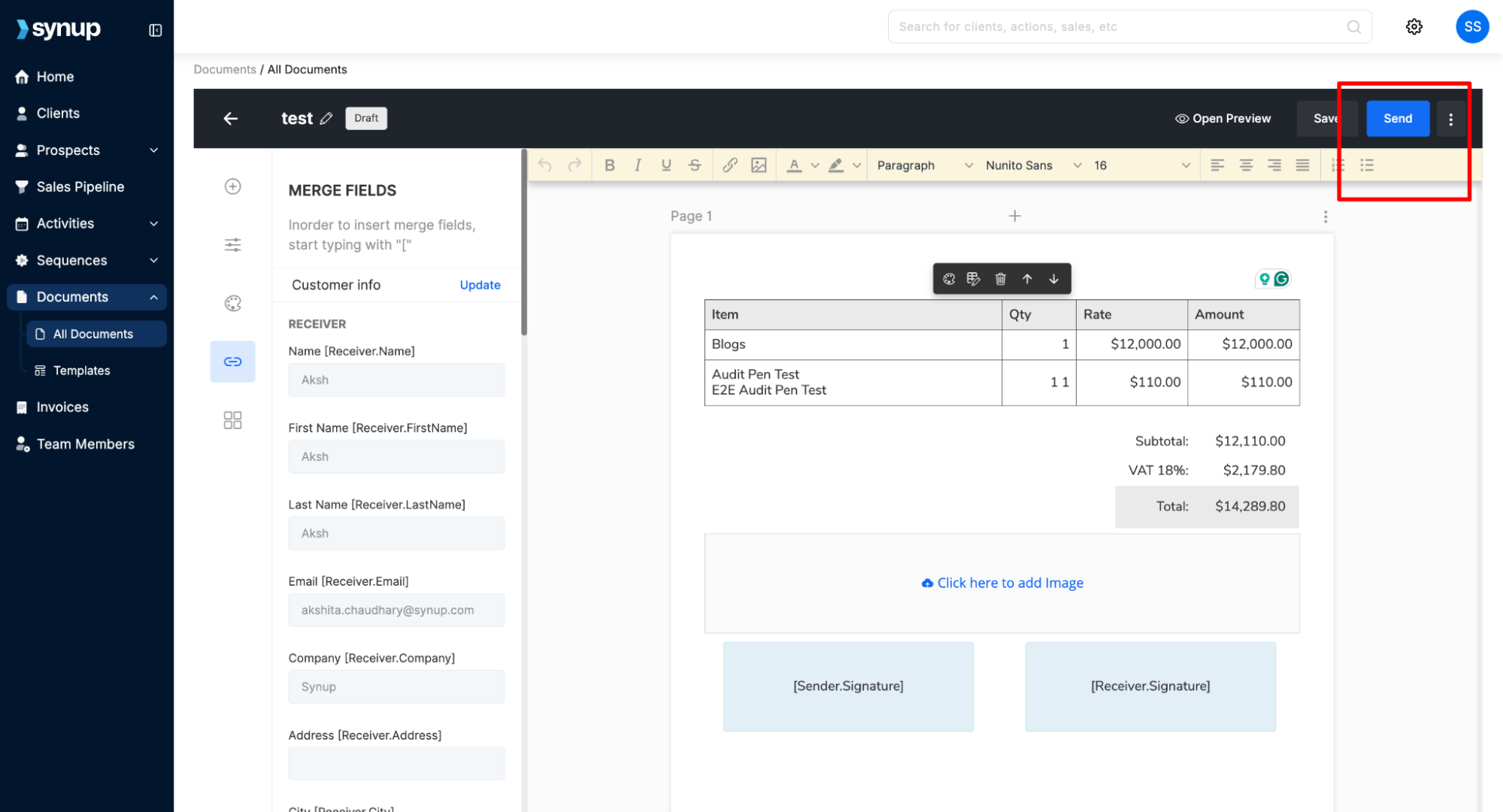
Once the document is ready to be shared, click Send in the top-right corner.
3. Send the Document
Click on the Send button, located to the right of the Save button.
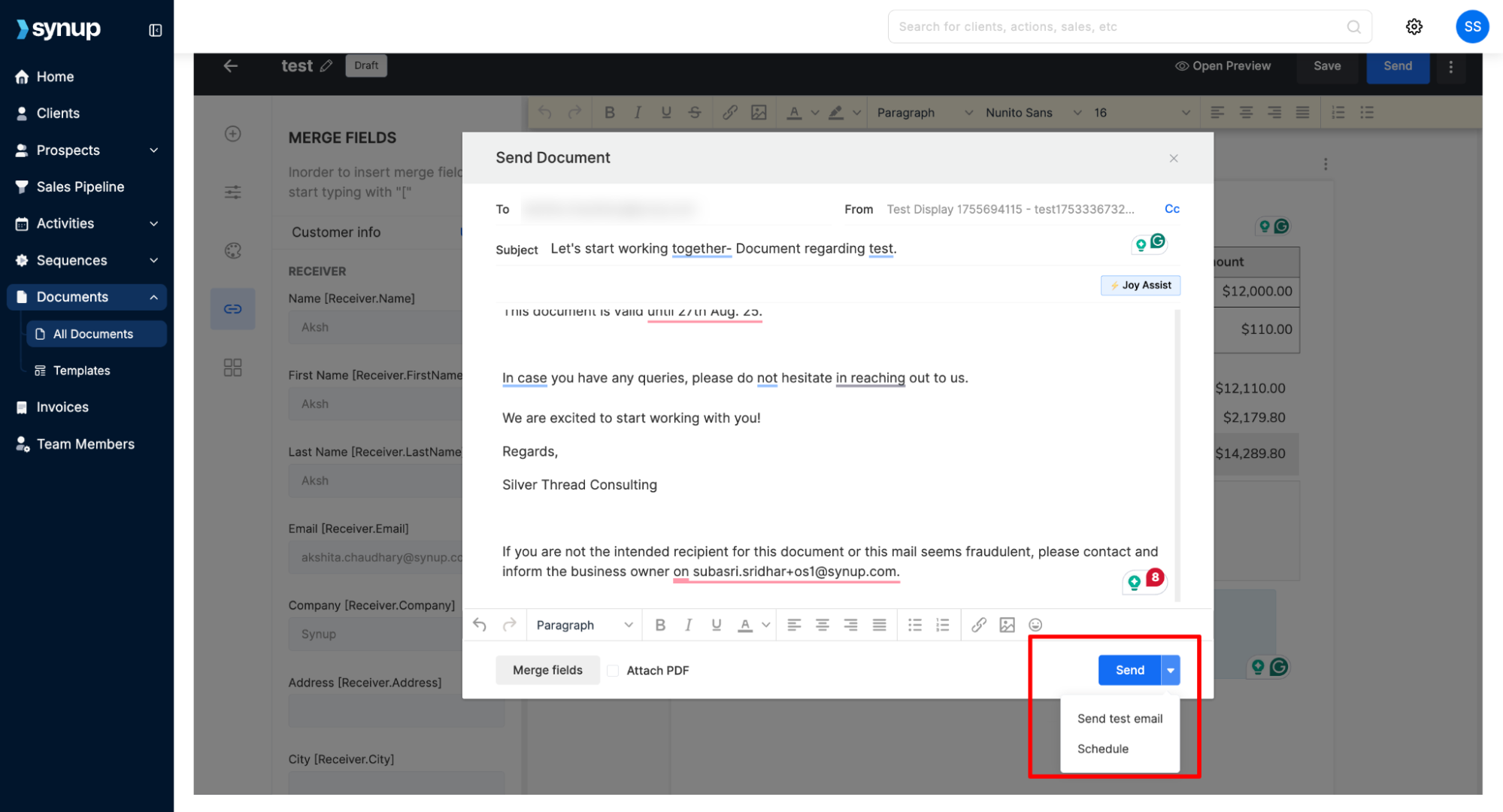
A "Send Document" window will appear. Here, you can customize the email to the recipient.
Click Send to deliver the document.
Alternatively, you can click the dropdown arrow next to the Send button to send a test email or schedule the document to be sent at a later time.
4. Track the Document
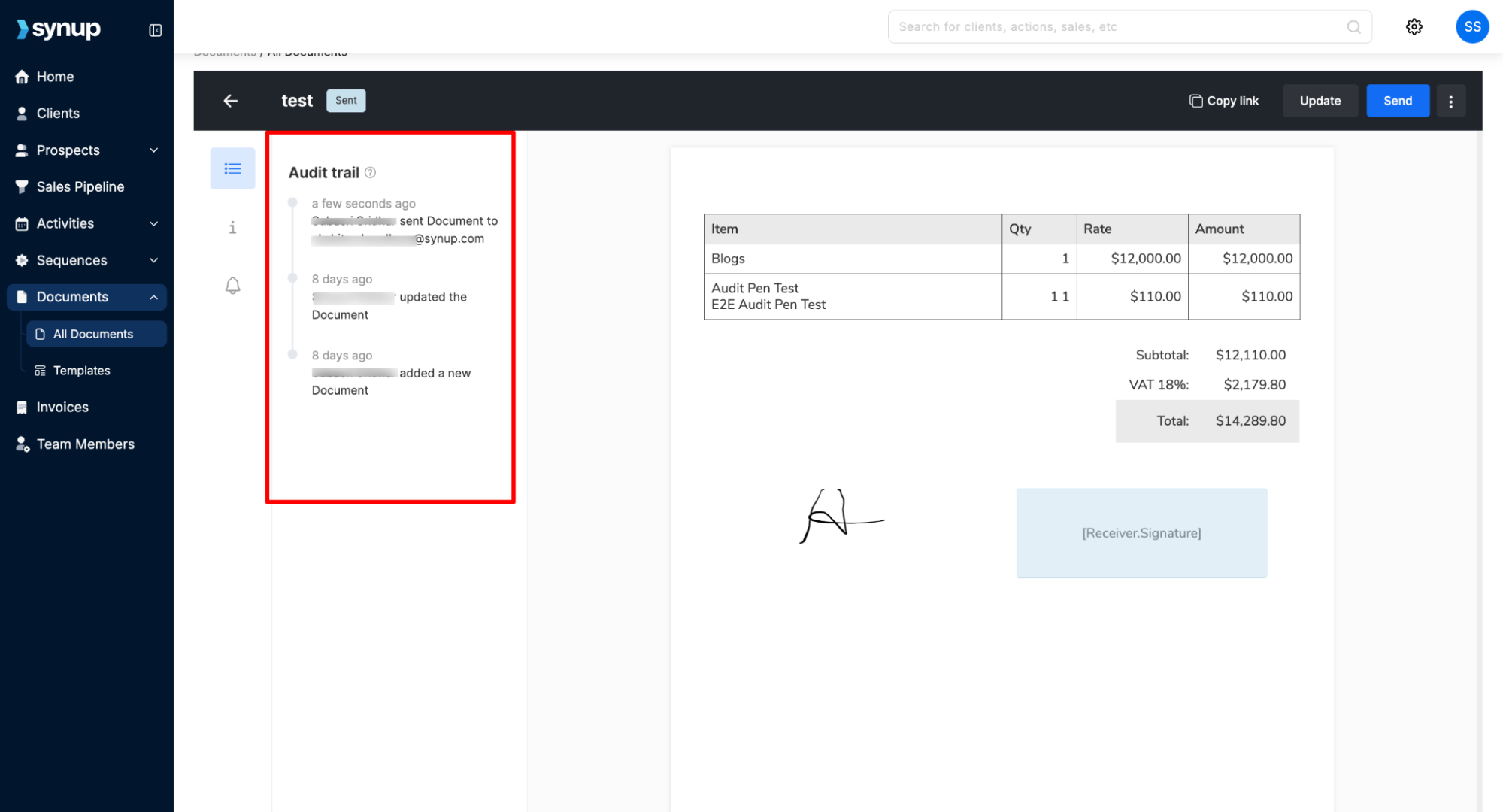
After sending, you can track the document's status in the right-hand panel, known as the Audit trail.
This panel provides a timeline of activities, including when the document was sent by you, opened, and viewed by the recipient.
It’s super easy to share documents with clients and track their status in Synup OS.
How to share and track a document
Last updated April 29, 2026 · 2 min read
Was this article helpful?