How to edit or delete a running email sequence
Managing email sequences effectively ensures your outreach is always optimized. In Synup OS, you can edit an existing email sequence to adjust content, timing, or steps, or delete it if it’s no longer needed. Follow the steps below:
Editing an Email Sequence
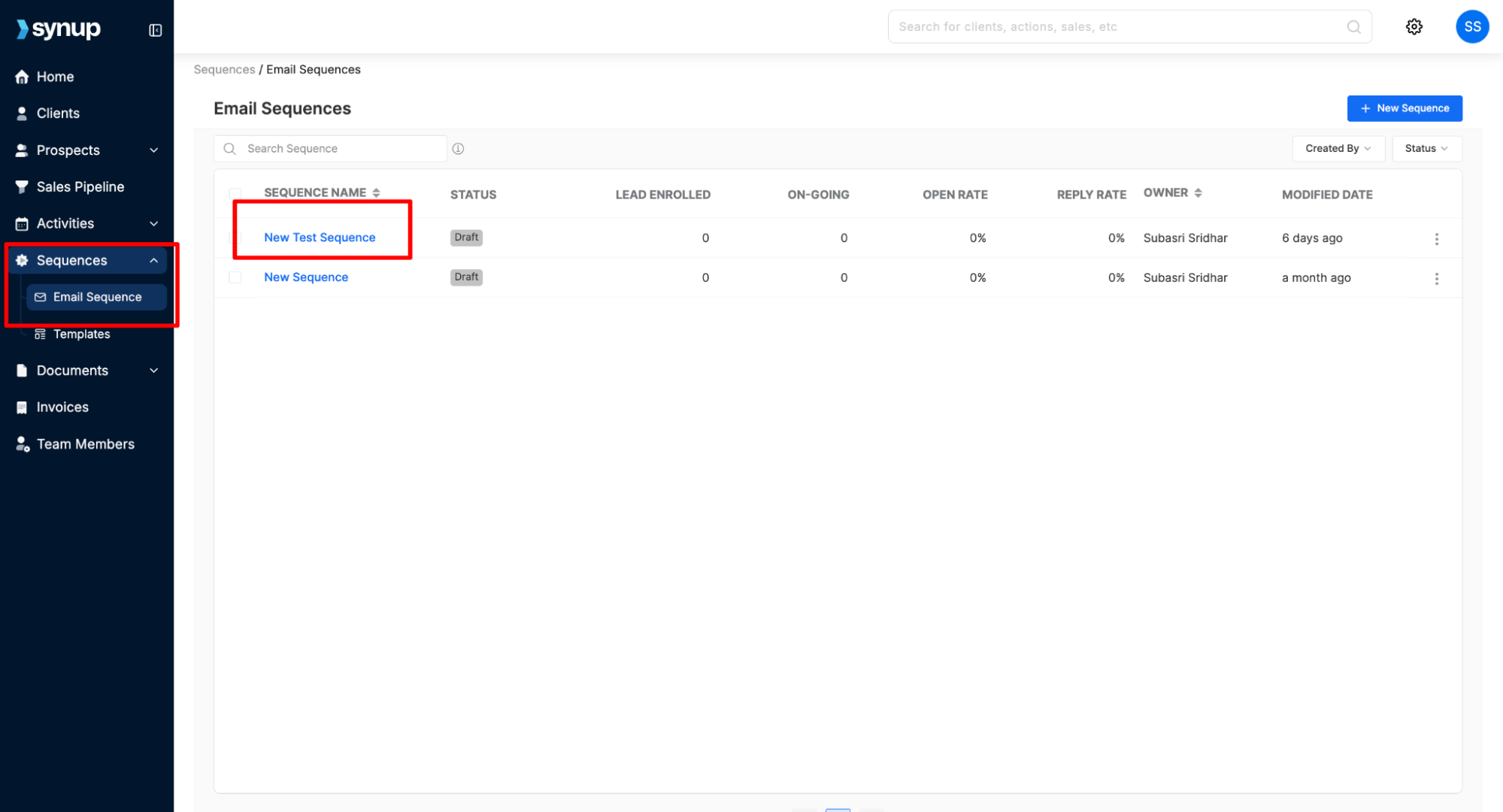
Go to Sequences
From the left-hand menu, click on Sequences > Email Sequence.
Open the Sequence
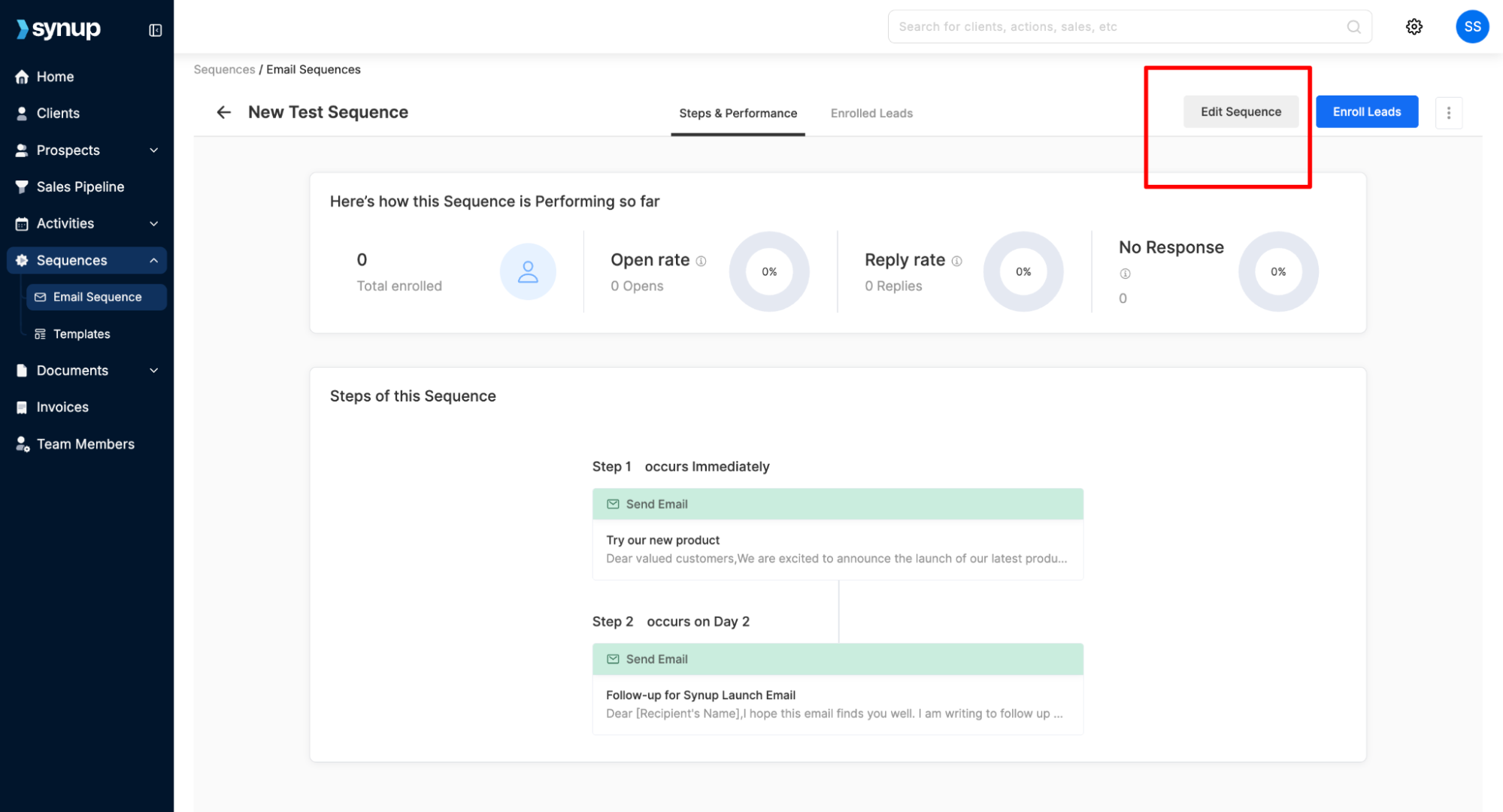
Click on the sequence you’d like to edit.Click Edit Sequence
On the top-right corner, click the Edit Sequence button.
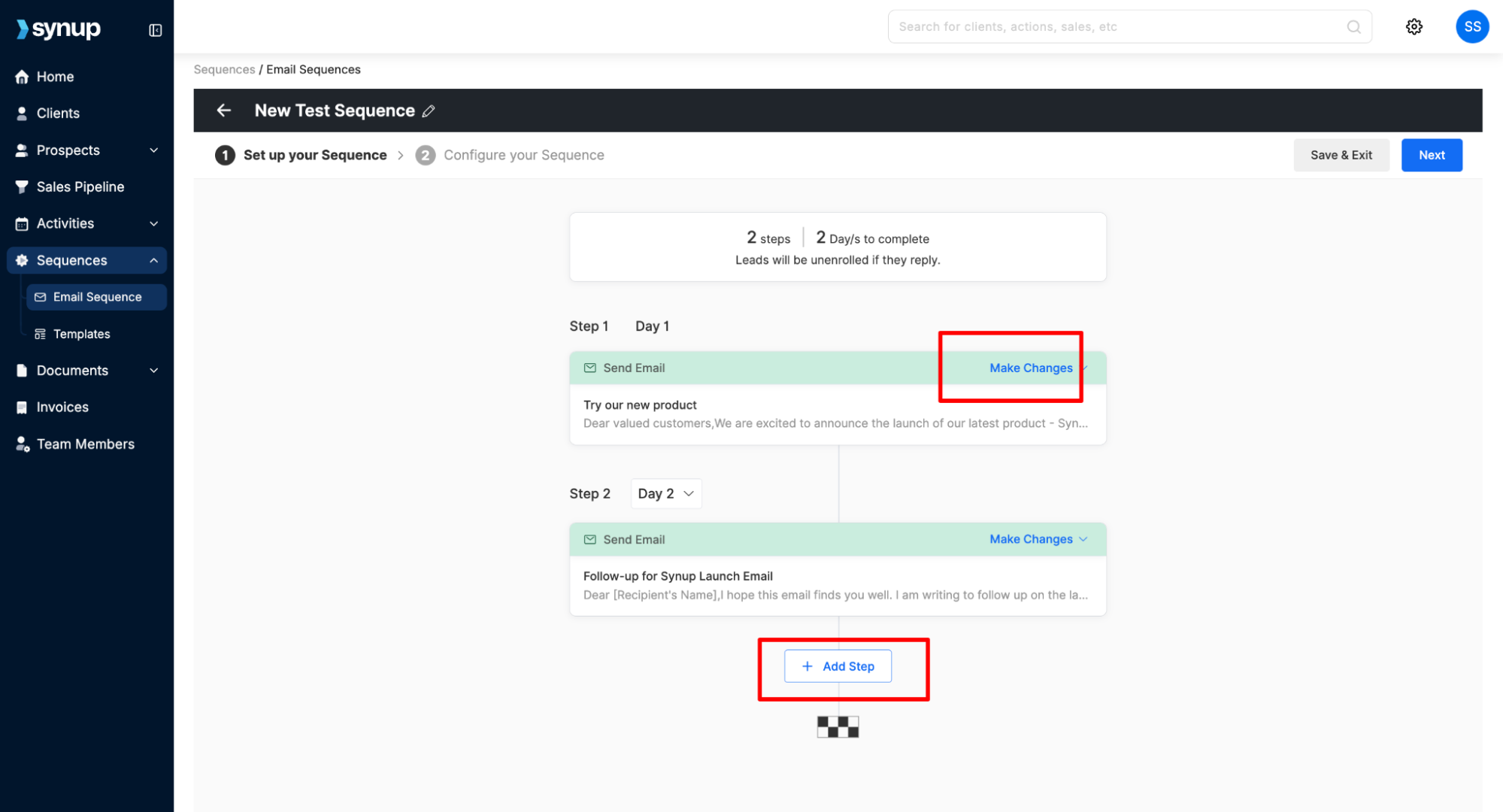
Make Changes to Steps
Hover over the step you’d like to edit and click Make Changes.
You can also add a new step by clicking + Add Step.
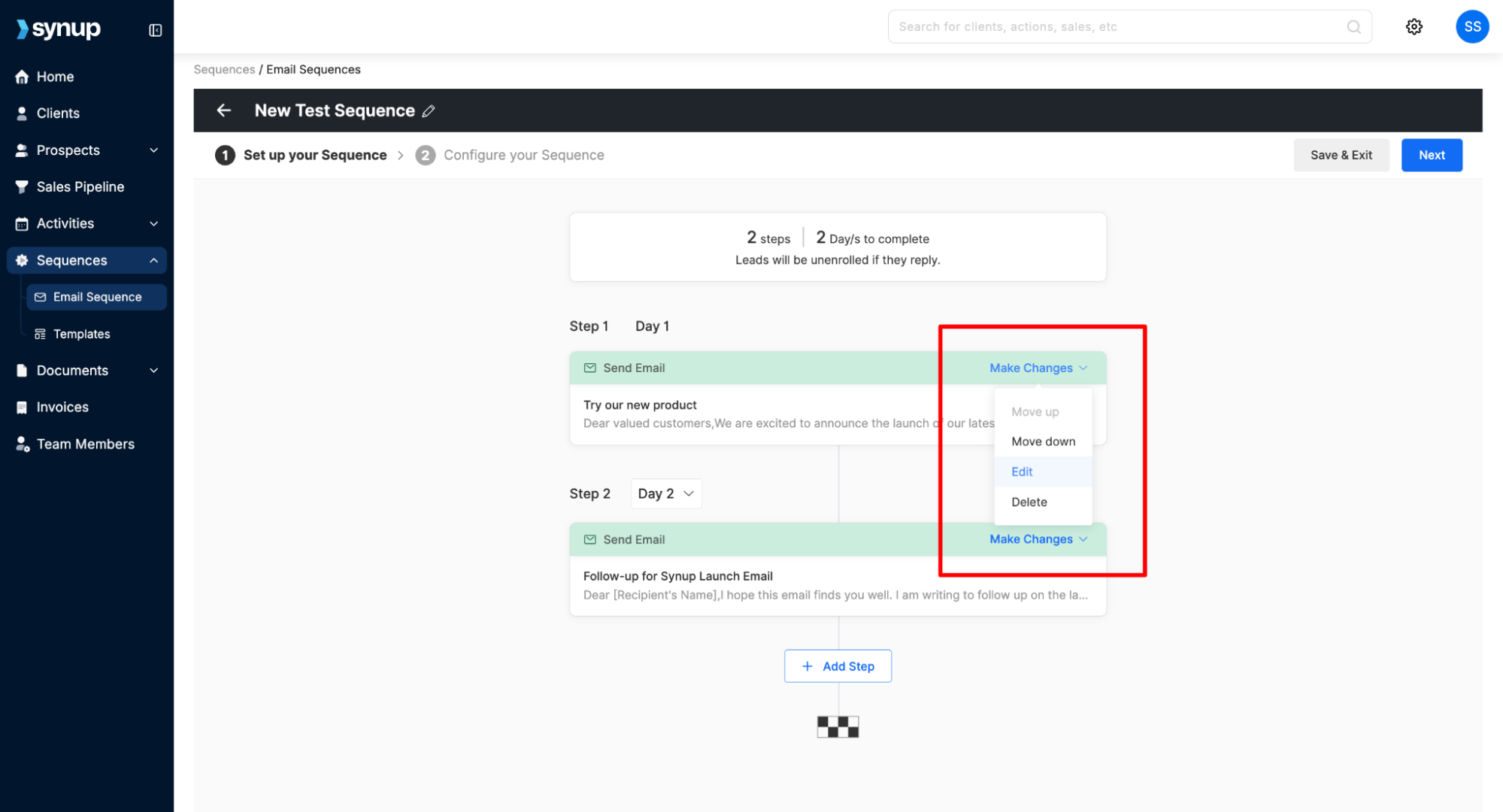
Edit or Delete a Step
From the dropdown, choose whether to Edit or Delete a step.
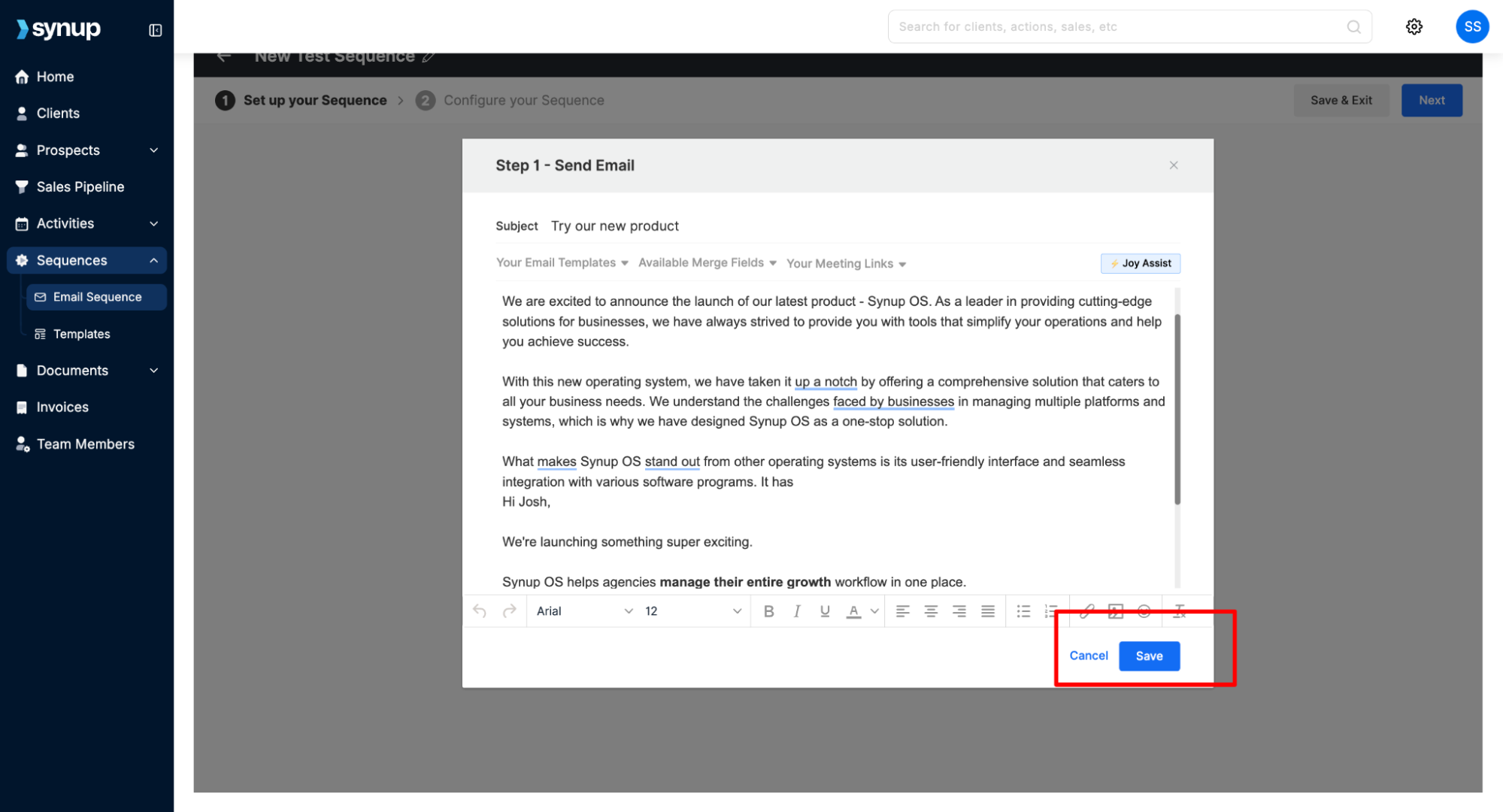
Save Email Content
After editing the email content, click Save to apply changes.
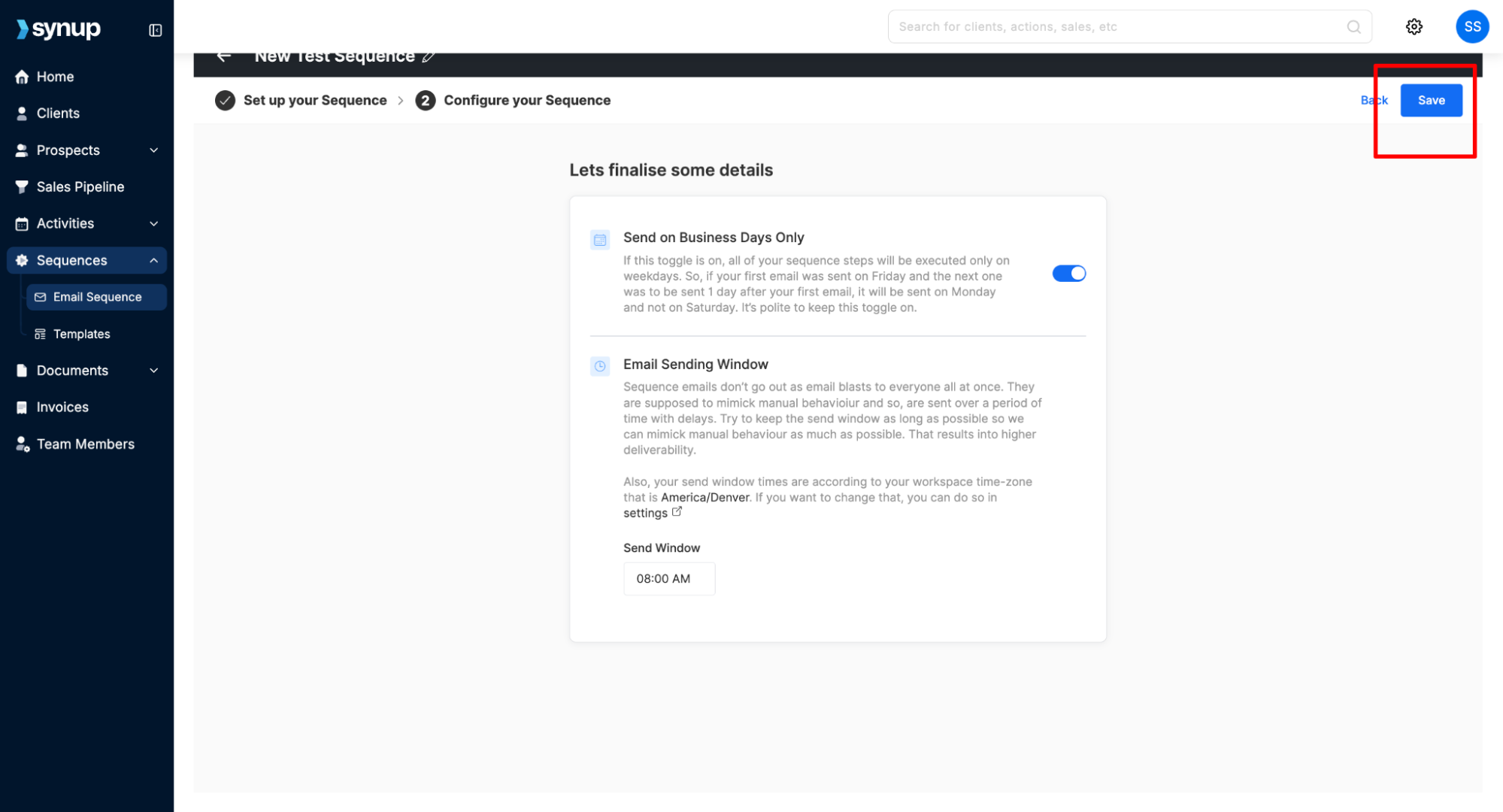
Finalize and Save
Once done, configure sending options if needed and click Save.
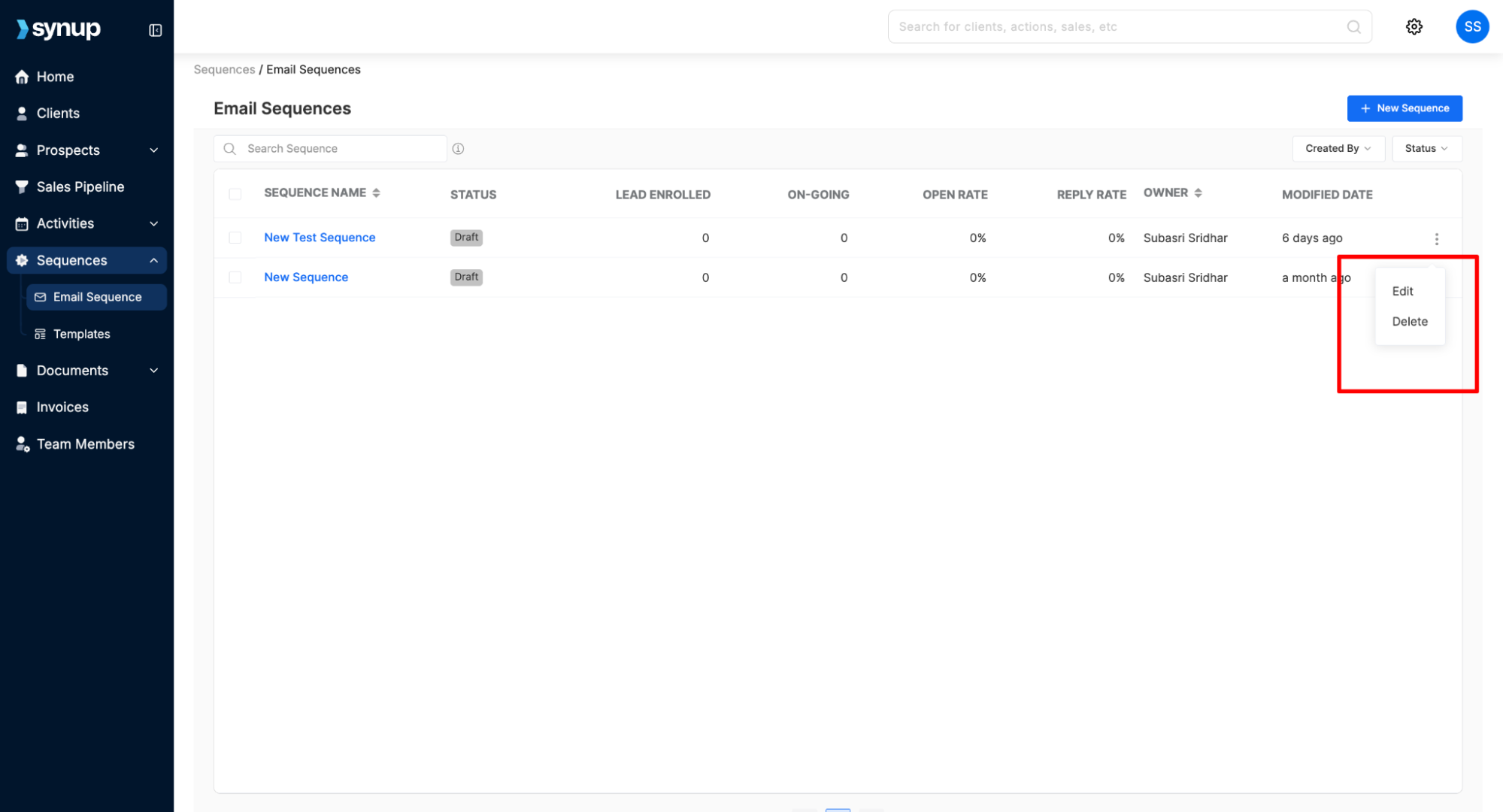
Deleting an Entire Sequence
If you want to completely remove a sequence:
Go to Sequences > Email Sequence.
Click the three-dot menu next to the sequence.
Select Delete.
✅ That’s it! You can now edit or delete email sequences in Synup OS with ease.
How to edit or pause a running email sequence
Last updated April 29, 2026 · 2 min read
Was this article helpful?