Keeping track of your tasks & activities in one view
Whether you’re scheduling meetings, assigning tasks, or syncing calendars, Synup OS makes it easy to manage everything from a single place. In this section, you’ll learn how to create, assign, and track activities so you and your team never miss a client update.
1. Navigate to activities
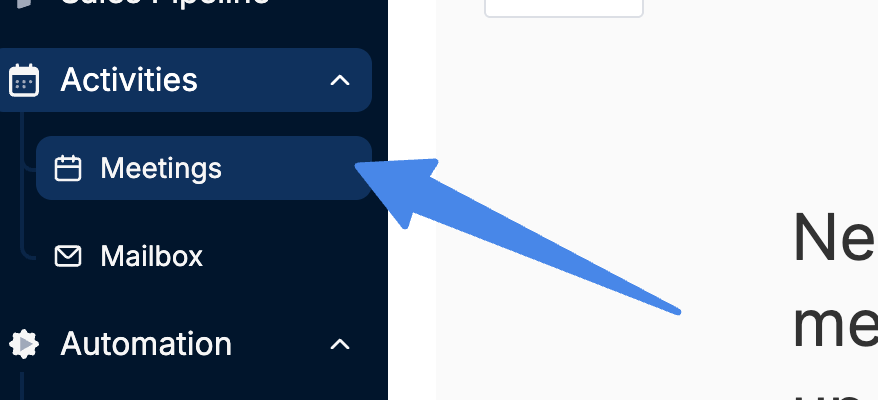
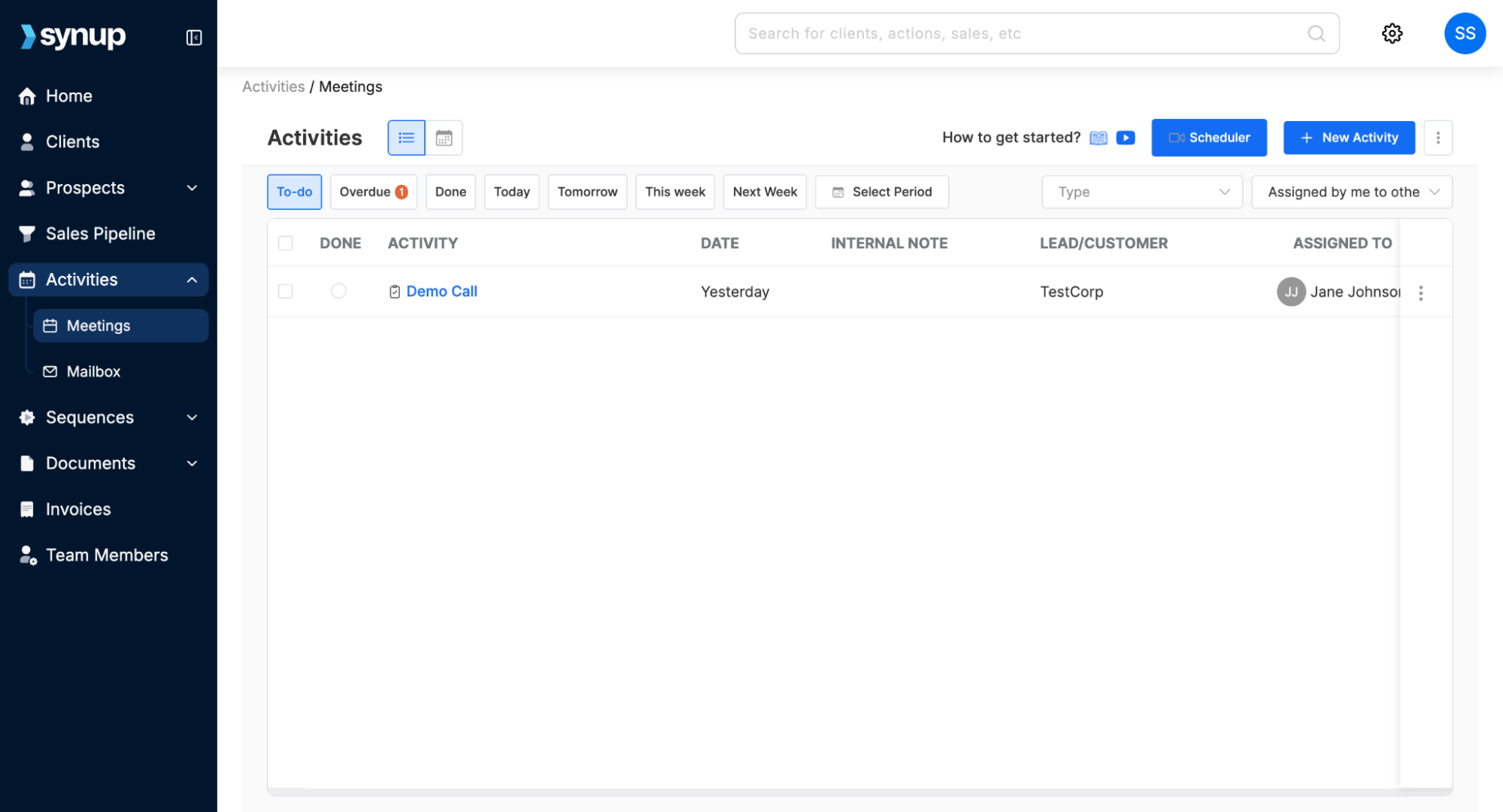
Navigate to your Synup OS dashboard and open the Meetings tab under the Activities section.
This tab shows you all your ongoing meetings and activities associated with your calendar.
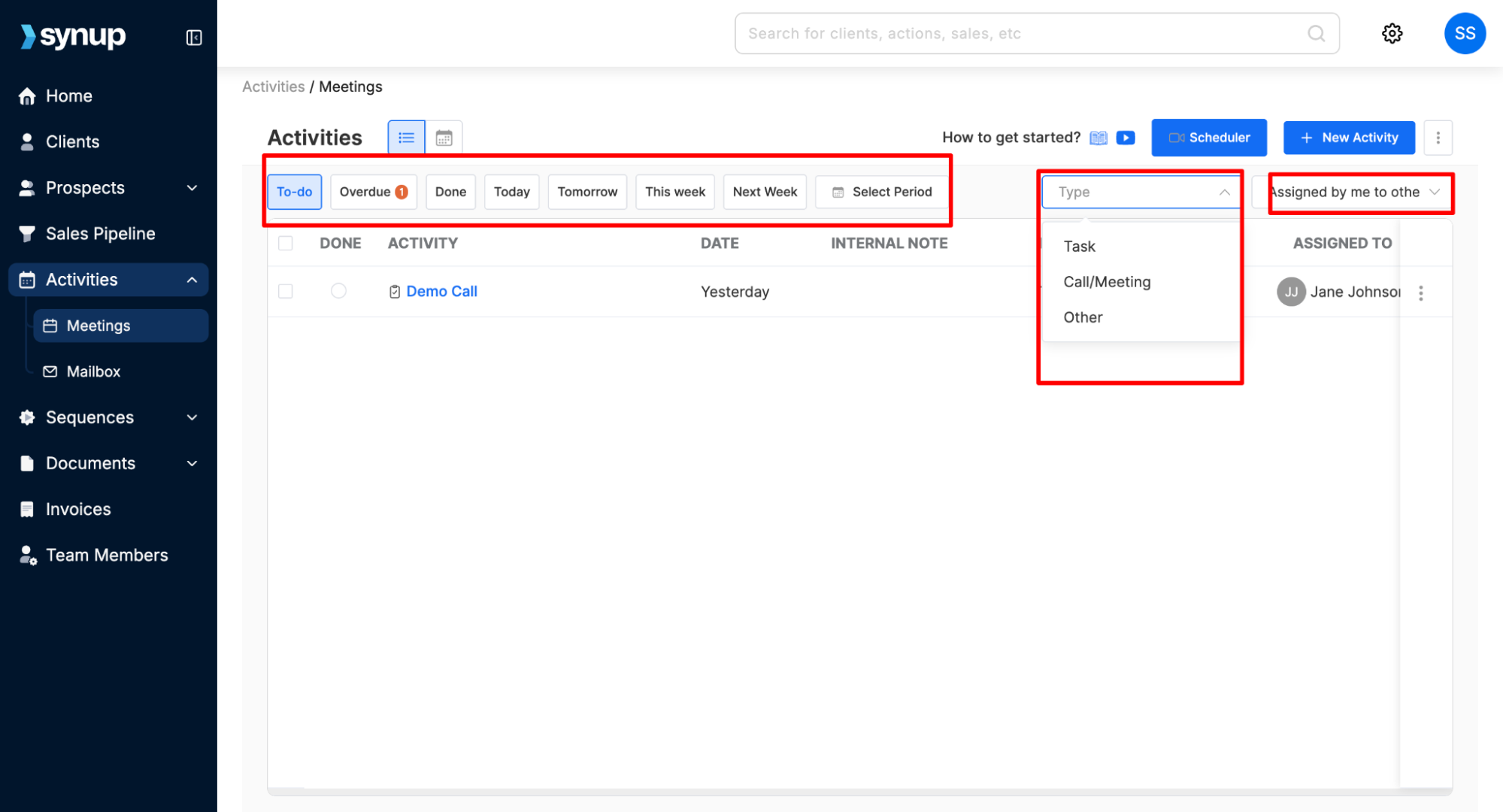
You can quickly filter your activities based on due date, type of activity, or assigned owners.
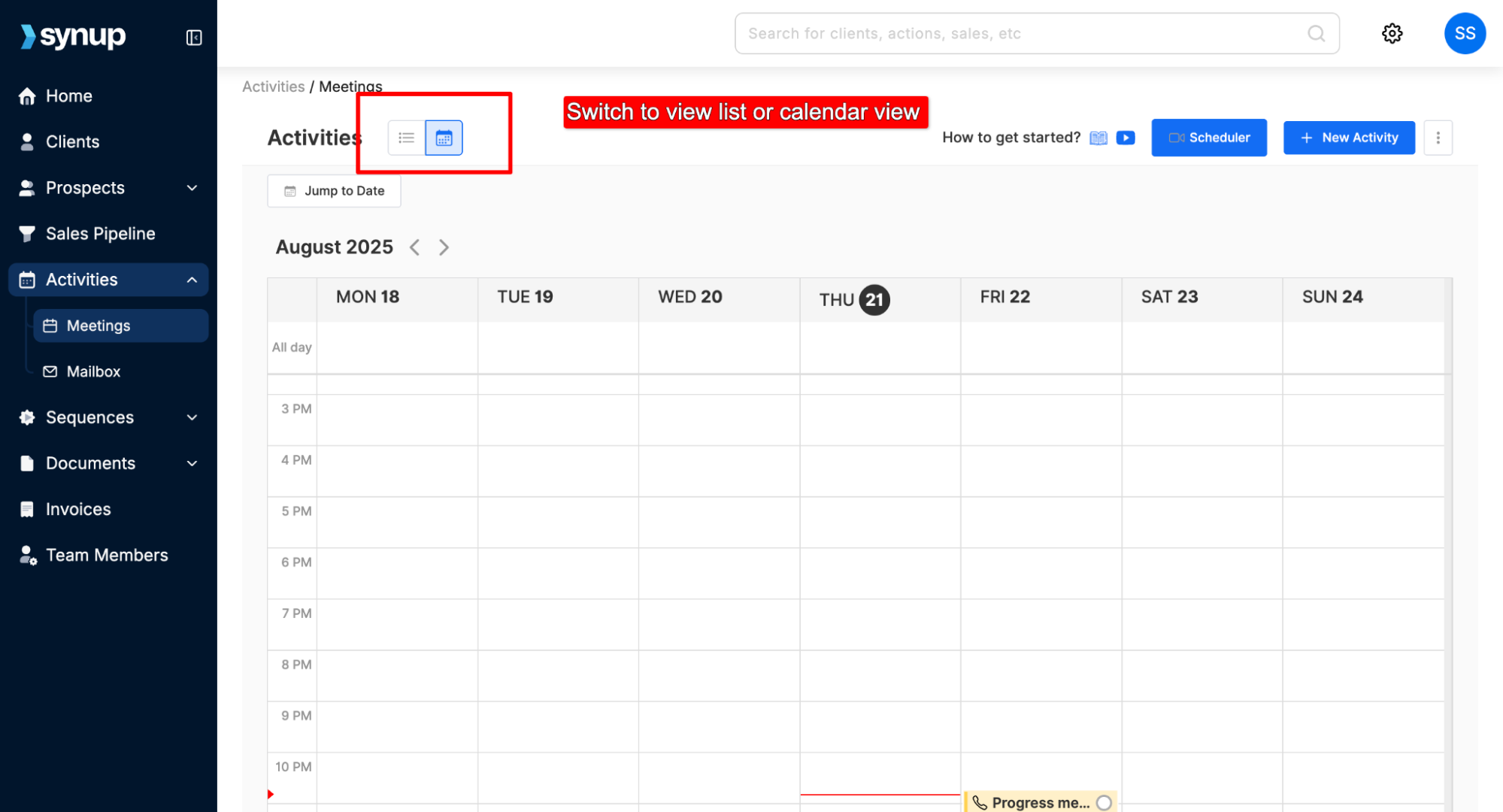
You can view all the activities both in list or calendar view
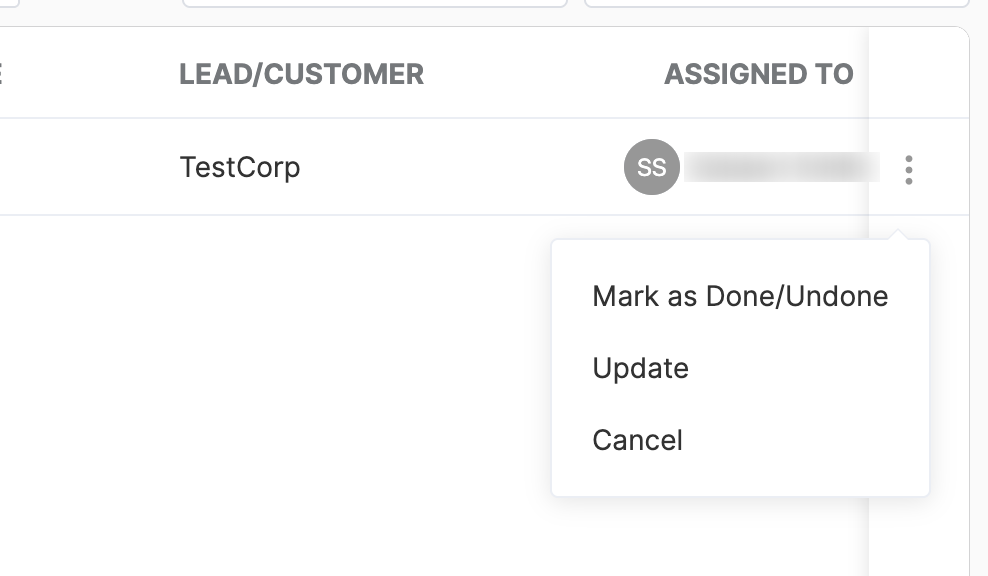
Click the menu icon next to any activity and mark it as done or update activity details.
All activities that you create in Synup OS are automatically added to the calendar you have synced with your OS account. So, you don’t need to go and edit your calendar separately.
Also Read: How to sync your calendar with OS
Keeping track of your tasks & activities in one view
Last updated April 29, 2026 · 1 min read
Was this article helpful?