Using Search Filters in Synup OS to Find SMB Prospects
Synup OS makes it easy for agencies to discover and qualify SMB (Small and Medium Business) prospects by using advanced filters. This guide explains each available filter so you can run precise searches and target businesses that match your ideal client profile.
Quick Read: How to search for prospects in OS
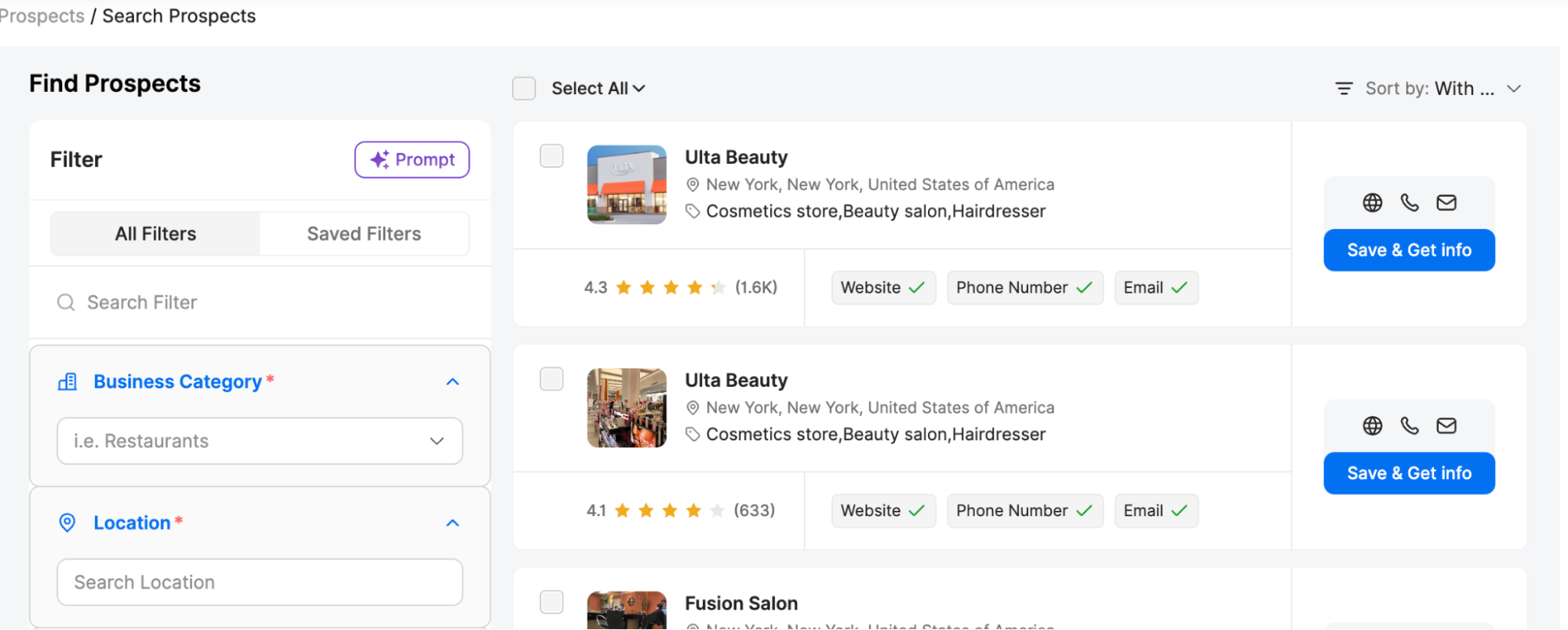
1. Basic Filters
Business Category (Required)
Define the industry of the business you’re searching for (e.g., Restaurants, Salons, Gyms).
Location (Required)
Enter the city, state, or area where you want to search.
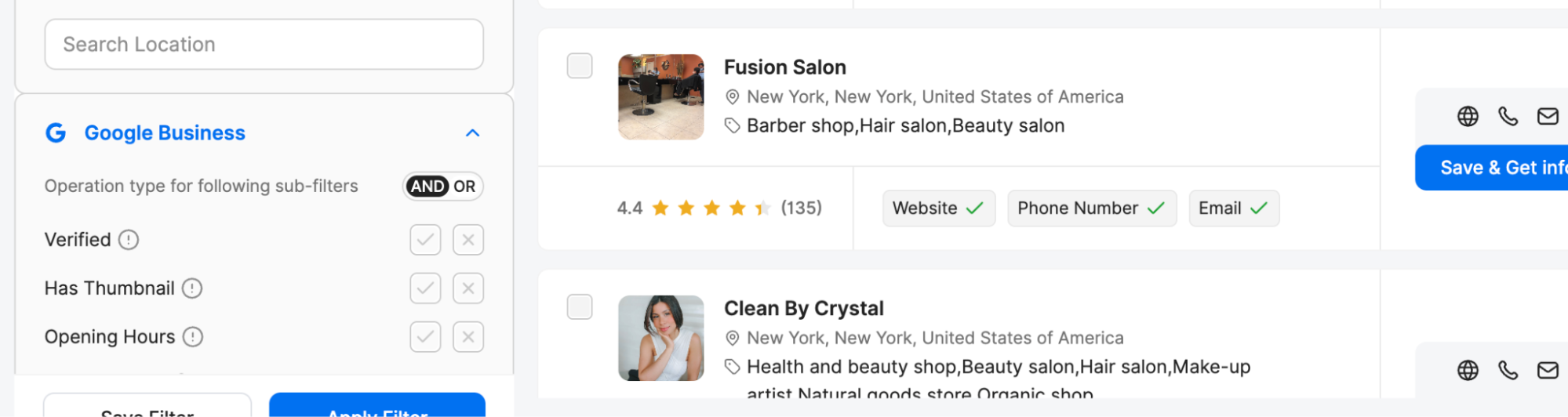
2. Google Business Filters
Verified: Show only businesses that have a verified Google Business Profile.
Has Thumbnail: Filter for businesses with a display image/logo.
Opening Hours: Select businesses with published opening hours.
No. of Photos: Filter based on how many photos are listed on their Google profile.
Note: Use the AND/OR toggle to refine whether businesses must meet all criteria or any one of them.
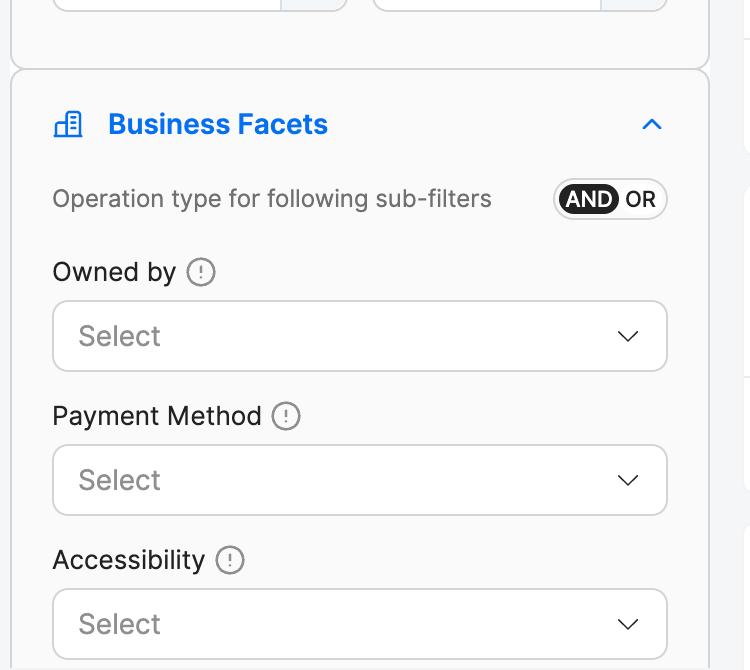
3. Business Facets
Owned By: Identify businesses based on ownership type.
Payment Method: Filter based on accepted payment types (e.g., Credit Card, Cash, Digital Wallets).
Accessibility: Businesses with wheelchair access or other accessibility options.
Amenities: Search by available facilities (e.g., Wi-Fi, Restrooms).
Crowd Friendly: Filter for businesses that are family-friendly, LGBTQ+ friendly, etc.
Planning: Businesses that allow reservations, walk-ins, etc.
Services: Find businesses offering specific services.
Highlights: Unique attributes of the business (e.g., women-owned, locally-owned).
Parking: Businesses with parking options (street, lot, valet).
Recycling: Environmentally conscious businesses offering recycling.
Children: Kid-friendly businesses.
Offerings: What the business sells/offers (e.g., vegan food, cocktails).
Dining Options: Dine-in, takeout, delivery.
Atmosphere: Casual, upscale, cozy, etc.
Popular For: Special occasions like breakfast, nightlife, etc.
Pet: Pet-friendly businesses.
Getting Here: Transportation details (e.g., near metro, parking available).
Activities: Businesses offering experiences/events.
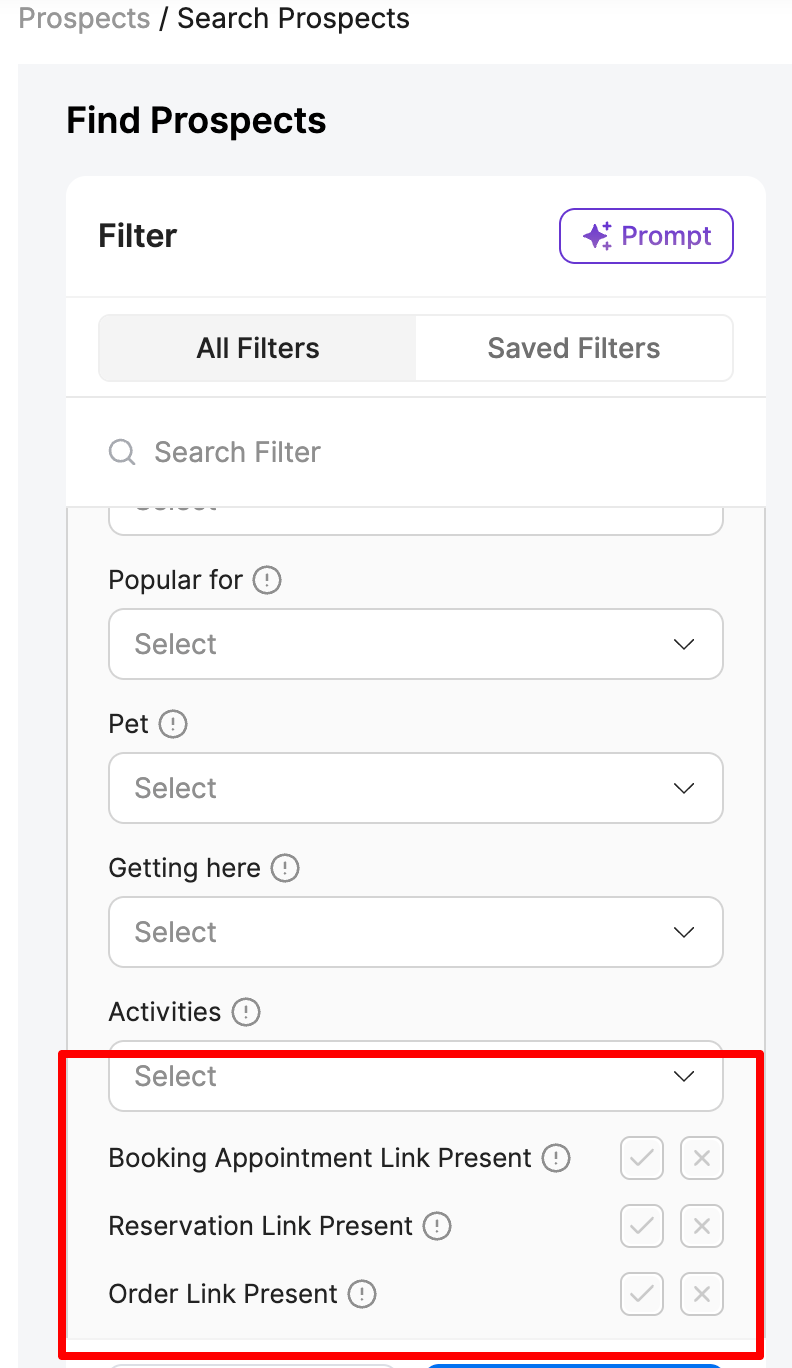
4. Links & Online Presence
Booking Appointment Link Present: Businesses with booking links.
Reservation Link Present: Restaurants/venues with reservation options.
Order Link Present: Businesses with online ordering enabled.
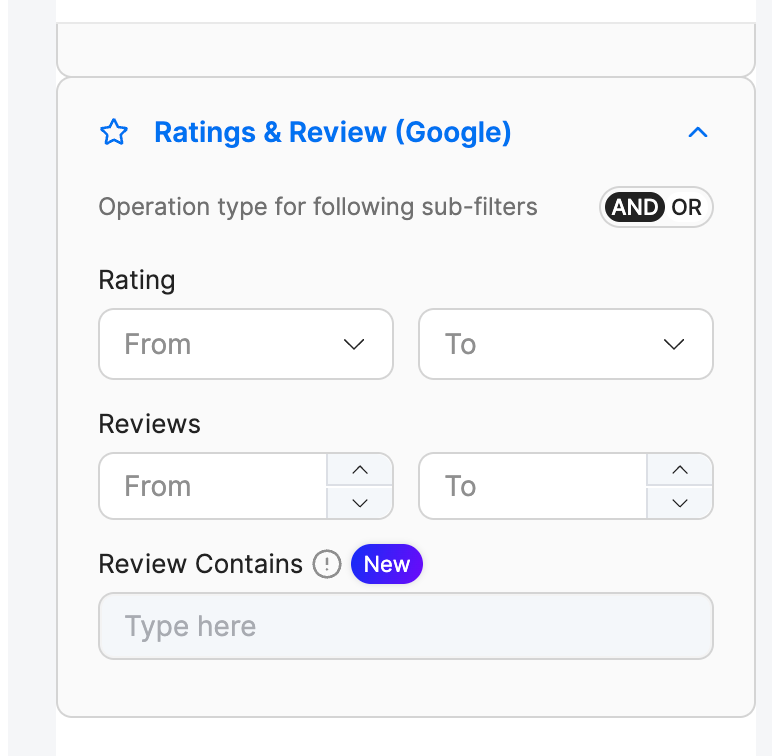
5. Ratings & Reviews (Google)
Rating: Filter by Google rating range (e.g., 3.5 to 5 stars).
Reviews: Filter by number of reviews.
Review Contains: Search reviews containing specific keywords (e.g., "service" or "clean").
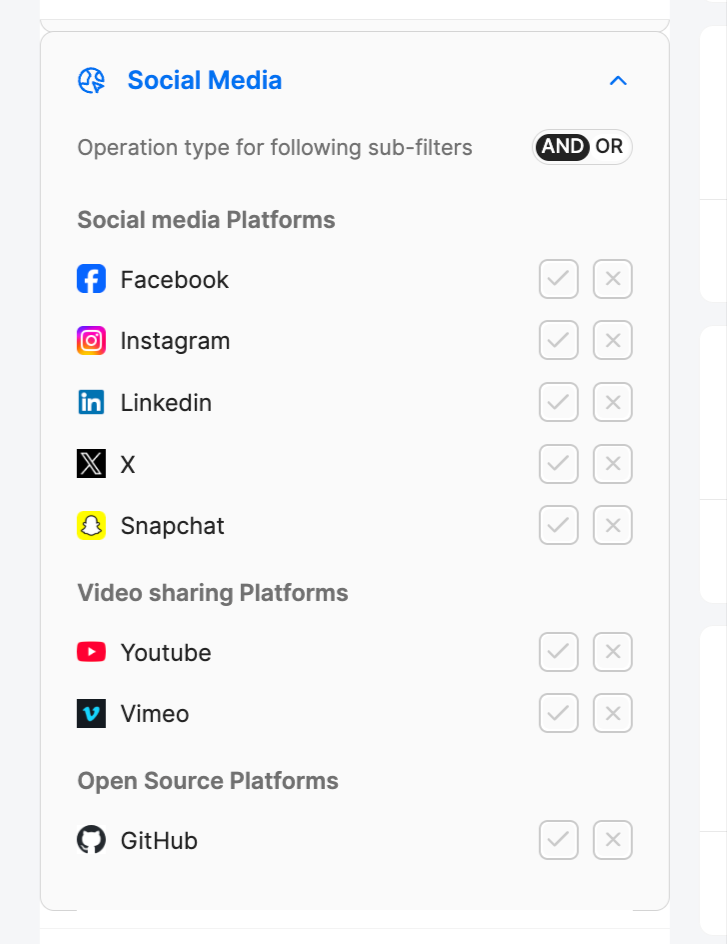
6. Social Media Presence
Target businesses based on their active social platforms:
X (Twitter)
Snapchat
YouTube
Vimeo
GitHub (for tech-related businesses)
7. Blogging Platforms
Medium
8. Website & Technology
Website: Check if the business has a website.
CMS: Identify which CMS the website uses (e.g., WordPress, Wix).
E-commerce: Detect if the business uses Shopify, WooCommerce, etc.
9. Analytics & SEO
Analytics: Check if the website has Google Tags or Facebook Pixel.
SEO: Filter businesses with website title, description, or keywords present.
10. Chat Platforms
Telegram
How to Use Effectively
Start with Business Category + Location (mandatory fields).
Layer Google Business filters to find prospects with a verified online presence.
Use Business Facets to refine based on amenities, services, or customer-friendliness.
Add Ratings & Reviews to qualify high-performing businesses.
Leverage Social Media & Website filters to identify digitally active SMBs.
✅ With these filters, agencies can create a highly targeted list of SMB prospects that are easier to pitch services to, whether it’s digital marketing, SEO, social media management, or website development.
Prospect Search Filters Guide
Last updated April 29, 2026 · 3 min read
Was this article helpful?