The media manager is an asset library to help you manage media across multiple locations/brands.
From the media manager you can manage the following:
Upload media that can be used across locations
Assign existing media to locations
Organize all your media assets using tags and categories
We currently support images and videos as media items that you can to your locations. Before you upload media to your locations, we recommend going over our media guidelines to ensure your images appear their best online. You can read more about our media guidelines here.
To get started with adding media to your locations:
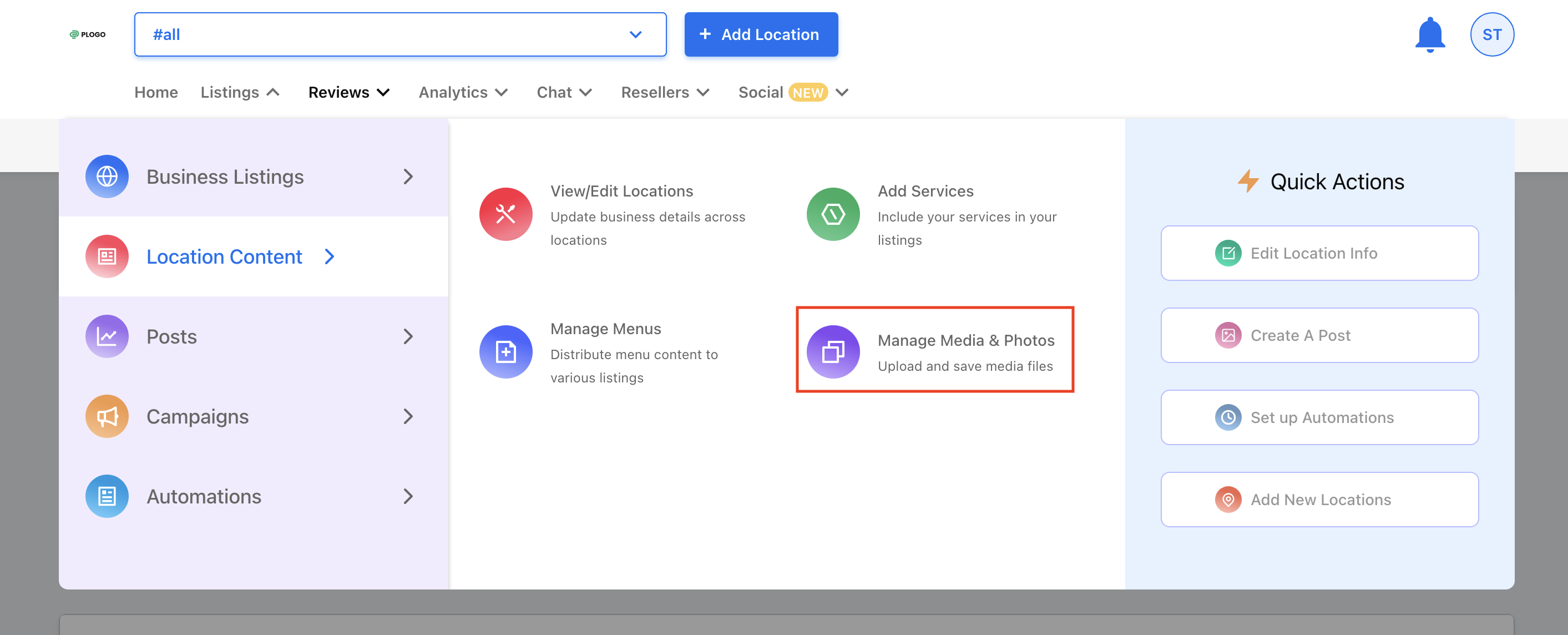
Access the media manager by clicking Location Content and selecting Manage Media & Photos.
Click Upload Media displayed in the top right corner. 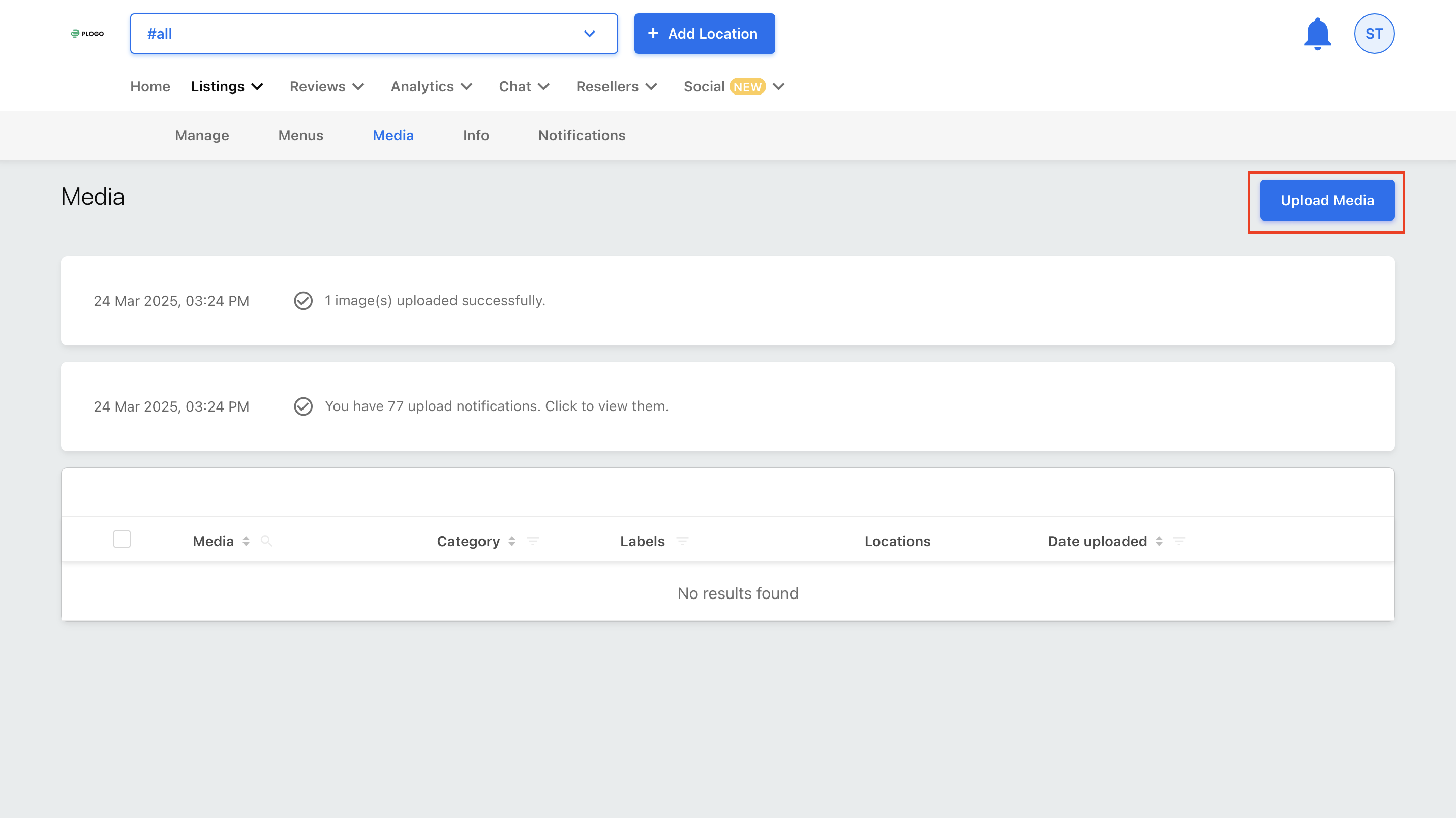
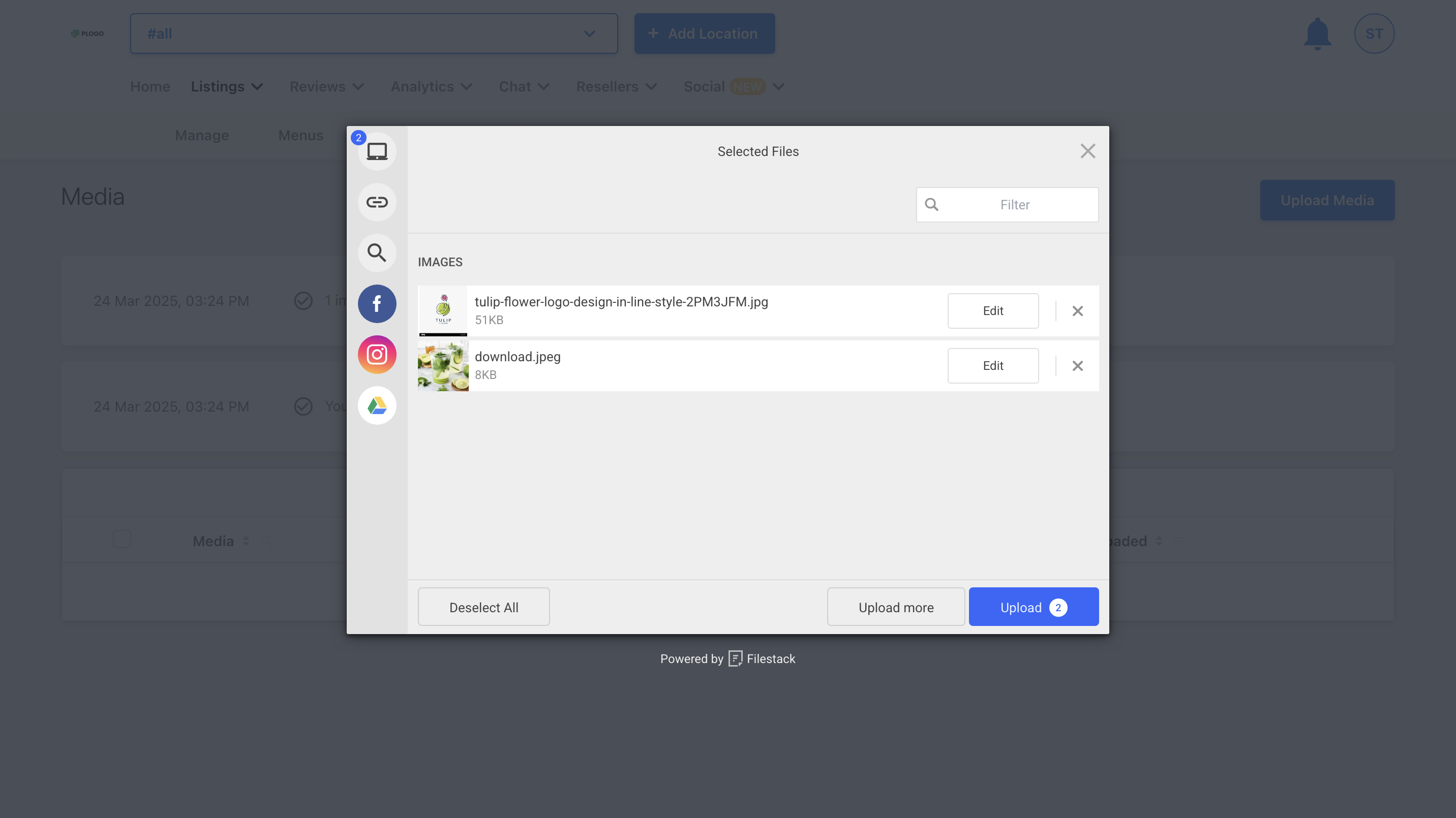
Select the images or videos you want to upload.
You have an option to upload images from the following sources:
- Add image from your device
- Insert image link
- Search the web to add relevant image
- Add image from your Facebook page
- Add image from your Instagram
- Import image from your Google drive
To upload more that one image click on the Upload more option.
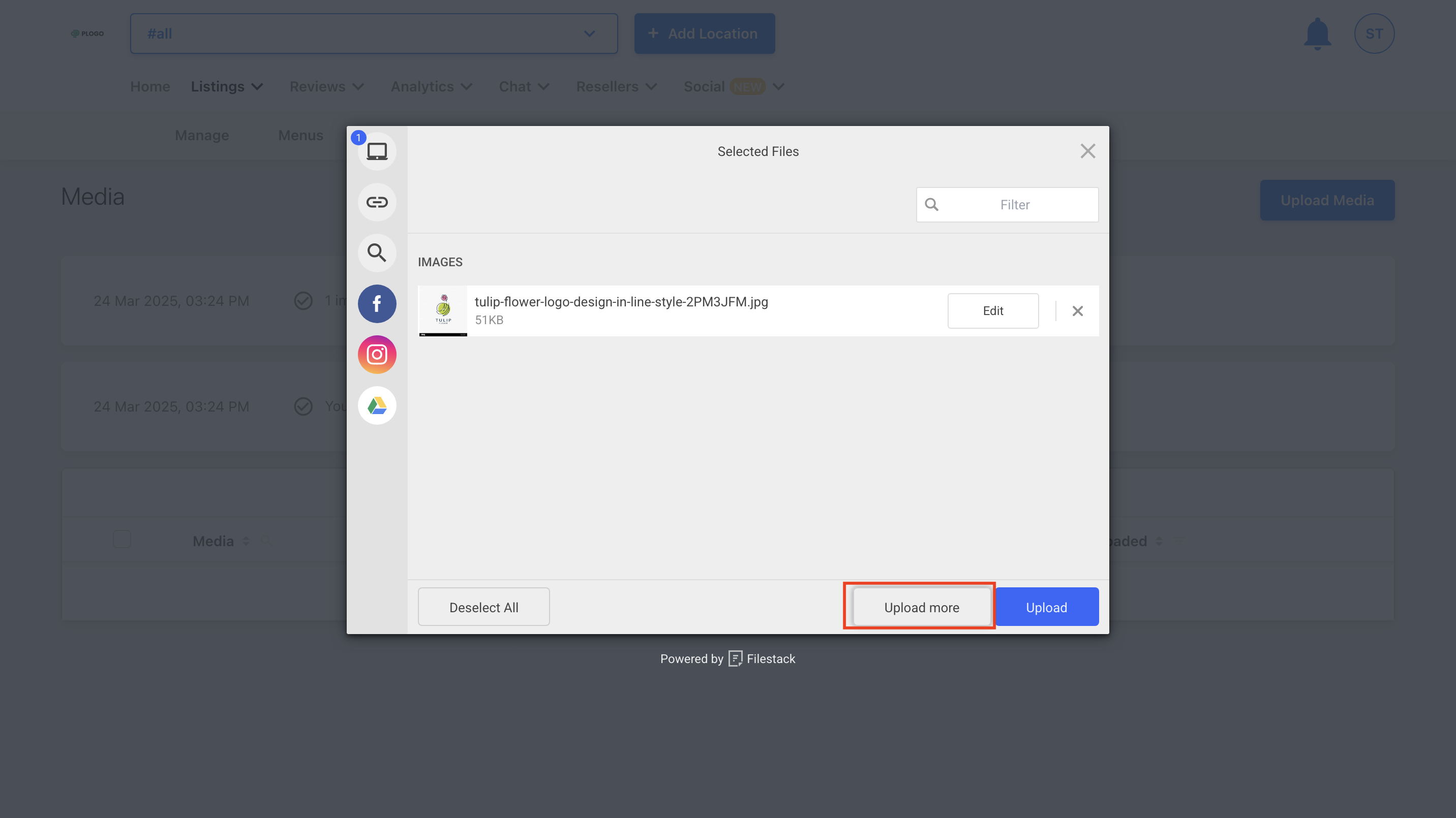
Click on Upload to upload the images.
Once the selected files are successfully uploaded you can rename the photos or videos to help optimize your search when looking for these images/videos later.
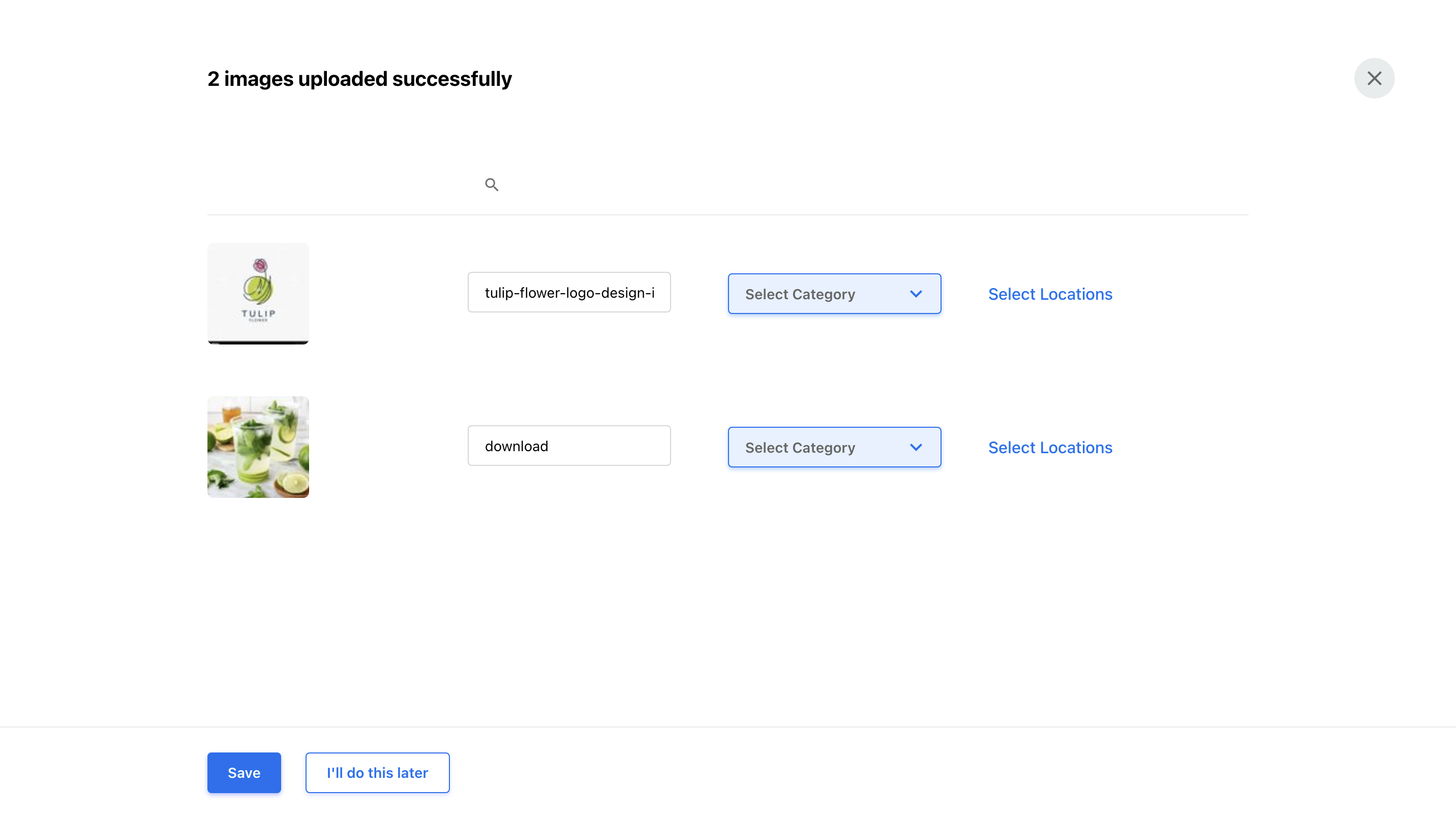
Assigning Media to a Category
We’ve also introduced media categories as a distinct way to highlight certain types of images. Some common media categories include:
- Cover Photo: The main image that appears on the business profile.
- Profile Photo: A smaller version of the cover photo, often used as the business's logo.
- Logo Photo: A separate photo of the business's logo.
- Exterior/Interior: Photos of the outside and inside of the business.
- Product: Photos of the business's products.
Food & Drink: Photos related to food or drinks offered by the business.
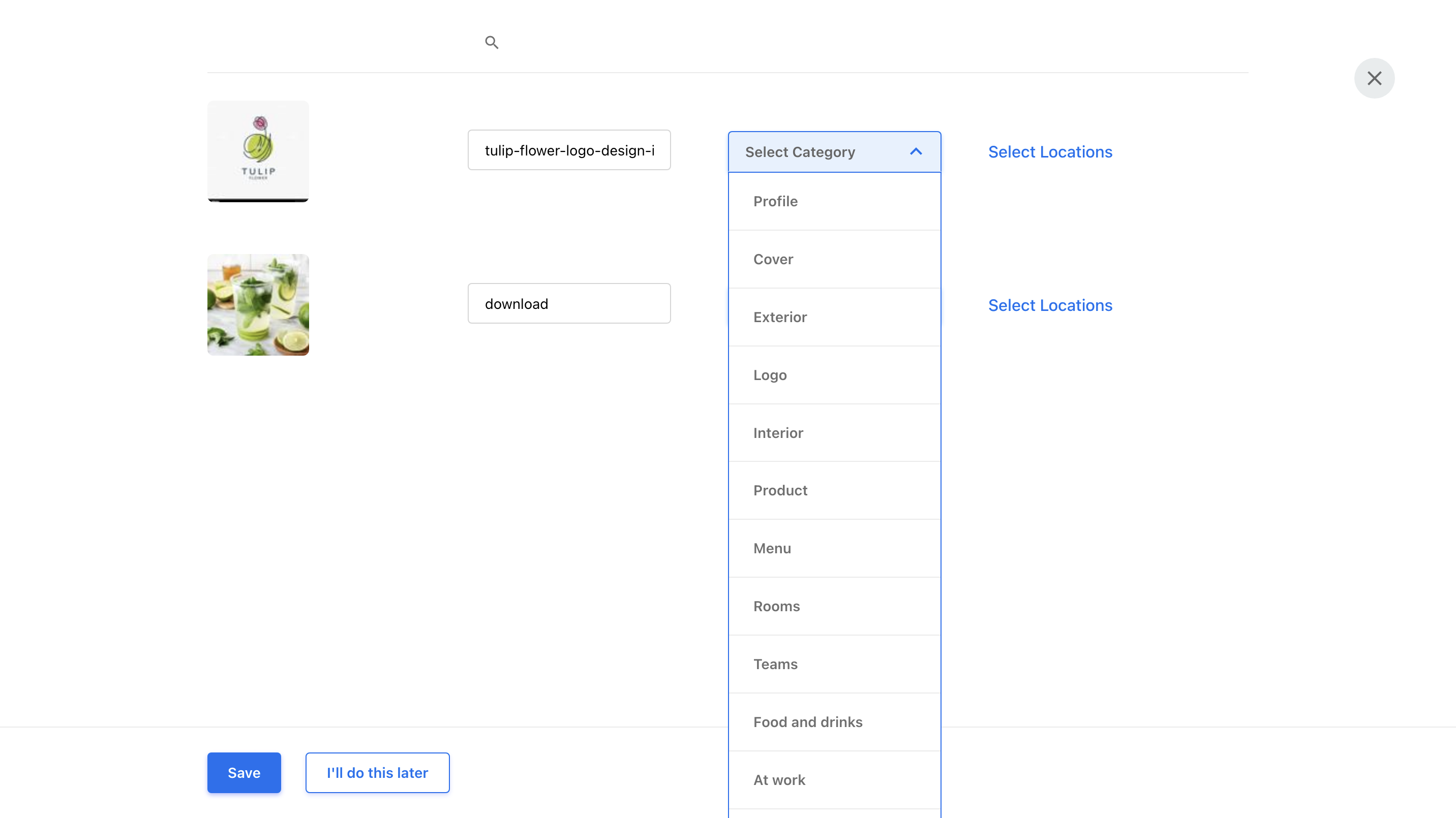
Click the drop-down tab under Category and choose from the options. Click Apply for all items if all the media items you’ve uploaded belong to the same category.
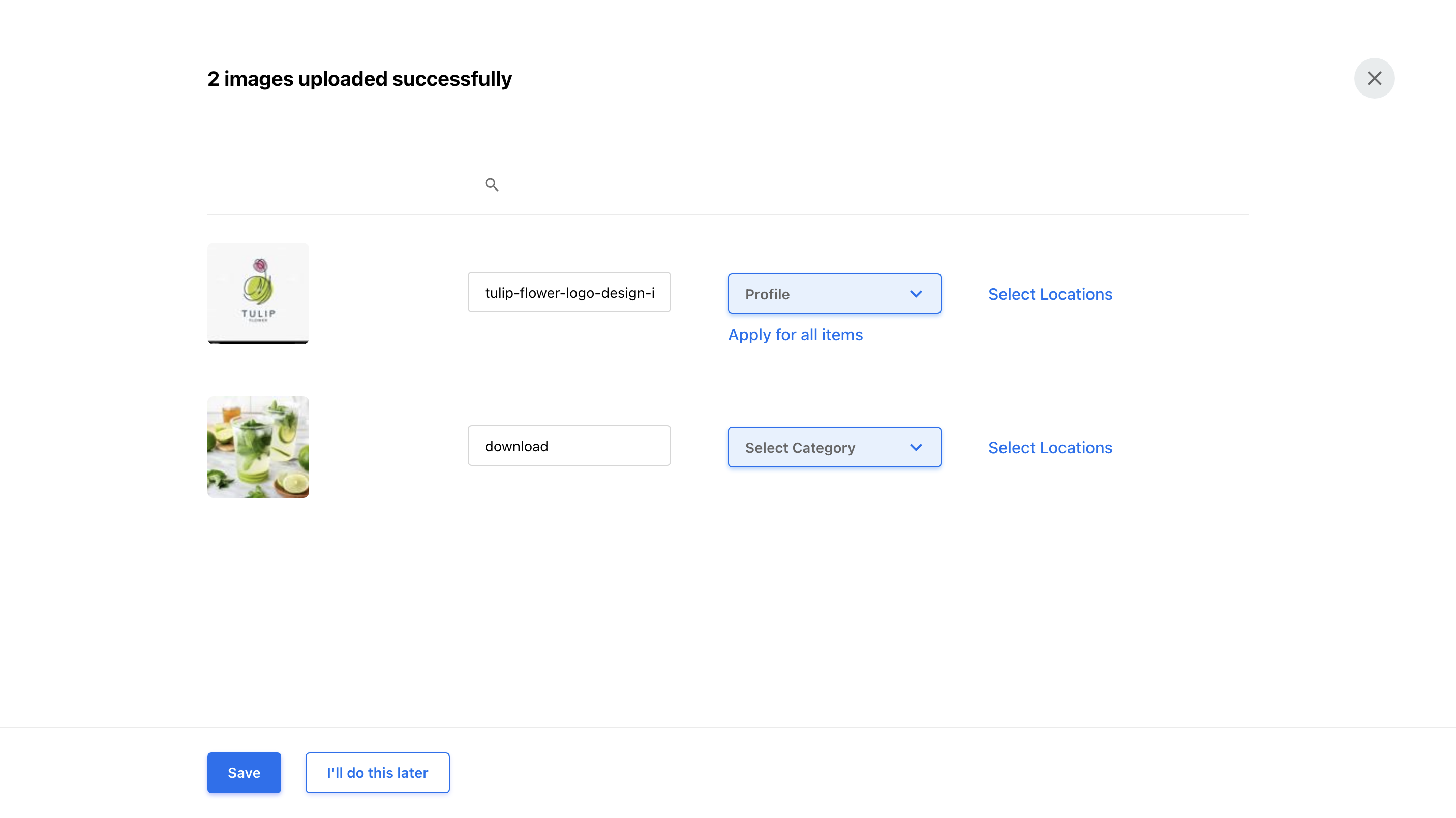
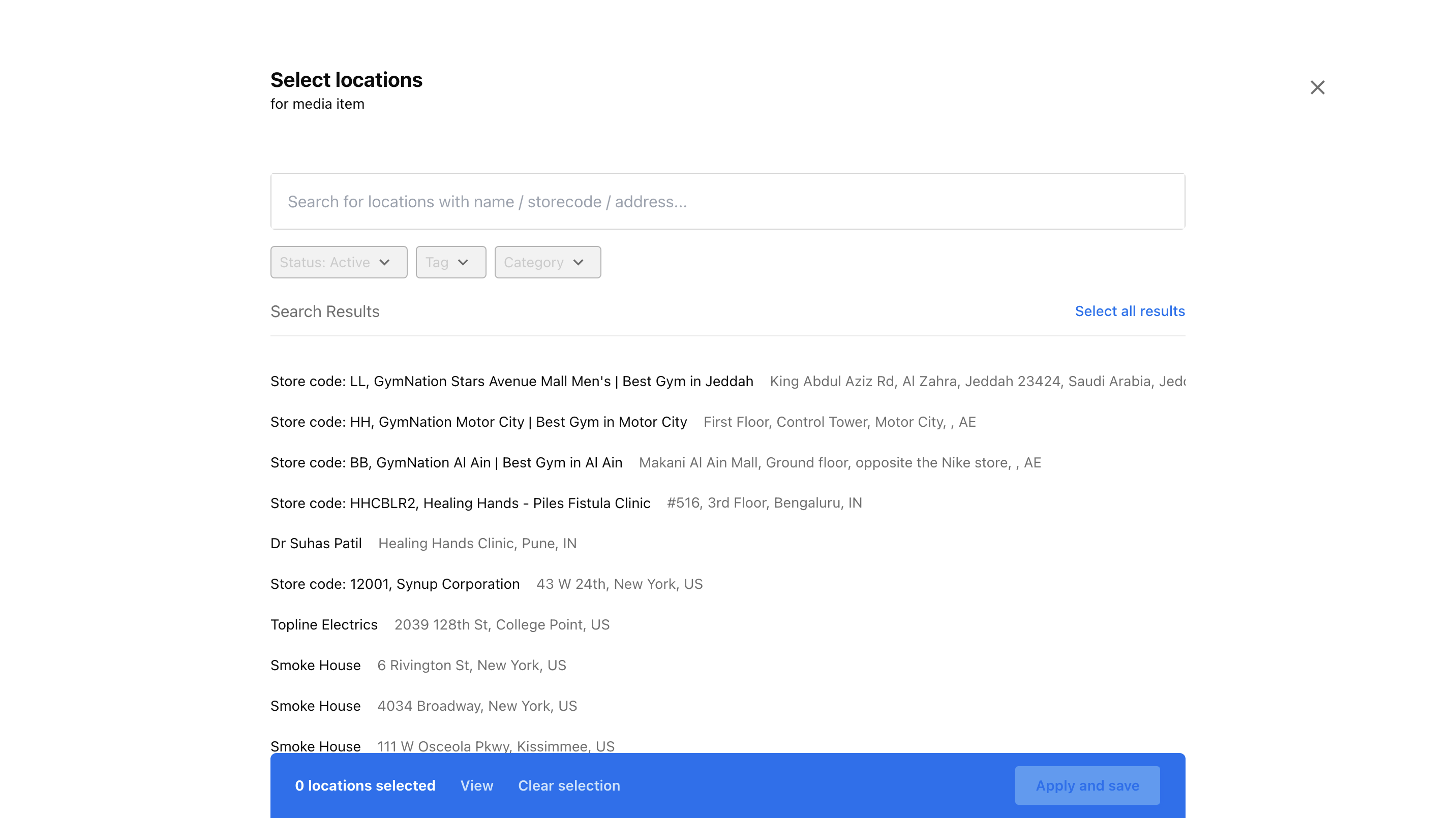
Assigning media to Locations
You can assign the media you’ve uploaded to multiple locations within the account. Click the drop-down tab under Location and choose from the options. You can use the filter to search for locations by country, folder, etc. Click View at the bottom to view all the locations you’ve selected. Click Apply and Save.